
In brief
The Runs tab lists every time your prompts were asked, newest first. Open a run to read each AI engine's answer, see whether it named you and where, which pages it cited and which competitors it mentioned.
Key points
- Each row is one run of one prompt across its engines.
- The engine pills show at a glance which engines named you.
- Open a row to read each engine's answer with its sources and the competitors it named.
- pos. shows the sentence your business is first named in, so a lower number means named earlier.
- Analyse next to a cited link opens it in the URL Analyser on the Competitors tab.
- The page shows your latest 100 runs.
The steps at a glance
- 1
Open the Runs tab
Go to GEO Monitor and click Runs.
- 2
Scan the list
Each row shows the prompt, its category, when it ran, a Visible summary and a pill for each engine.
- 3
Open a run
Click a row to expand it and read each engine's answer.
- 4
Check sources and competitors
Under each answer, read the Cited URLs and Competitors mentioned.
- 5
Look at a cited page
Click Analyse next to a cited link to see its title, headings and word count.
The Runs tab is where you read the actual answers. Every time a prompt is asked on its engines, that is one run. This page lists your runs, newest first, and lets you open each one to see exactly what every AI engine said. Use it when a number on the dashboard surprises you and you want to see the answers behind it.
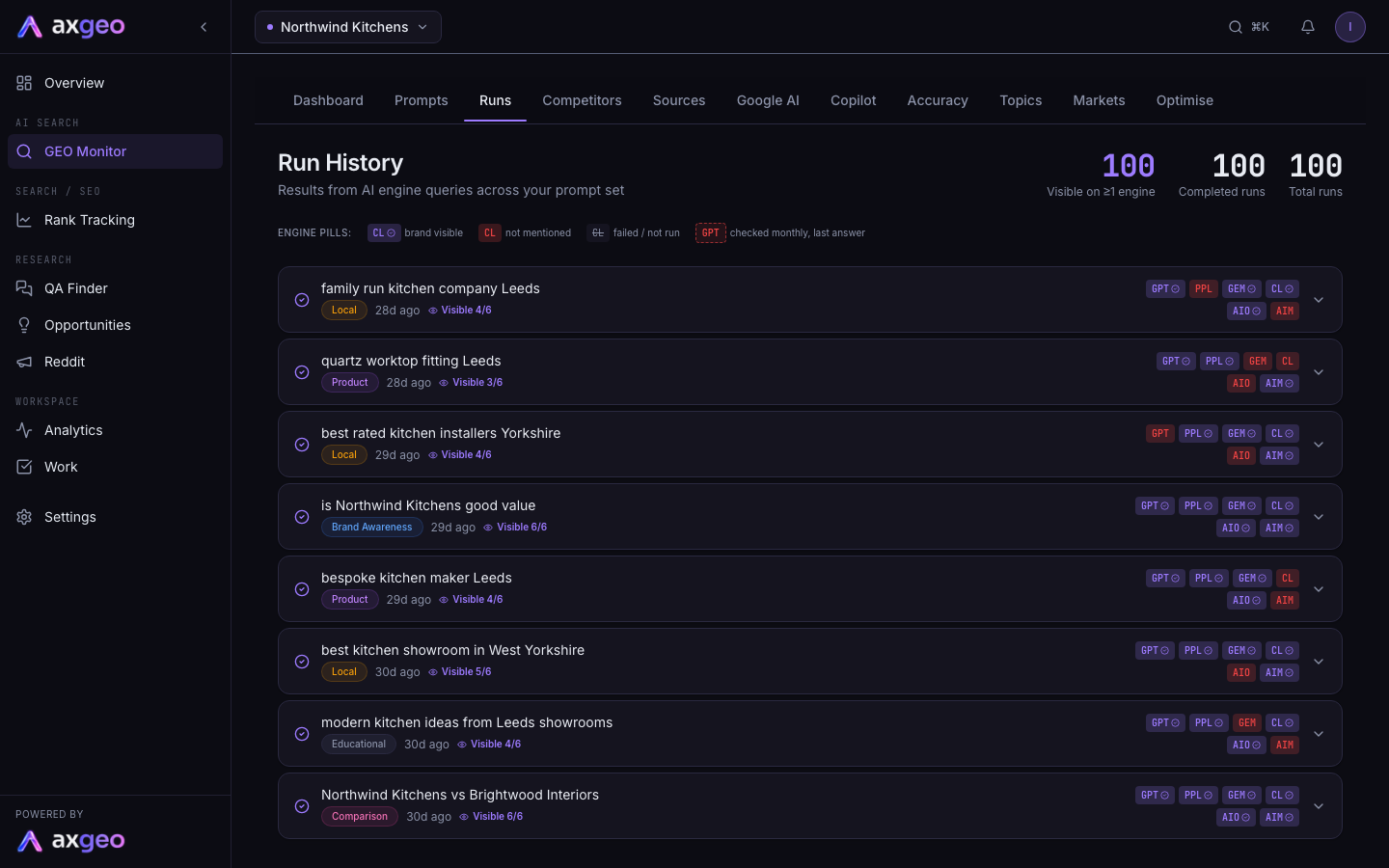
How to read a run
- Go to GEO Monitor and click the Runs tab. The page is headed Run History.
- Scan the rows. Each shows the prompt, its category, how long ago it ran, a Visible summary and a pill for each engine.
- Click a row to expand it.
- Read each engine's answer. Under it you see the sources it cited and any competitors it named.
- Click Analyse next to a cited link to look at how that page is built.
You can also jump here from the Dashboard. Clicking a prompt or an engine pill in Recent Runs opens that run on this page.
What the page shows
The totals
The three figures at the top cover the runs on the page.
- Visible on at least 1 engine is how many runs had at least one engine naming you.
- Completed runs is how many have finished.
- Total runs is how many are listed. The page shows your latest 100.
The run list
The icon on the left shows the run's state. A tick means it completed, a cross means it failed, and a spinning circle means it is still running. A clock means anything else, such as a run that is queued or only partly finished, or a live check you ran from the Prompts tab.
The Visible summary shows how many engines named you out of the engines that answered, such as Visible 2/4. Not visible means no engine named you on that run.
Engine pills
The legend above the list explains the pills.
- A pill with a tick means the brand was visible in that engine's answer.
- A red pill means the engine answered but did not mention you.
- A grey pill with a line through it means the engine failed or was not asked this time. Engines your plan checks monthly show this way between their checks.
- A pill with a dashed edge shows an engine's answer from an earlier check, carried forward. Hovering over it shows the date.
Inside a run
Each engine has its own block with a coloured stripe.
- Visible means the answer named you. The figure after it, such as pos. 2, is the sentence where you were first named. The tone of the answer, positive, neutral or negative, sits next to it.
- Not visible means the answer did not name you.
- Failed means the engine didn't return an answer.
Below that you see a summary of the answer. Cited URLs lists the pages the engine used as sources, with your own pages highlighted. Competitors mentioned lists the tracked competitors the answer named. To see how these feed into your scores, read AI visibility metrics explained.
Analyse a cited page
Click Analyse next to any cited link. It opens the URL Analyser on the Competitors tab, which pulls out the page's title, meta description, heading structure and word count. It's a quick way to see why an engine likes a competitor's page.
Tips
- Read a few answers for prompts where you are Not visible. The brands and sources the engine chose tell you what to work on.
- Compare engines for the same run. One engine can name you while another names only competitors.
- To see which of your own pages are cited most, use Cited pages.
Common problems
A run says it is still in progress
Engines answer one after another, so a run can take a little while. Reload the page later to see the finished answers.
No engine results recorded for this run
The run started but no engine returned an answer. The prompt is tried again at its next run. To check it now, open the prompt on the Prompts tab and use Run Live.
I can't find an older run
Only your latest 100 runs are listed here. Recent Runs on the Dashboard lets you page back further.