
In brief
Prompts are the buyer questions GEO Monitor asks AI engines for you, such as best dentist in Guildford or best kitchen fitter in Leeds. On the Prompts tab you add, edit, pause and delete them, choose which engines answer, run them on demand and see which ones name your business.
Key points
- Each active prompt is asked on your chosen engines once a week, automatically.
- Your plan sets how many prompts can be active at once. Extra prompts wait in a pending queue.
- Pausing keeps a prompt and its history. Deleting removes it and all its past answers.
- Run all queues every active prompt now, and Run Live checks one prompt straight away.
- Prompt suggestions and AI demand figures use credits on every plan.
- Click any row to read the latest answer from each engine.
The steps at a glance
- 1
Open the Prompts tab
Go to GEO Monitor and click Prompts.
- 2
Add a prompt
Click Add prompt, type the question the way a buyer would ask it, choose a category and click Add prompt.
- 3
Choose your engines
Click Engines, tick the engines you want, and click Apply to all prompts.
- 4
Run your prompts now
Click Run all to queue every active prompt. Results appear in the Runs tab as they complete.
- 5
Read an answer
Click a prompt row, or one of its engine pills, to open the latest answers in a side panel.
- 6
Pause or delete
Hover over a row and use the pause or delete icon on the right.
Prompts are the questions GEO Monitor asks AI engines on your behalf. Each one should be something a real customer would type into ChatGPT or Google, such as "best dentist in Guildford", "how much does Invisalign cost" or "best kitchen fitter in Leeds". The answers to these prompts feed every number in GEO Monitor, so a good prompt list matters more than anything else.
Your plan's questions each week are the prompts you can have active at once. On dental plans, a starting set of patient questions for your town is added for you at sign-up.
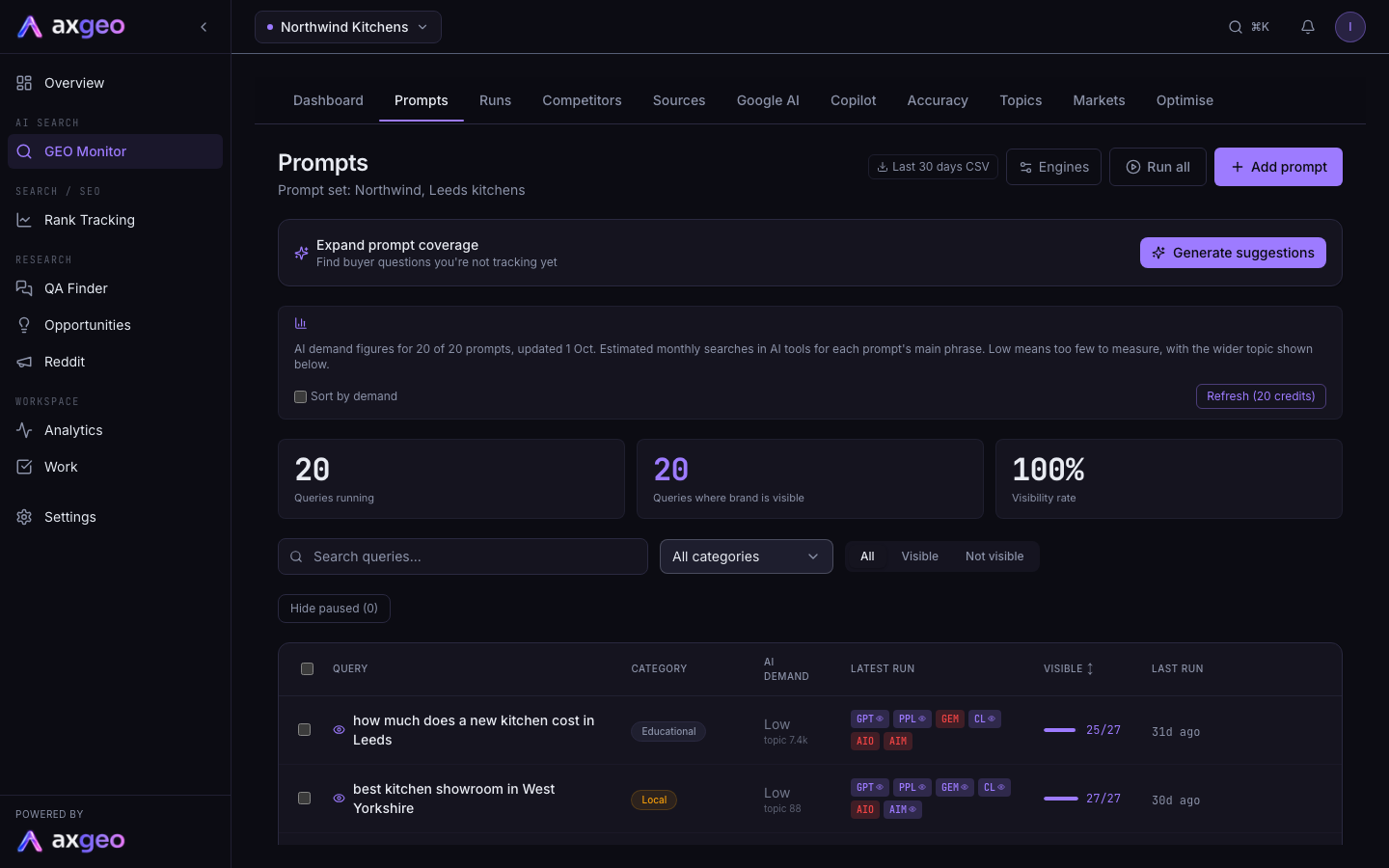
How to add and manage prompts
Add a prompt
- Go to GEO Monitor and click the Prompts tab.
- Click Add prompt.
- In Question, write it the way a buyer would ask ChatGPT or Google.
- Pick a Category, such as Local, Product, Comparison, Brand Awareness or Educational.
- Click Add prompt. It joins the next monitoring run, or you can press Run all to check it now.
New prompts run on the same engines as the rest of your prompts.
Edit, pause or delete a prompt
Hover over a row to show the icons on the right. The pencil edits the wording or category. The pause icon stops the prompt running, and the play icon resumes it. The bin deletes it.
When you delete a prompt you are offered Pause instead. Deleting removes the prompt and all its past answers, and it cannot be undone. Pausing keeps everything. The prompt's past answers drop out of the dashboard figures as they age.
To delete several at once, tick the boxes on the left and click Delete selected. Select all paused picks every paused prompt in one go, and Hide paused tidies them out of the list.
Choose which engines answer
Click Engines to open "Engines for every prompt". Tick the engines you want and click Apply to all prompts. The choice applies to every prompt in your workspace, and you must keep at least one.
- ChatGPT is asked through the API, with web search.
- ChatGPT app shows what the ChatGPT app shows in its search mode.
- Perplexity is asked through the API, with sources.
- Gemini is grounded in Google Search, and Gemini app shows what the Gemini app shows.
- Claude answers from what the model already knows, and Claude with search searches the web and lists the pages it cited.
- Google AI Mode gives the AI Mode answer and its sources, for your location.
Engines your plan doesn't include are greyed out with "Not included in this plan". Every current plan includes ChatGPT, Gemini, Perplexity and Google AI Mode each week. Practice Plus and Group add Claude, Claude with search, ChatGPT app and Gemini app, asked monthly. Growth, Professional and Agency include all eight engines every week. Google AI Overviews are tracked separately on the Google AI tab.
The panel shows a credit price per answer. On the current plans, answers from your plan's engines are covered by your plan.
How and when prompts run
Each active prompt is normally asked once a week on its engines. The app checks every hour for prompts that are due and sends them out in batches, so results arrive over a few hours rather than all at once. Engines on a monthly schedule are asked every 28 days.
You can also run prompts yourself.
- Run all, at the top of the page, queues every active prompt now. Results appear in the Runs tab as they complete.
- Run Live, at the bottom of a prompt's side panel, asks one prompt straight away on one engine or on All Engines, and shows the answer in the panel.
To see how answers change by town or region, use the Markets tab.
Prompt slots and the pending queue
Your plan sets how many prompts can be active at once. Practice allows 20, Practice Plus 30, Group 100, Growth 100, Professional 175 and Agency 350. Paused prompts don't take a slot.
If you add a prompt when your slots are full, it goes into the Pending list above your prompts, waiting for a free monitoring slot. Pause or delete an active prompt, then click Activate next to the pending one. See plans and credits for everything each plan includes.
What the page shows
Summary strip
Queries running is how many prompts are active, plus any paused. Queries where brand is visible counts the active prompts where at least one engine has named you. Visibility rate is that number as a share of the prompts that have run.
The prompt list
- Query is the prompt text. An eye icon means you have been named at least once.
- Category is the type of question.
- AI demand is the estimated number of monthly searches in AI tools for the prompt's main phrase.
- Latest run shows a pill for each engine. A pill with an eye means that engine named you. Red means it didn't. A line through it means it failed, and a dashed edge on the AI Overview pill means Google showed no AI Overview.
- Visible shows how many of the prompt's completed runs had at least one engine naming you, such as 3/8. Click the heading to sort by it.
- Last run is how long ago the prompt last ran.
Use Search queries, the category menu and the All, Visible and Not visible buttons to filter the list. Last 30 days CSV downloads the answers from the last 30 days.
The side panel
Click a row to open its latest answers, with a tab for each engine. Each answer shows its date and time, its tone, and badges for Brand mentioned and URL cited. Below it, Your pages cited lists pages from your site and External sources lists the other sites the engine used.
Find more prompts
Expand prompt coverage
This panel suggests buyer questions you are not tracking yet. Click Generate suggestions (or Generate more) to get a fresh list, each with a short reason. Click Add to start tracking one, or the cross to dismiss it. Generating suggestions uses credits on every plan.
You can also send real questions from QA Finder to your prompts, where your plan includes it.
AI demand figures
The demand bar shows roughly how often people ask about each prompt in AI tools, so you can put the busiest questions first. Click Get demand figures, or Refresh once you have them. The button shows the credit cost, and demand figures use credits on every plan. Tick Sort by demand to order the list. "Low" means too few searches to measure, and the wider topic's figure is shown underneath.
Common problems
My new prompt says it was added to the queue
Your prompt slots are full. Pause or delete an active prompt, then click Activate on the pending one.
An engine shows a line through its pill
Either that engine wasn't asked on the last run or it failed to answer. Engines your plan checks monthly show this way between their checks, which is normal. For a weekly engine, it is tried again at the next run, or you can use Run Live in the side panel to try it now.
Generate suggestions or Get demand figures shows an error
Both use credits. Check your balance on Billing and top up if it has run out.