
In brief
The Dashboard tab of GEO Monitor sums up how often AI engines name and cite your business. It shows your Visibility Score, how many of your prompts you appear for, your share of voice against competitors and the latest answers.
Key points
- The headline cards use each prompt's latest answer from each engine over the last 7 days.
- Visibility Score is a 0 to 100 score made from mention rate, citation rate and positive sentiment.
- Keyword Visibility counts how many of your active prompts at least one engine names you for.
- Share of Voice compares your mentions with the competitors tracked on your prompts.
- Dashed lines on the trend chart mark dates when an engine changed how it answers.
- Click any prompt or engine pill in Recent Runs to read the full answer.
The steps at a glance
- 1
Open GEO Monitor
Click GEO Monitor under AI Search in the sidebar. The Dashboard tab opens first.
- 2
Check the headline cards
Read Visibility Score, Keyword Visibility, Mention Rate, Citation Rate and Prompts Tracked along the top row.
- 3
Look up a number
Open AI visibility metrics explained in this help centre for a plain-English definition of any card.
- 4
Look at the trend
Use 7D, 30D or 90D on Visibility Score Trend to change the date range.
- 5
Compare yourself with competitors
Read the Share of Voice and Engine Breakdown cards to see who is named and on which engine.
- 6
Read the answers
Click a prompt or engine pill in Recent Runs to open that answer on the Runs tab.
The Dashboard is the first tab you see in GEO Monitor. It pulls together the answers AI engines have given to your tracked prompts and turns them into a handful of numbers and charts. Use it to check how visible you are this week, whether that is moving, and which answers to read next.
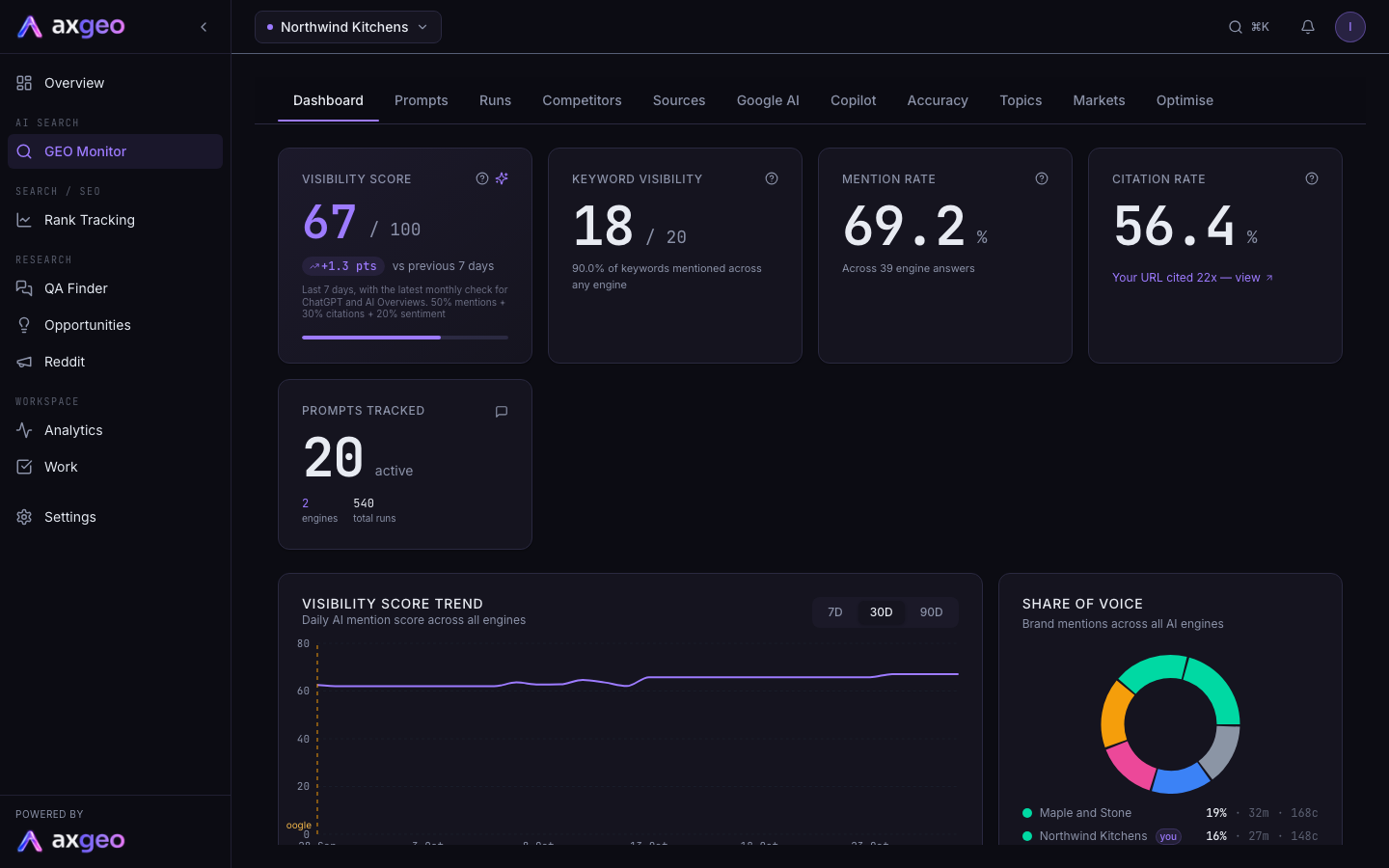
How to use the dashboard
- Click GEO Monitor under AI Search in the sidebar. The Dashboard tab opens first.
- Read the top row of cards. Each one is explained below, and AI visibility metrics explained defines every number in full.
- Use the 7D, 30D and 90D buttons on Visibility Score Trend to change the date range of the chart.
- Check Share of Voice and Engine Breakdown to see who else is named, and where you are strong or weak.
- Scroll to Recent Runs and click a prompt or an engine pill to read the full answer on the Runs tab.
If the cards show a dash, your prompts have not been run yet. Go to the Prompts tab and press Run all, or wait for the next scheduled run.
The headline cards
The cards are a snapshot of now. They use each prompt's latest answer from each engine over the last 7 days. If a run lands a day or two late, the previous answer is kept a little longer, so the cards don't dip while you wait.
Visibility Score
A single score from 0 to 100. Half of it comes from your mention rate, 30% from your citation rate and 20% from the share of answers that speak positively about you. The small pill underneath shows the change against the previous 7 days. If an engine changed how it answers in the last 14 days, you see a "New baseline since" note instead, because the two weeks would not be comparable.
Keyword Visibility
Shown as a count over your active prompts, such as 18 / 40. It counts the prompts where at least one engine named you. A prompt counts once however many engines mention you. This answers the question "how many of our questions do we show up for?".
Mention Rate
The percentage of engine answers that name your business. Every prompt on every engine is a separate answer, so 40 prompts on 4 engines gives 160 answers. The line under the number shows how many answers it is based on.
Citation Rate
The percentage of answers that cite a page on your own website as a source. Some engines show sources for most answers and others rarely do, so this is usually lower than mention rate. When your site has been cited, a "Your URL cited" link under the number opens the list of answers that cited you. See Cited pages.
Prompts Tracked
How many prompts are active, how many engines answered them and the total number of runs so far.
For plain-English definitions of every number, see AI visibility metrics explained.
The charts
Visibility Score Trend
Your Visibility Score day by day. Each point is the same 7-day snapshot the score card uses, worked out for that day. Amber dashed lines mark dates when an engine changed how it answers. For example, on 24 Sep ChatGPT moved to searching the web live, and on 28 Sep Gemini started searching Google before it answers. Compare periods on the same side of a line.
Share of Voice
A ring chart of the brands named across all engines, with your business marked "you". Each row shows the brand's share, its number of mentions (the "m" figure) and the number of sources cited in answers where it appeared (the "c" figure). The brands compared are you and the competitors tracked on your prompts. The Competitors tab has a position-weighted version and a split by engine.
Engine Breakdown
Your mention rate on each AI engine, for example ChatGPT, Gemini, Perplexity and AI Mode. The figure in brackets is mentions out of successful answers. If an engine shows "0 of 5 succeeded", it was tried but no answer came back in this period.
Sentiment Distribution
The tone of answers across all engines, split into Positive, Neutral and Negative. When there are negative answers, click the Negative row to open them. Each one shows the question, the engine, the lines that mention you and the full answer.
Top Citation Sources
The ten websites AI engines cite most in your answers. Your own domain is highlighted. Links to your Google Maps listing are pinned at the top with a Google Maps badge, because they show the AI is using your business profile rather than your website. Click View all for the full list.
AI Overview Coverage
This card uses your SEMrush data to show what share of your tracked keywords bring up a Google AI Overview. If SEMrush isn't connected, the card shows a "Set up" link instead. When your plan includes the Integrations tab in Settings, you can connect SEMrush there. See other integrations.
Recent Runs
The latest runs from your prompt set, 25 to a page. Use Prev and Next to page through them. Each row shows the status, the prompt, its category, a pill for each engine and when it ran.
The engine pills follow the same colours across GEO Monitor.
- A pill with a tick means that engine named you.
- A red pill means the engine answered but did not name you.
- A grey pill with a line through it means the engine failed or wasn't asked this time. Engines your plan checks monthly show this way between their checks.
- A pill with a dashed edge shows an engine's answer from an earlier check, carried forward. Hover over it to see the date.
Click the prompt text to open that run on the Runs tab, or click a pill to jump straight to that engine.
Common problems
The cards show a dash
No answers have come in yet. Add prompts and press Run all on the Prompts tab. The cards fill in as the answers come back.
My score dropped suddenly
First check the trend chart for a dashed line near the drop. An engine change can move every brand's figures at once. Then check Engine Breakdown to see if one engine stopped answering, and read a few runs to see what changed.
The numbers on the dashboard and in a report don't match
The dashboard always uses the last 7 days. A report can cover a different period, so the figures can differ.
A competitor I expected is missing from Share of Voice
Only the competitors tracked on your prompts are counted, and the ring shows the top six. The Intelligence view on the Competitors tab lists other brands the AI recommends that you are not tracking yet.