
In brief
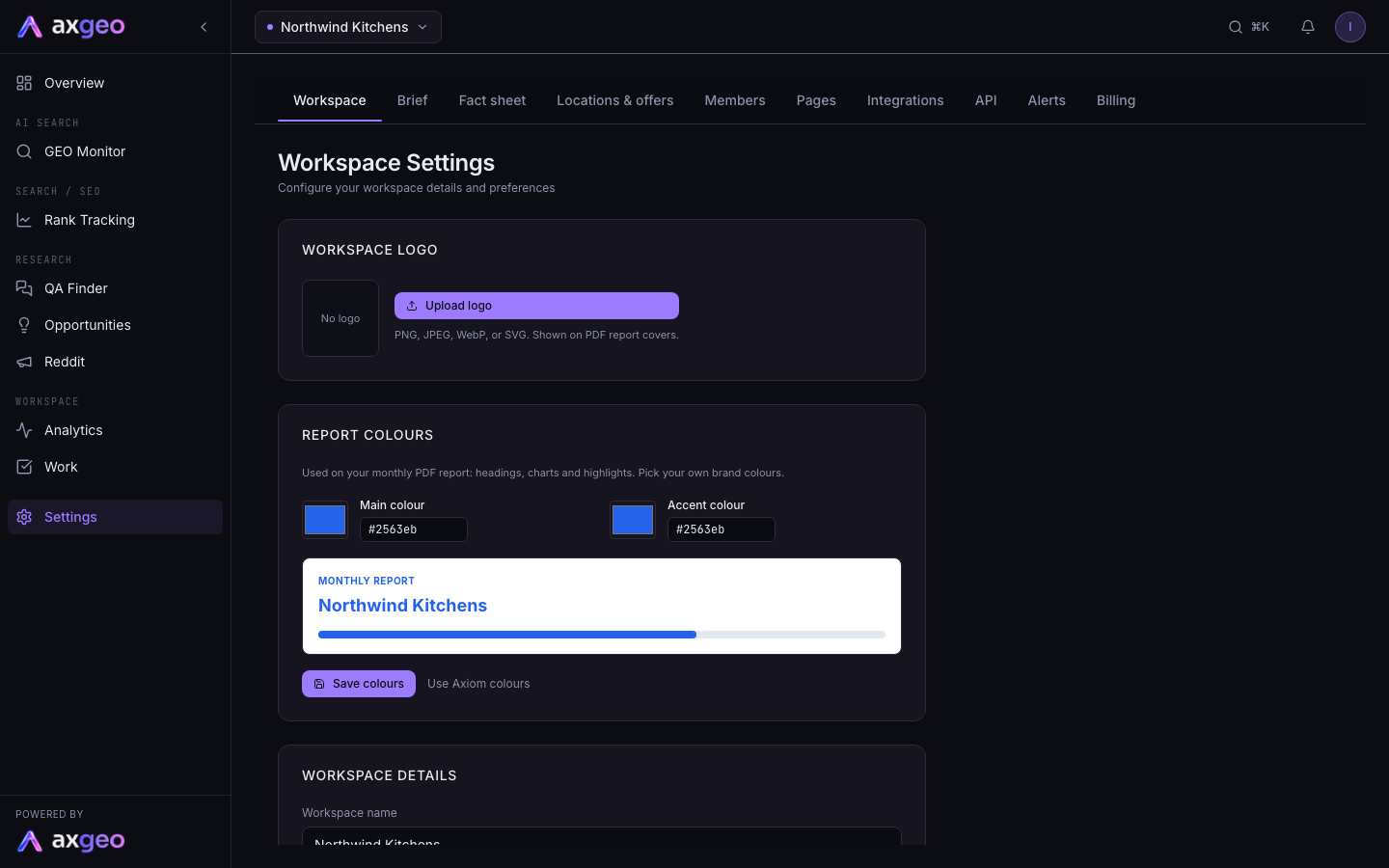
Settings, Workspace holds the basic details of your workspace. Here you upload the logo for your PDF reports, choose the report colours, and edit the workspace name, website, Google Place ID and industry. Save each card with its own button.
Key points
- Workspace is the first tab in Settings and opens when you press Settings.
- Your logo appears on PDF report covers. Use PNG, JPEG, WebP or SVG.
- Report colours set the headings, charts and highlights on your monthly PDF report.
- Use Axiom colours puts the report back to the standard colours.
- The slug in your workspace address can't be edited here.
- The Google Place ID builds your Google Reviews and Maps links.
The steps at a glance
- 1
Open Workspace settings
Press Settings in your sidebar. The Workspace tab opens first.
- 2
Add your logo
Press Upload logo in Workspace logo and choose a PNG, JPEG, WebP or SVG file.
- 3
Pick report colours
Choose a Main colour and an Accent colour in Report colours, check the preview, then press Save colours.
- 4
Edit your details
Change the name, website, Google Place ID or industry in Workspace details.
- 5
Save
Press Save changes. A Saved message confirms it.
Settings, Workspace is where you keep the basic details of your workspace up to date. It has three cards. Workspace logo and Report colours control how your PDF reports look. Workspace details holds your name, website, Google Place ID and industry.
How to update your workspace
Add or change your logo
- Press Settings in your sidebar. The Workspace tab opens first.
- Press Upload logo in Workspace logo. If you already have one, the button says Replace logo.
- Choose a PNG, JPEG, WebP or SVG file of up to 2 MB. A "Logo uploaded" message confirms it.
To take the logo off, press Remove. Your logo is shown on the cover of your PDF reports, covered in Reports.
Choose your report colours
- Pick a Main colour and an Accent colour in Report colours. Use the colour square, or type a code such as #1a73e8 into the box next to it.
- Check the small preview. It shows how your business name, a heading and a bar look in those colours.
- Press Save colours.
These colours are used for headings, charts and highlights on your monthly PDF report. To go back to the standard look, press Use Axiom colours.
Edit your workspace details
- Change any of the fields in Workspace details.
- Press Save changes. A tick and Saved appear next to the button.
What each field means
Workspace name
The name shown at the top of every page, in the workspace switcher and on your reports.
Slug
The short name in your workspace address, after /c/. It is marked read-only because links depend on it. Email us at [email protected] if you need it changed.
Website URL
Your main website. It is used to find your Google listing and when your fact sheet is drafted from your site, so keep it current.
Google Place ID
Google's ID for your business listing. It is used to build your Google Reviews and Maps links. To find it, search for your business in Google's Place ID Finder and copy the ID it shows. It starts with ChIJ.
Once an ID is saved, three links appear under the box. View on Google Maps opens your listing, View reviews opens your Google reviews and Write a review opens the review form. The last one is handy for sharing with customers. The Google Business guide covers your listing in more depth.
Industry
The type of business. Choose from the list, or pick Other (type your own) and type your industry, for example Veterinary practice. If you are on a dental plan, keep this set to Dental practice, because your patient questions and set-up are built around it.
Who can make changes
The workspace owner and admins can save the details and the report colours. Uploading and removing the logo needs an admin role. Roles are explained in Members.
Common problems
"Insufficient permissions."
Your role doesn't allow changes to the workspace details. Ask the workspace owner or an admin to make the change, or to give you the admin role.
"Admin access required."
Logo changes need an admin role. Ask an admin to upload the logo, or email the file to [email protected] and we will add it for you.
"Use a colour like #1a73e8"
The colour box needs a # followed by six letters or numbers. Pick the colour with the colour square instead, or fix the code and press Save colours again.
The logo won't upload
Check the file is a PNG, JPEG, WebP or SVG and is no bigger than 2 MB. Other file types and larger files are turned away.
Where do I describe the business itself?
Use the Brief tab. It holds the background facts and writing style that AI-written content follows.