
In brief
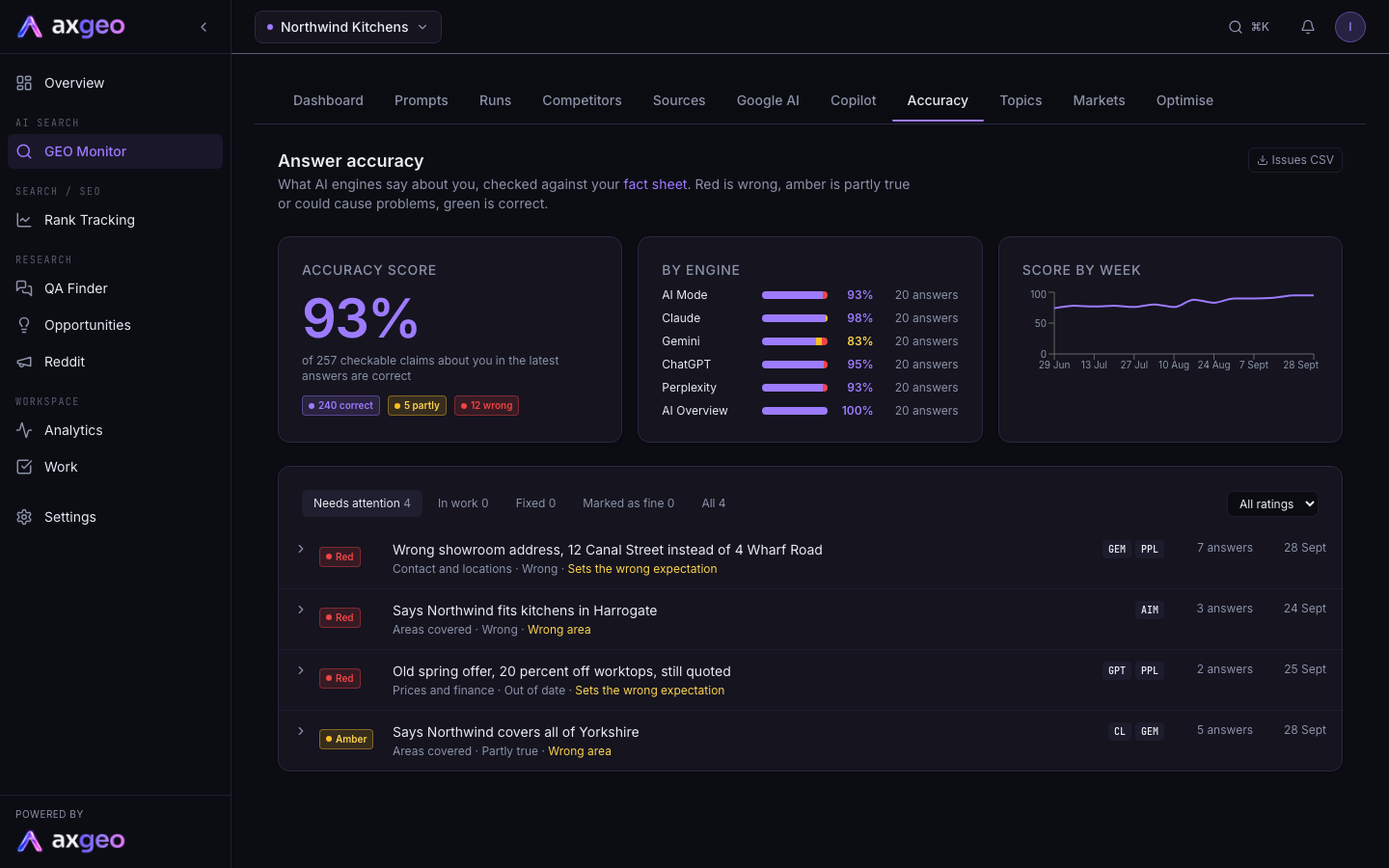
The Accuracy tab checks what AI engines say about your business against your fact sheet. Each claim is rated red for wrong, amber for partly true or risky, and green for correct. You can find the pages behind a wrong claim and send the fix to Work.
Key points
- Answers are checked against the approved facts on your fact sheet.
- Red is wrong, amber is partly true or could cause problems, green is correct.
- The accuracy score is the share of checkable claims about you that are correct.
- Find the pages shows where an engine probably got a claim from.
- Send to Work turns an issue into a task for your team.
- Checks run in the background, so new answers are checked without you doing anything.
The steps at a glance
- 1
Check your fact sheet
Make sure your fact sheet has approved facts, since answers are checked against them.
- 2
Open the Accuracy tab
Go to GEO Monitor and choose the Accuracy tab.
- 3
Read the score
Look at the accuracy score, the split by engine and the score by week.
- 4
Open an issue
In Needs attention, click an issue to see the answers that say it, your fact and the suggested fix.
- 5
Find the source
Press Find the pages to see which pages say the same thing.
- 6
Act on it
Press Send to Work to make a task, or Mark as fine if it isn't a problem.
AI engines sometimes get things wrong about a business. They might list a service you don't offer, quote an old price or name the wrong area. The Accuracy tab finds these claims in your AI answers and helps you fix them.
You'll find it in GEO Monitor, on the Accuracy tab. Answer accuracy is included on every current plan. The tab appears once it has been switched on for your workspace.
How answers are checked
Every claim an engine makes about you is compared with your approved facts on the fact sheet, and with your locations and offers. Each claim then gets a rating.
- Red means wrong.
- Amber means partly true, or true but likely to cause problems.
- Green means correct.
Checks run automatically in the background on a schedule set for your workspace, every 14 days by default. Each check looks at the latest answer from each engine to each prompt over the last 90 days. You don't need to start anything.
If you have no approved facts yet, a note at the top says so. Add or approve facts on the fact sheet first.
How to work through issues
- Go to GEO Monitor and choose Accuracy.
- Start on Needs attention. This lists open red and amber issues.
- Click an issue to open it. You'll see your fact, the suggested fix, the pages the engines used, and every answer that made the claim, with the prompt and a quote.
- Press Find the pages to see where the claim probably comes from. This takes up to a minute.
- Press Send to Work to turn the issue into a task. The button then changes to View task. See Tasks.
- If the claim isn't a problem for your business, type a reason in Why it's fine (optional) and press Mark as fine.
Press Issues CSV at the top to download the list of issues.
What each part of the screen means
Accuracy score
The share of checkable claims about you in the latest answers that are correct. Under it you'll see how many claims are correct, partly true and wrong. 90% or more shows in the brand colour, 75% to 89% in amber, and below that in red.
By engine
The same red, amber and green split for each engine, with its own score and the number of answers checked. It shows which engines get you wrong most often.
Score by week
Your score over time. The trend appears after two weeks of checks.
The issue list
Use the buttons above the list to switch between Needs attention, In work, Fixed, Marked as fine and All. The All ratings menu filters by red, amber or green.
Each issue shows its rating, a short summary, the topic (such as Services, Areas covered or Prices and finance), the verdict and, for amber issues, the reason. Reasons include Over-promotes a minor service, Sets the wrong expectation, Wrong area and Risky or regulated claim. On the right are the engines that said it, the number of answers and the date it was last seen.
Inside an answer, the verdict can be Correct, Partly true, Wrong, Out of date or Can't confirm. Some answers also show the result of a second check.
Where this comes from
Some engines, such as Gemini and Claude, often answer from memory and don't name a source. Find the pages looks at the pages the AI cited, your own website, pages other engines cited for the same question, and a Google search. Each result shows the page and a quote. Your own website is labelled, so you know which of your pages to update.
If no page says the claim, the engine is probably working from older information. Keeping your own pages clear and up to date on that point is the best fix.
Finding the pages uses no credits.
Checking competitors too
With the competitor add-on, the checks also cover what engines say about your competitors. Issues about a competitor show the competitor's name in square brackets. A menu lets you choose You and competitors, About you or About competitors.
The competitor add-on uses credits for each answer it checks, on every plan. See Plans and credits.
How issues get fixed
When you've changed your pages, engines take time to pick up the change. Once current answers stop making the claim, the issue is marked fixed after the next checks. You can also press Reopen on any fixed or marked as fine issue.
To read any full answer, use the Runs tab.
Common problems
Answer accuracy isn't switched on for this account yet
On the current plans the Accuracy tab is there from the start. If you see this message instead, email us at [email protected] and we will switch it on for your workspace.
Nothing needs attention right now
No open red or amber issues. Check the other lists to see past issues.
No answers checked yet
Your prompts need to have run, and you need approved facts. Check the fact sheet, then wait for the next check.
An issue says no current answers say this
The engines have stopped making the claim. It will be marked fixed after the next checks.