
In brief
Settings, Locations & offers is where you list your showrooms, offices, offers and finance deals. axgeo.ai checks AI answers against this list and flags wrong addresses, closed locations and ended offers. Add what you have, keep old items with their dates, and switch on the checks once each list is complete.
Key points
- Add each showroom, office or branch with its address and postcode.
- Keep closed locations with their closing date so old mentions get flagged.
- Add offers and finance deals with start and end dates.
- The two switches tell axgeo.ai whether each list is complete.
- Changes are re-checked against recent AI answers in about 10 minutes.
- You can import your Google Business Profile locations in one click.
The steps at a glance
- 1
Open the tab
Go to Settings and choose Locations & offers.
- 2
Add a location
Press Add a location, enter the name, type, address, town and postcode, then press Save. Or press the Import from Google Business Profile button if it shows.
- 3
Add an offer
Press Add an offer, enter the offer name, whether it is an offer or a finance deal, what it is and its dates, then press Save.
- 4
Mark old items
Set closed locations to Closed with the date they closed, and give ended offers an end date.
- 5
Switch on the checks
Tick Check addresses against this list and Check offers and finance against this list once each list is complete.
Locations & offers is where you tell axgeo.ai about your showrooms, offices and current offers. It then checks what AI engines say about them. If an engine gives a wrong address, sends people to a branch that has closed, or quotes a sale that has ended, it gets flagged in answer accuracy.
You don't have to fill this in. Without it, axgeo.ai still flags what it can prove is wrong, and leaves alone anything it can't check. But a complete list lets it catch far more.
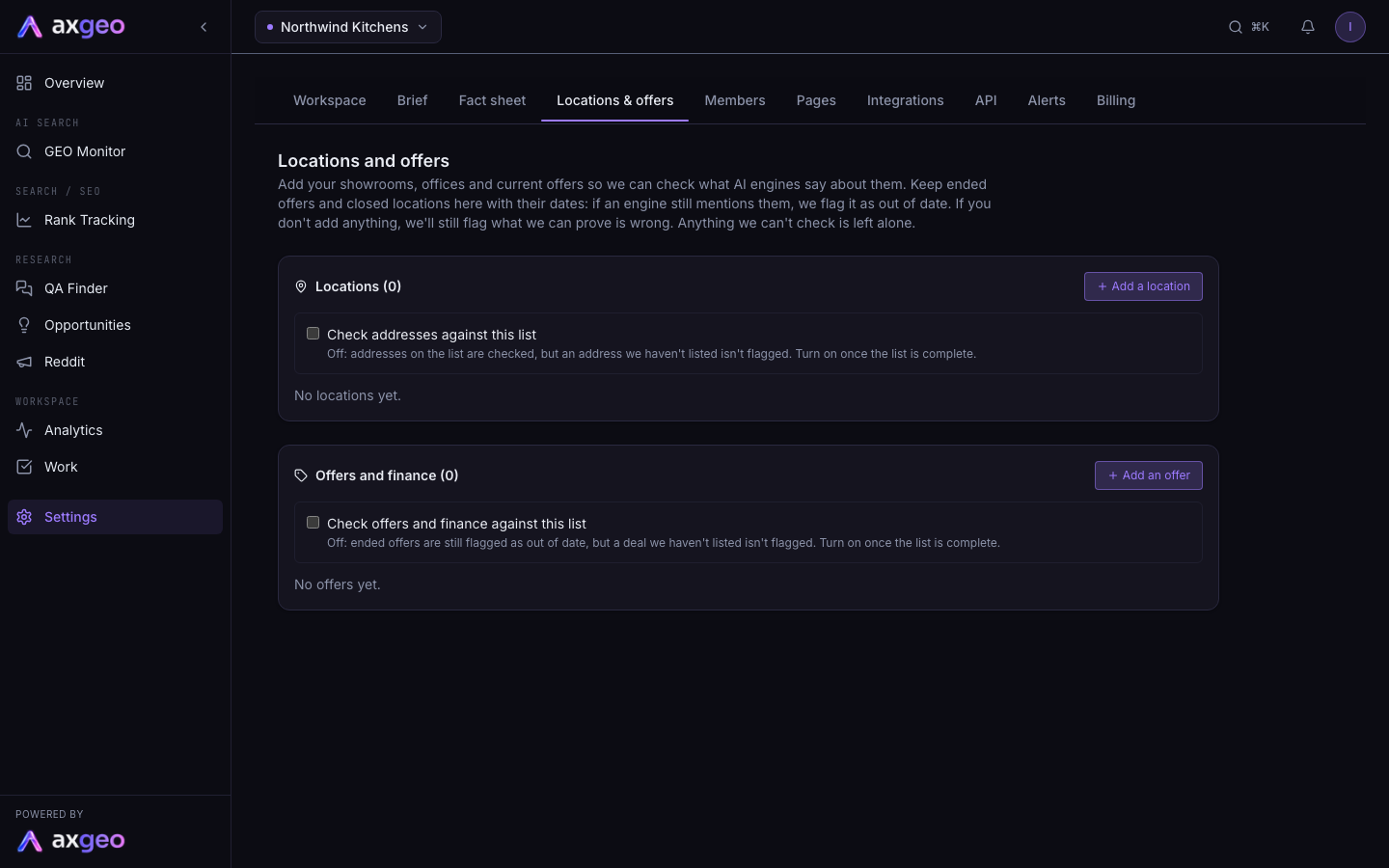
How to add a location
- Go to Settings and choose the Locations & offers tab.
- Press Add a location.
- Enter a name, for example Inverness showroom, and pick the type. The types are Showroom, Design centre, Office, Trade counter, Inside another store and Other.
- Add the street address, town and postcode. Phone, opening hours, areas it covers and a note are optional.
- Leave the status on Open, or choose Closed and add the date it closed.
- Press Save.
If you have locations on the Google Business page that aren't on this list yet, a button such as Import 2 from Google Business Profile appears. Press it to copy them in. Check each one afterwards and fill in anything missing, such as the postcode. Imported locations are marked from Google.
To change a location, press the pencil. To remove one, press the bin.
How to add an offer or finance deal
- Press Add an offer.
- Enter the offer name, for example Autumn Sale, and choose Offer or sale or Finance deal.
- Describe what it is, for example 20% off a first appointment, or 0% finance over 12 months.
- Add terms and what it applies to if needed.
- Pick the Starts date. Leave Ends blank if it is ongoing.
- Add the page it's on if there is one, then press Save.
Each offer shows whether it is Running now, Coming up or Ended, based on its dates.
Keep old items, with dates
Keeping old items catches the most mistakes, because AI engines often repeat old information for months.
- When a branch closes, edit it, set it to Closed and add the closing date. Don't delete it. Any AI answer that still mentions it gets flagged.
- When an offer ends, give it an end date rather than removing it. Ended offers are flagged as out of date if an engine still mentions them.
- Only use the cross (Remove) on an offer that never ran.
The two switches
Each list has a switch that says whether it is complete.
Check addresses against this list
- Off means the addresses on your list are checked, but an address you haven't listed isn't flagged.
- On means this is your full list. Any other address or showroom an AI gives for you is flagged as wrong.
Check offers and finance against this list
- Off means ended offers are still flagged as out of date, but a deal you haven't listed isn't flagged.
- On means these are all your offers and finance deals. Any other deal an AI says you run is flagged.
Turn each switch on once that list is complete. Turning it on too early could flag a real branch or deal that you simply haven't added yet.
When changes are checked
After you save, the page shows Saved. Answers that mention this are re-checked in about 10 minutes. Several edits close together are checked in one go. The re-check looks at recent answers. New answers are checked on the normal schedule.
How this links to other settings
- Your fact sheet holds the other facts about your business, such as services and prices.
- The NAP audit uses these locations to check the name, phone and postcode on your directory listings.
Common problems
A location says Add the postcode
Edit it and add the postcode. Addresses can only be checked exactly when the postcode is there.
A real branch is being flagged as wrong
Check addresses against this list is on, but that branch isn't listed. Add it, or switch the check off until the list is complete.
The tab is missing or shows a message
Locations & offers appears when answer accuracy is switched on for your workspace. All current plans include it. If you see a message saying it isn't switched on, email us at [email protected].