
In brief
The fact sheet is the list of facts that every AI answer about your business is checked against. Add or correct anything missing or wrong, approve facts drafted from your website, and confirm old facts that are still true. Each fact you add is also checked against your website.
Key points
- AI answers about you are checked against the facts on this list.
- Facts are grouped by topic, such as Services, Areas covered and Prices and finance.
- Draft from website reads your website, Google profile and brief to suggest facts.
- Drafted facts aren't used for checking until they are approved.
- Each fact you add or edit is checked against your own website.
- Facts not confirmed for over 90 days get a Confirm button.
The steps at a glance
- 1
Open the fact sheet
Press Settings in your sidebar, then the Fact sheet tab.
- 2
Draft from your website
Press Draft from website. It takes a minute or two and tells you how many facts were drafted.
- 3
Review the drafts
Read each draft. Edit any that are wrong, remove any that don't apply, then approve the rest.
- 4
Add what's missing
Press Add a fact, choose a topic, give it a short label and write the fact in one plain sentence. Press Save.
- 5
Keep it current
Press Confirm on any fact that hasn't been confirmed for over 90 days if it is still true, or edit it.
Your fact sheet is the list of facts that every AI answer about your business is checked against. If ChatGPT says you are open on Sundays and your fact sheet says you aren't, that answer is flagged on the Accuracy tab. The better your fact sheet, the more useful those checks are.
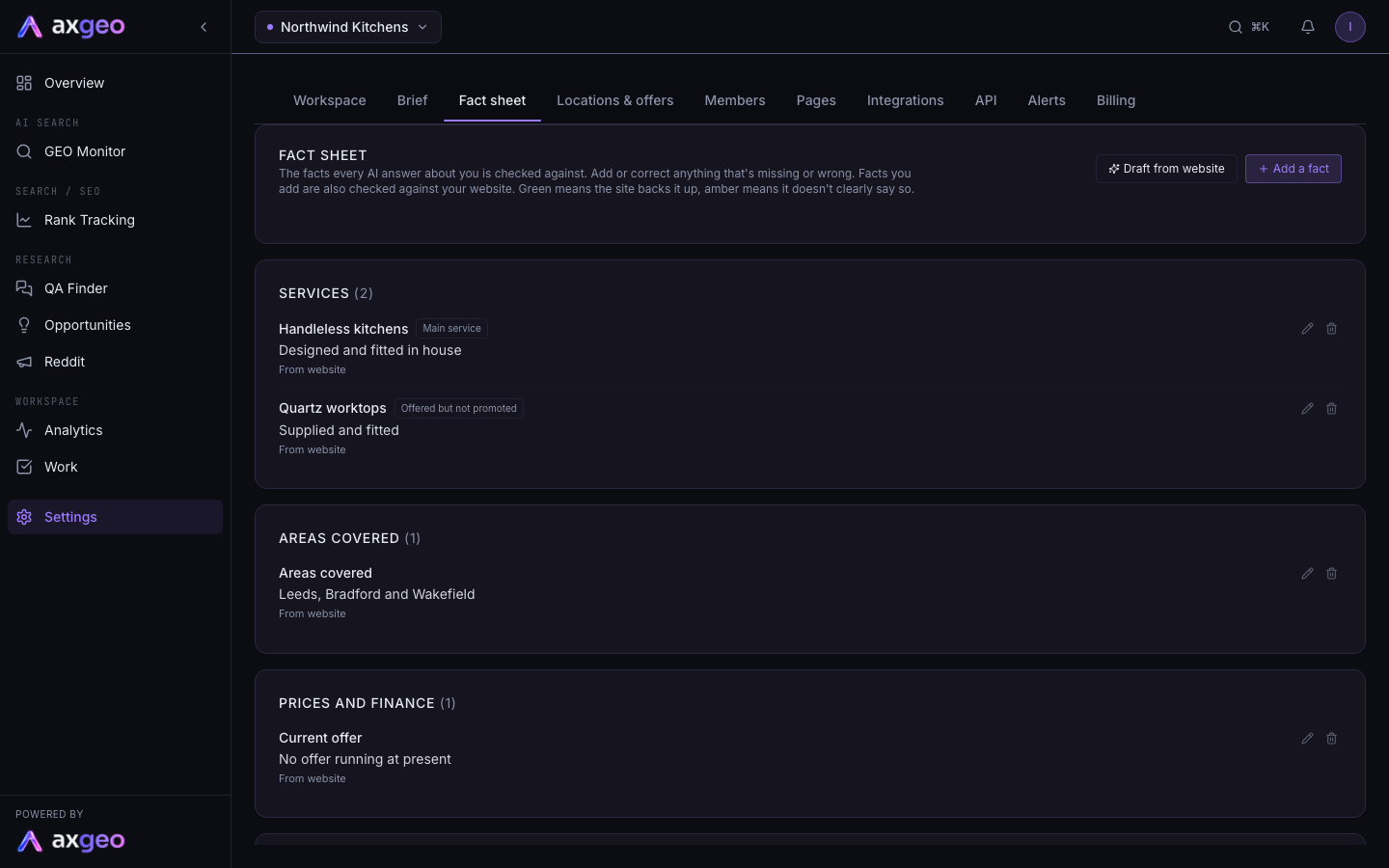
How to build your fact sheet
Draft facts from your website
- Press Settings in your sidebar, then Fact sheet.
- Press Draft from website. axgeo.ai reads your website, your Google profile and your brief. This takes a minute or two.
- Read the message that says how many new facts were drafted and from how many pages.
Drafted facts show a Draft label. They aren't used for checking until they are approved. A yellow banner counts how many are waiting.
Review and approve drafts
- Read each draft. Press the pencil to edit one, or the cross to remove it.
- Press the tick on a single draft to approve it, or Approve all in the banner to approve every draft at once.
Once approved, answers are re-checked against the new facts.
Add a fact yourself
- Press Add a fact.
- Choose a topic from the list.
- Type a short label, such as Invisalign or Opening hours.
- Write the fact in one plain sentence.
- Choose How fully is it offered? if the fact is about a service. The options are Main service, Offered but not promoted, On request only and Not offered.
- Add a note if it helps, for example "offered, but not advertised".
- Press Save.
The fact is checked against your website as soon as you save it, and a message tells you whether the site backs it up. Answers on that topic are then re-checked.
What the screen shows
Topics
Facts are grouped into cards by topic, with a count in brackets. The topics are Services, Areas covered, Prices and finance, Guarantees and accreditations, Contact and locations, Company, Reviews and reputation, Process and timescales, and Other.
Website check labels
Facts you add or edit get a coloured label from the website check.
- Website agrees means your site backs the fact up.
- Not clear on website means your site doesn't clearly say so.
- Website disagrees means your site says something different.
An amber or red label usually comes with a short note explaining what was found. A disagreement means either the fact or your website needs correcting, and AI engines may be reading the wrong one.
Source and age
Under each fact you can see where it came from, such as From website, From Google profile, From brief, Added by client or Added by Axiom. If it came from a web page, the page address is linked. You also see when it was last confirmed.
Old facts
When a fact hasn't been confirmed for over 90 days, a line at the top says how many are affected and each one gets a Confirm button. Press it if the fact is still true, or edit it if things have changed.
Who can do what
Any member of the workspace can add, edit and remove facts. Draft from website and approving drafts are for the workspace owner and admins. See Members for roles.
Tips for a useful fact sheet
Keep each fact to one plain sentence about one thing. Split "We do implants and whitening" into two facts. Mark services you don't offer as Not offered, so an answer that says you do can be flagged. Location details and offers live on Locations & offers, and longer background goes in your Brief.
Common problems
The Fact sheet tab is missing
The tab appears once answer accuracy is switched on for your workspace. All current plans include it. If it is still missing, email us at [email protected].
"Only Axiom staff can do this."
You tried to draft or approve facts without the owner or admin role. Ask your workspace owner or an admin, or ask them to change your role.
A fact says Website disagrees but the fact is right
Your website probably still has the old detail. Update the page on your site, then press the pencil and save the fact again to re-run the check.
Removing a fact
Press the bin and confirm. The fact is taken off the sheet and is no longer used for checking.