
In brief
The Work page holds every task for your workspace, from fixing a wrong fact in AI answers to publishing a new page. Create tasks, move them through To do, In progress, With client and Done, plan each month, and log the time spent.
Key points
- Tasks move through four stages: To do, In progress, With client and Done.
- Each task has a workstream, an owner, an impact, an effort and a priority.
- Link the prompt, page or issue behind a task and its result is measured after 14 and 28 days.
- Monthly plan sets goals for the month and shows what got done.
- Log time on any task and download time reports as CSV or PDF.
- Work is included on every plan.
The steps at a glance
- 1
Open Work
Choose Work under Workspace in the sidebar. The Board view opens first.
- 2
Create a task
Click New task, describe what needs doing and set the workstream, impact, effort, owner, who does it and due date.
- 3
Save it
Click Create task. The task opens so you can add more detail.
- 4
Add evidence
Add the link, client page or keyword the task is about under Evidence, so its result can be measured.
- 5
Move it along
Drag the card to another column on the Board, or change Status inside the task.
- 6
Log time
Use +15m, +30m or +1h in the task, or type hours and minutes and click Log.
The Work page is where you plan, track and prove the work behind your visibility. Every task has an owner, a due date and a place to link the evidence behind it, so you can see what changed once it is done.
Work is included on every plan. You'll find it under Workspace in the sidebar.
How to create a task
- Open Work from the sidebar.
- Click New task.
- Type what needs doing in the box that says What needs doing?
- Pick a workstream, an impact (High, Medium or Low) and an effort (Small, Medium or Large).
- Choose an Owner, and whether Axiom does it or the client does it.
- Set a due date and, if you like, a short brief.
- Click Create task.
If your workspace has templates, they show as buttons next to From a template. Click one to create a task from it.
Tasks can also come from other parts of the app, such as Opportunities and the Accuracy tab.
The views
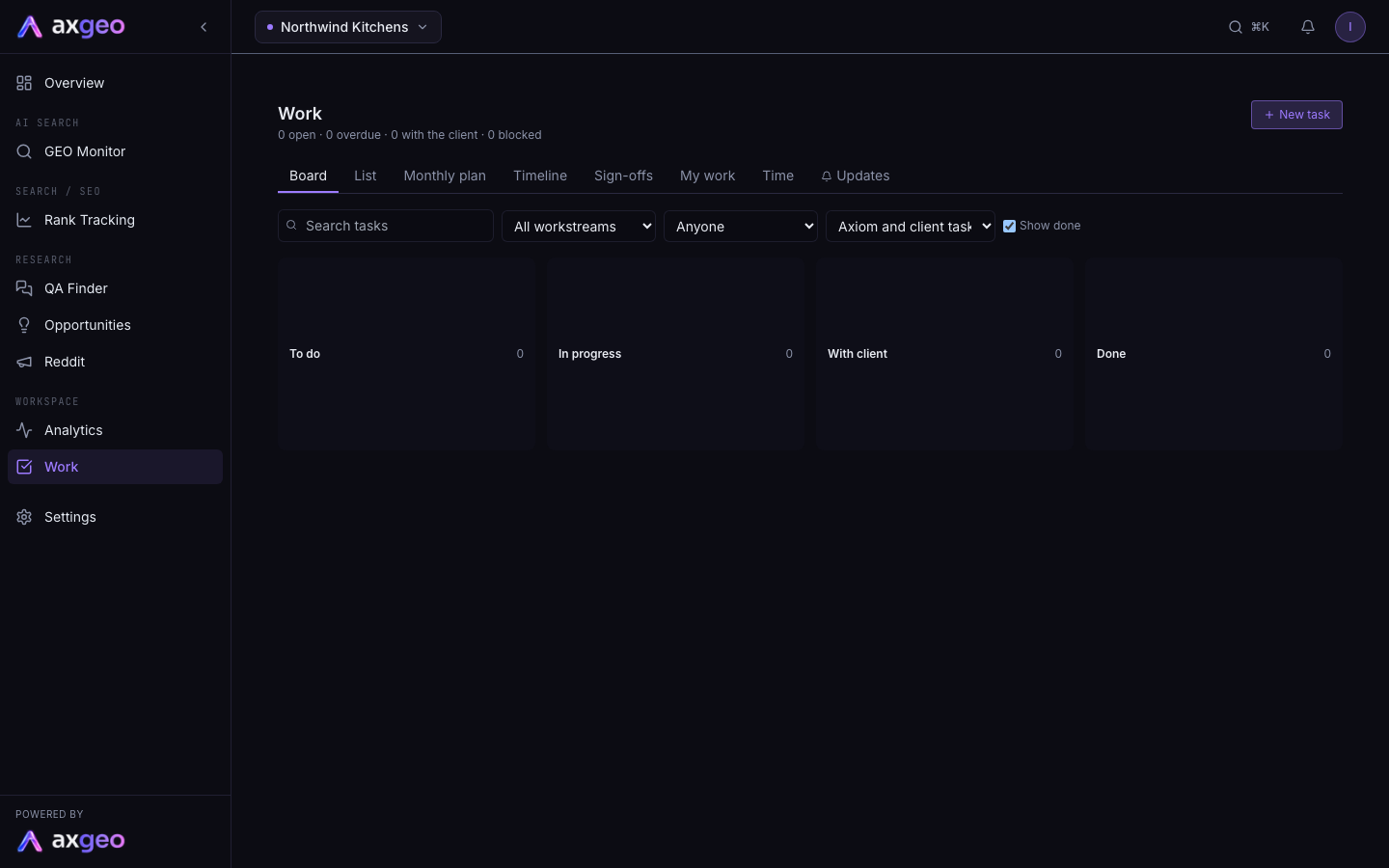
The top of the page shows how many tasks are open, overdue, with the client and blocked. Below that are the views.
Board
Tasks sit in four columns: To do, In progress, With client and Done. Drag a card to change its stage. Each card shows its priority, workstream, owner, due date, checklist progress, comments and time logged. A red border means the task is blocked.
List
The same tasks as a table. Click a column heading to sort by Priority, Task, Workstream, Status, Owner or Due.
On Board, List and Timeline you can filter with Search tasks, a workstream, an owner, and Axiom's or the client's tasks. Untick Show done to hide finished work.
Monthly plan
Use the arrows to pick a month. Write the Goals for the month and a Month summary (for the report), which feeds the Work done and results section of your PDF reports. Click Add tasks to put open tasks into the month. The bar shows how many planned tasks are done. Done this month, with results lists finished tasks and their measured results.
The plan can be set to Draft plan, Shared with client or Month closed.
Timeline
A month view of tasks laid out by start and due date. Overdue tasks show in red and blocked ones in amber. Tasks with no dates aren't shown, and a note tells you how many.
Sign-offs
Tasks waiting for approval. See Approve work with sign-offs.
My work
Everything open for you in this workspace, with overdue tasks first.
Time
Your time report. See the time section below.
Inside a task
Click any task to open it. You can change Status, Workstream, Owner, Who does it, Impact, Effort, Priority, Start and Due.
- If a task is stuck, type what's blocking it and click Mark blocked. Click Unblock when it's moving again.
- Expected outcome is what the task should change, for example engines no longer giving an old address.
- Brief is what needs doing and why. Click Save brief after editing it.
- Evidence links the task to a link, client page or keyword. Tasks created from elsewhere in the app may link a prompt, AI answer or accuracy issue for you.
- Checklist holds the steps. Type in Add a step and press Enter.
- Result appears once the task is done and shows the measured change.
- AI article drafts appear on content tasks. See Content drafts.
- Comments let you discuss the task. Mention someone by typing @ and their email address, and attach a link to a file if needed.
- Activity shows who changed what and when.
Click Archive at the bottom to put a task away, and Restore to bring it back.
How results are measured
When a task with linked evidence is marked Done, the app takes a starting reading. It measures again after 14 and 28 days. Depending on the evidence, it tracks how many AI answers still repeat a wrong fact, your visibility on a prompt, how often a page is cited, or a page's clicks. If nothing measurable is linked, Result says there is nothing to track.
Logging time
Every task has a Time section.
- Click +15m, +30m or +1h, or type hours and minutes and click Log.
- Change the date if the work was on another day.
- Pick a type of work, or leave it on No type.
- Add a note in What did you do? if you like.
You can remove your own entries. Owners and admins can remove anyone's.
The Time view
Pick This week, Last week, This month or your own dates. You'll see Time logged, Tasks worked on and Tasks completed, broken down by type of work, by person and by task. Download it with CSV for Excel or Sheets or PDF report.
Owners and admins also see two settings.
- Weekly emails. Tick Email last week's work report, with the PDF and CSV attached, then choose who gets it. You can add other email addresses too. You can also tick Email each person the tasks assigned to them that aren't done yet. Both go out on Monday mornings.
- Types of work. Add your own types with a name and colour, and Hide any you no longer use.
Common problems
I can't create or change tasks
Your role is probably Viewer, which can see work and comment but not change tasks. The workspace owner can change your role on Members.
My task isn't on the timeline
The timeline only shows tasks with a start or due date. Open the task and add one.
Result says there is nothing to track
Link a prompt, page or accuracy issue under Evidence. Results are only measured for linked evidence. The finished work can still go in your reports.