
In brief
The Backlinks tab is your record of the sites that link to you. The Link gap tab compares your site with up to five competitors and lists sites that link to them but not to you. You can then add the best ones to your pipeline.
Key points
- Add backlinks one at a time or upload them in a CSV file.
- Each backlink has a status of Active, New, Lost or Pending.
- Link gap lists up to 200 sites that link to your competitors but not to you.
- Each link gap check uses credits from your balance, whatever your plan.
- If a check fails, no credits are used.
- Add link gap sites to your pipeline with one click.
The steps at a glance
- 1
Open Link gap
Go to Link Building in the sidebar and choose the Link gap tab.
- 2
Enter competitors
Type up to five competitor websites, such as competitor.co.uk. After your first check, the last set you used is filled in for you.
- 3
Run the check
Press Run check. It takes a few seconds.
- 4
Filter the list
Use the search box, the competitor filter and Hide likely spam to narrow the results.
- 5
Add to the pipeline
Press Add on a row, or tick several rows and press Add to pipeline.
Backlinks and Link gap are two tabs in Link Building. Backlinks is your record of the sites that link to you. Link gap finds sites that link to your competitors but not to you. Those sites have already linked to businesses like yours, so they make good first prospects.
Link Building appears in your sidebar when it is switched on for your workspace. The third tab, Pipeline, is covered in link building pipeline.
The Backlinks tab
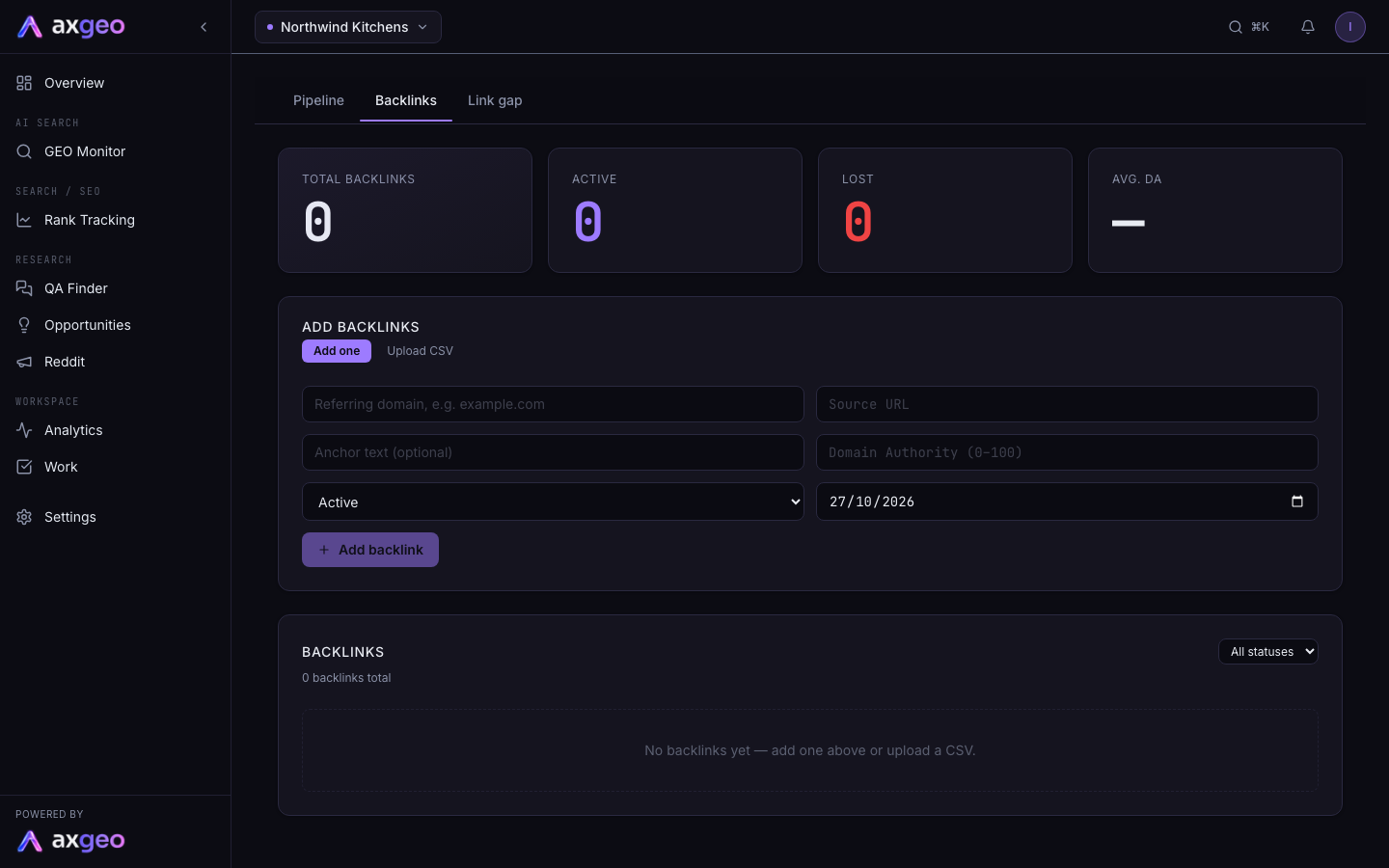
How to add backlinks
To add one:
- Stay on Add one in the Add backlinks panel.
- Enter the referring domain, such as example.com, and the Source URL (the page your link is on). Both are required.
- Add the anchor text and Domain Authority if you have them.
- Pick a status and the date you got the link. The date defaults to today.
- Press Add backlink.
To upload many at once, choose Upload CSV, then Choose CSV file. The file must have domain and url columns. It can also include anchor_text, domain_authority (or domain_rating or da), status and discovered_at. Rows missing a domain or url are skipped, and a message tells you how many.
Backlinks also arrive here when you mark a pipeline prospect as live.
What the Backlinks tab shows
Total Backlinks counts every backlink you have recorded. Active counts the ones with the status Active. Lost counts the ones marked Lost. Avg. DA is the average Domain Authority of your backlinks.
The table lists each backlink with its domain, DA, anchor text, date acquired and status, highest DA first. DA is green at 61 or more, amber from 31 to 60 and red at 30 or less. The arrow icon opens the page the link is on.
Active means the link is live. New is for a link you have only just found. Lost means the link has gone. Pending is for a link you are waiting on. Use the All statuses menu to show just one status. Only Active backlinks appear in the Live column of the pipeline.
Delete backlinks
Tick the rows you want to remove and press Delete with the number shown. Clear All deletes every backlink for the workspace after you confirm. This can't be undone.
The Link gap tab
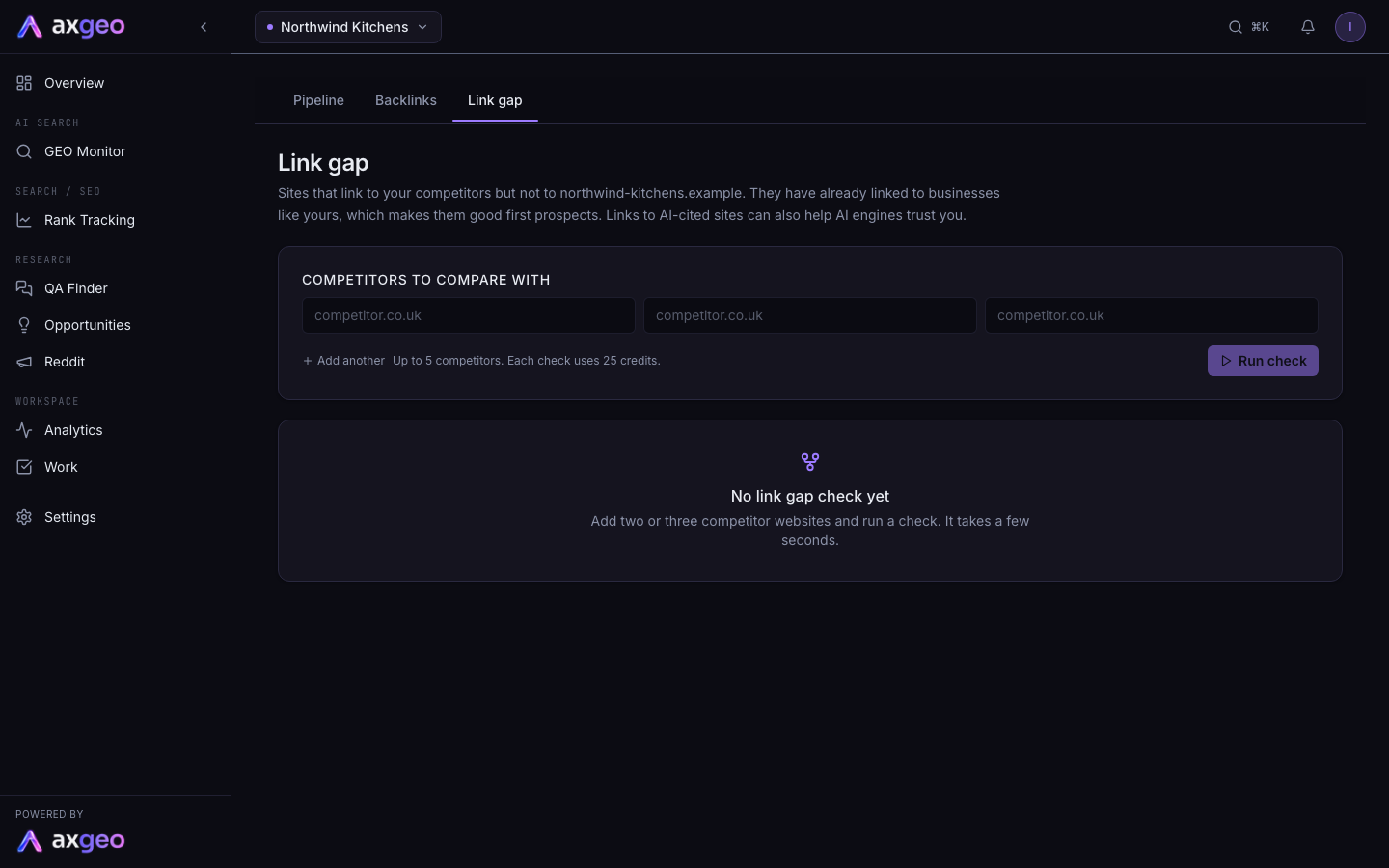
How to run a link gap check
- Make sure your website is set in Settings, Workspace. The check uses it to leave out sites that already link to you.
- Type up to five competitor websites in Competitors to compare with. Press Add another for more than three.
- Press Run check. It takes a few seconds.
- Use the filters to find the best sites, then press Add on a row or tick several and press Add to pipeline.
Each check uses credits from your balance, whatever your plan. The number is shown next to Run check. If the backlink data can't be fetched, the check stops and no credits are used. See plans and credits for how credits work, and billing to check your balance.
After your first check, the competitors you used last time are filled in for you.
What the Link gap tab shows
The heading tells you how many sites to approach, the date of the check and which competitors were compared. Sites that link to more of your competitors are listed first. Each check lists up to 200 sites.
Site is the domain that links to your competitors. Click it to visit. Authority is a domain rank from 0 to 100. Green means 60 or more, amber 30 to 59. There is one column per competitor, showing how many live links that site has to them. A dash means none. Spam is a spam score from 0 to 100. Scores above 30 are shown in red.
Filters
Search domains narrows the list by name. The competitor menu can show sites that link to any competitor, or to two or more, or three or more. Hide likely spam is on by default and hides sites with a spam score above 30.
Add to the pipeline
Add puts one site into the Prospecting column of your pipeline. Tick several rows and press Add to pipeline to add them together. Each new prospect gets the tag Link gap, its authority score as DA, and a note of which competitors it links to. Rows already in the pipeline show In pipeline instead.
Export
Press CSV to download the latest check, with the domain, authority, the number of competitors linked, links per competitor and spam score.
Common problems
"Add the client website in Settings first"
The check needs your own website address. Add it in Settings, Workspace and try again.
Not enough credits
You'll see a message with the credits needed and your balance. See billing for your balance and how to add credits, then run the check again.
The check failed
If the backlink data couldn't be fetched, you'll see a message saying no credits were used. Try again later.
No sites match these filters
Lower the competitor filter to Links to any competitor, or untick Hide likely spam.
My CSV import added nothing
Check the file has columns named domain and url, and that each row has both filled in.