
In brief
Connect Google Analytics 4 and Search Console so axgeo.ai can read your traffic, leads and search queries. You sign in with Google, pick the property or site for this workspace, and data then syncs every day. Your Google Business Profile is added on the Google Business page instead.
Key points
- Google Analytics 4 and Search Console connect with read-only access.
- The Google cards sit on Settings, Integrations when Analytics is switched on for your workspace.
- After connecting, pick the GA4 property or Search Console site for this workspace.
- Data syncs automatically every day, and Sync now (90d) pulls the last 90 days straight away.
- Google Business Profile needs no Google sign-in. Add your listing on the Google Business page.
- Syncs pause while a workspace has no active plan, and your stored data is kept.
The steps at a glance
- 1
Open Integrations
Go to Settings in your sidebar and choose the Integrations tab.
- 2
Connect Google Analytics
Press Connect Google Analytics on the Google Analytics 4 card and sign in with a Google account that can see your property.
- 3
Pick your property
Choose the GA4 property for this workspace from the list when you return to axgeo.ai.
- 4
Connect Search Console
Press Connect Search Console on the Search Console card, sign in, then pick your verified site.
- 5
Pull your history
Press Sync now (90d) on each card to load the last 90 days without waiting for the daily sync.
Connecting Google gives axgeo.ai your real traffic and search data. Google Analytics 4 shows visits and leads, including visits from AI tools. Search Console shows which searches bring people to your site. axgeo.ai uses this on the Analytics page, in Opportunities, in your page checks and in reports.
The Google cards are under Google Analytics, Search Console & Ads on Settings, Integrations. They appear when Analytics is switched on for your workspace. If you don't see them and would like Google Analytics and Search Console connected, email us at [email protected]. The Integrations tab is not shown on the Practice, Practice Plus and Group plans.
Your Google Business Profile works differently and needs no Google sign-in. See Google Business Profile below.
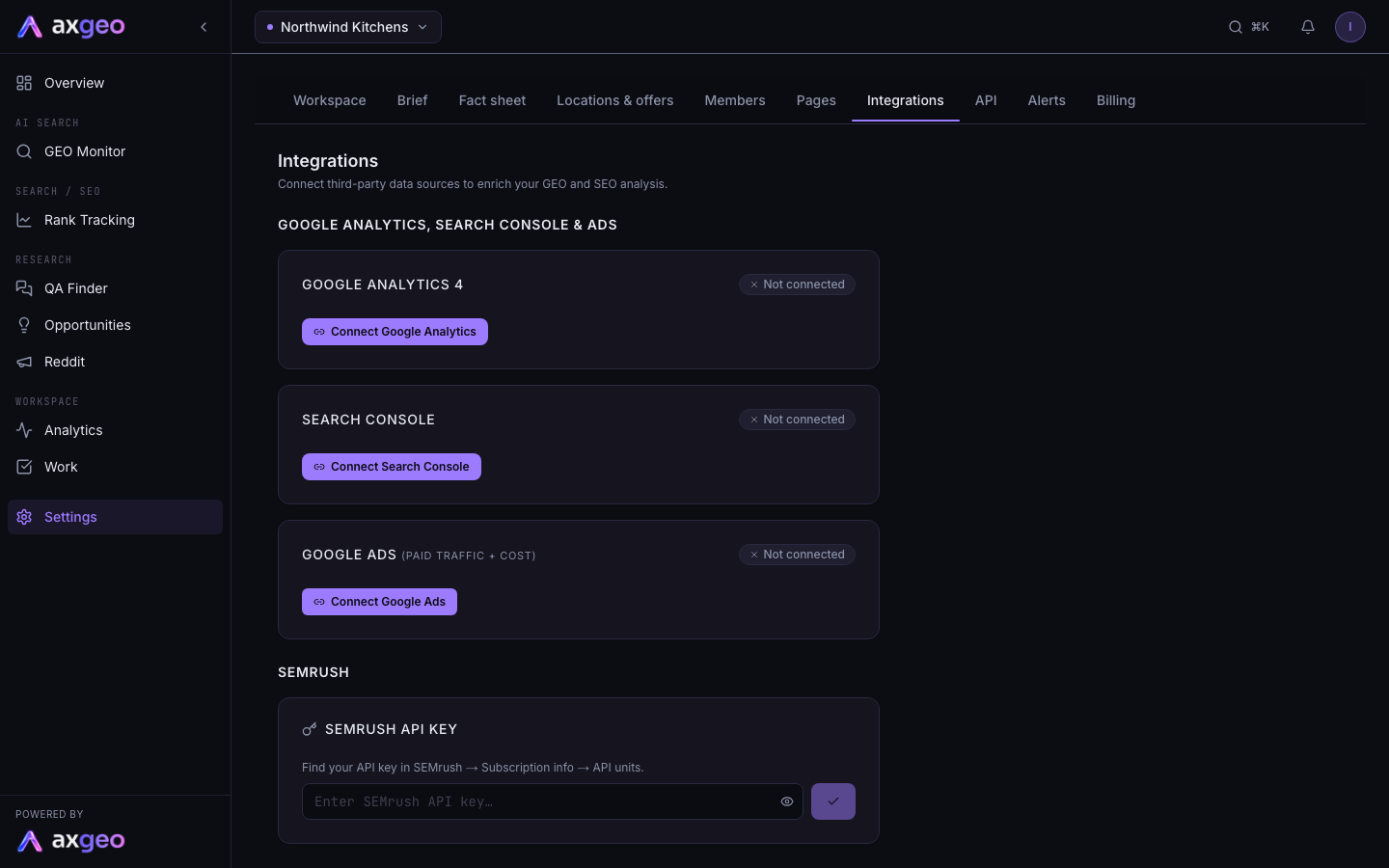
How to connect Google Analytics 4
- Open Settings and choose Integrations.
- Press Connect Google Analytics on the Google Analytics 4 card.
- Sign in to Google with an account that can see your GA4 property, and allow access.
- Check for the message "Google Analytics connected" when you return to the Integrations tab.
- Choose your property under "Pick the GA4 property for this client".
- Press Sync now (90d) to load the last 90 days straight away.
axgeo.ai asks Google for read-only access. It can read your reports but cannot change anything in your account.
Choose your conversion events
Once a property is linked, the card lists the events seen in it over the last 30 days.
Conversion events decides which events count as conversions in the AI traffic and source reports. Tick the events you want and press Save, which shows how many you have selected. There is no limit on how many you pick.
Lead form events decides which events count as a lead form submission on the Analytics Lead Forms tab. If you pick nothing, axgeo.ai uses defaults chosen from your key events. Press Use defaults to go back to them.
Press Refresh from GA4 if an event you expect is missing from the list.
Add goal pages
Goal pages counts a lead or a booking when a visitor reaches a page, such as a form's thank-you page. Choose Lead or Booking, type the path, for example /thank-you, and press Add. Leave the host empty to match any host. The path matches the start of the address, so query strings are ignored.
After changing events or goal pages, press Sync now (90d) to update past data.
How to connect Search Console
- Press Connect Search Console on the Search Console card.
- Sign in with a Google account that has access to your verified site.
- Choose your site under "Pick the Search Console site for this client".
- Press Sync now (90d) to load the last 90 days.
Search Console is also read only.
How to connect Google Ads
The Google Ads card adds cost, CPC and ROAS to the Paid Traffic report. Press Connect Google Ads, sign in, then choose your account under Pick an account and press Use this account. Press Sync now to pull your data straight away.
What the cards show
Each card has a badge that reads Connected or Not connected. Once connected, it shows Last synced with the date and time of the latest sync, and the property, site or account you picked. If a sync fails, the error appears in red on the card.
Google Analytics, Search Console and Google Ads each sync automatically once a day in the early morning, UK time. Sync now (90d) runs at once and doesn't wait for the daily sync.
To stop a connection, press Disconnect on its card. Live syncs stop. For Google Analytics, the data already synced is kept, but your property, event choices and goal pages are cleared.
Google Business Profile
Google Business is included on every plan and needs no Google sign-in. Open Google Business in your sidebar. Press Auto-discover to find your listing from your business name and website, or type a location name and address and press Add manually. Ratings and reviews then sync automatically. See Google Business for the full guide.
Common problems
"Google consent was declined"
You pressed cancel or did not allow access on Google's screen. Press the Connect button again and allow access.
No properties or sites are listed
The Google account you signed in with can't see a GA4 property or a verified Search Console site. Sign in with an account that has access, or ask the owner of the property to add you in Google first.
"Google didn't return a refresh token"
Remove axgeo.ai's access at myaccount.google.com/permissions, then connect again.
Syncing has stopped
If your workspace has no active plan, daily syncs and Sync now pause. Your stored data is kept. See Billing to get your plan running again. For SEMrush, see Other integrations.