
In brief
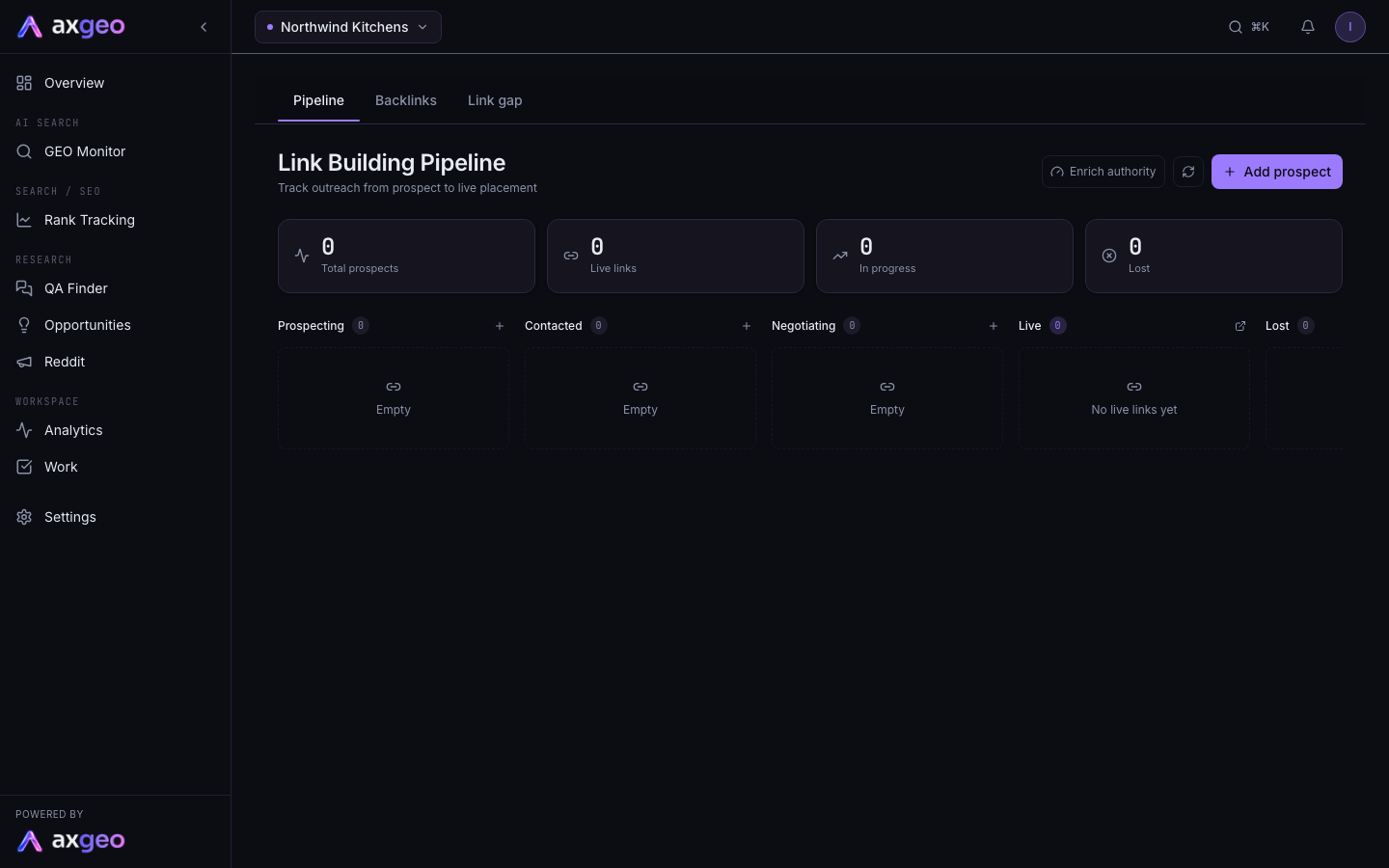
The Pipeline tab in Link Building tracks your link outreach from first prospect to live placement. Add the sites you want links from, move them through Prospecting, Contacted and Negotiating, and mark each one live when the link goes up.
Key points
- The pipeline has columns for Prospecting, Contacted, Negotiating, Live and Lost.
- Add a site with Add prospect, or from the Link gap tab.
- Drag a card to another column to change its stage.
- When you mark a prospect live, it becomes a backlink on the Backlinks tab.
- Enrich authority looks up a DA score for prospects and live links that don't have one.
- Link Building shows in your sidebar when it is switched on for your workspace.
The steps at a glance
- 1
Open Link Building
Choose Link Building under Search / SEO in the sidebar. The Pipeline tab opens first.
- 2
Add a prospect
Press Add prospect, enter the domain and any other details, then press Add prospect in the dialog.
- 3
Move it along
Drag the card to Contacted or Negotiating as your outreach moves on, or change the Stage in the edit dialog.
- 4
Mark it live
Drag the card to the Live column when the link is published, or use the arrow icon. Enter the Live URL and press Mark as live.
- 5
Record losses
Drag the card to Lost if a site says no, so your numbers stay accurate.
The Link Building pipeline is a board for tracking link outreach, from the first site you want a link from to the day the link goes live. Links from trusted sites help search engines rate your website, and they can help AI engines trust you too.
Link Building sits under Search / SEO in your sidebar. It appears when it is switched on for your workspace. It has three tabs, Pipeline, Backlinks and Link gap. This article covers Pipeline. See backlinks and link gap for the other two.
How to use the pipeline
Add a prospect
- Press Add prospect at the top right. You can also press the plus icon at the top of any column to add straight into that stage.
- Enter the Domain, such as a local news site or trade association. Only the domain is required.
- Add DA (Domain Authority) if you know it. Leave it blank and the app tries to look it up for you.
- Pick a Stage, and add a Contact email, a Relevance tag and Notes if they help.
- Press Add prospect.
Move a prospect between stages
Drag a card and drop it on another column. The change saves straight away. You can also hover over a card, press the pencil icon to open Edit Prospect, change the Stage and press Save.
Mark a link as live
When your link is published:
- Drag the card onto the Live column, or hover over it and press the arrow icon. In the edit dialog you can also pick the Live option at the bottom of the Stage menu.
- Enter the Live URL in Mark as Live, the page where your link appears.
- Add the anchor text (the clickable words of the link) if you like.
- Press Mark as live.
The prospect leaves the pipeline and becomes a backlink. It shows in the Live column and on the Backlinks tab.
Remove a prospect
Hover over the card and press the cross icon, then confirm.
What each part of the screen means
Stats
Total prospects counts every card in Prospecting, Contacted, Negotiating and Lost. Live links counts the cards in the Live column. In progress counts Contacted and Negotiating together. Lost counts the Lost column.
Columns
Prospecting is for sites you plan to approach. Contacted is for sites you have reached out to. Negotiating is for sites that have replied and where you are agreeing the details. Live shows backlinks with the status Active. Lost is for sites that said no or went quiet.
The link icon at the top of the Live column takes you to the Backlinks tab.
Cards
Each prospect card shows the domain and a DA badge. Green means a DA of 61 or more, amber 31 to 60, and red 30 or less. A dash means there is no score yet. The card also shows the contact email, notes and relevance tag if you added them. Prospects added from the Link gap tab carry the tag Link gap and a note of which competitors the site links to.
Live cards show the domain, the page the link is on and the anchor text. Click one to open that page.
Enrich authority
Enrich authority looks up a DA score through OpenPageRank for every prospect and live link that doesn't have one yet. A message tells you how many were updated, how many weren't found and how many were skipped because the domain wasn't valid.
Refresh
The circular arrow reloads the board.
Common problems
I can't find Link Building
It shows in the sidebar only when it is switched on for your workspace. See plans and credits for what each plan includes.
A card still shows DA with a dash
The lookup couldn't find a score for that domain, or the domain was typed with extra text. Check it is a plain domain such as example.co.uk, then press Enrich authority again, or type the DA in yourself.
I can't drop a card on Live
Dropping on Live opens the Mark as Live dialog, and the move only completes when you enter the Live URL and press Mark as live.
I don't know which sites to approach
Start with the Link gap tab. It lists sites that already link to your competitors. The Sources tab and cited pages also show which sites AI engines cite for your topics, which are good targets too.