
In brief
The Billing tab in Settings shows your current plan, your credit balance, your billing details and your invoices. Use it to choose a plan, buy credit packs, add your VAT number and download invoice PDFs.
Key points
- Billing is the last tab in Settings.
- The Current subscription card shows your plan, price and renewal date.
- Payments are taken securely by Stripe.
- Billing details hold your company name, address and VAT number.
- Invoices appear as your subscription renews, each with a PDF where one is available.
- If a payment fails, a red banner appears at the top of every page.
The steps at a glance
- 1
Open Billing
Open Settings in your sidebar and choose the Billing tab.
- 2
Choose a plan if you have none
Scroll to the Plans section and press Subscribe on the plan you want. You pay on a secure Stripe checkout page and return to the Billing tab.
- 3
Add your billing details
Fill in Company name, Billing address and VAT number (optional), then press Save billing details.
- 4
Download an invoice
Scroll to Invoices and press PDF on the invoice you need.
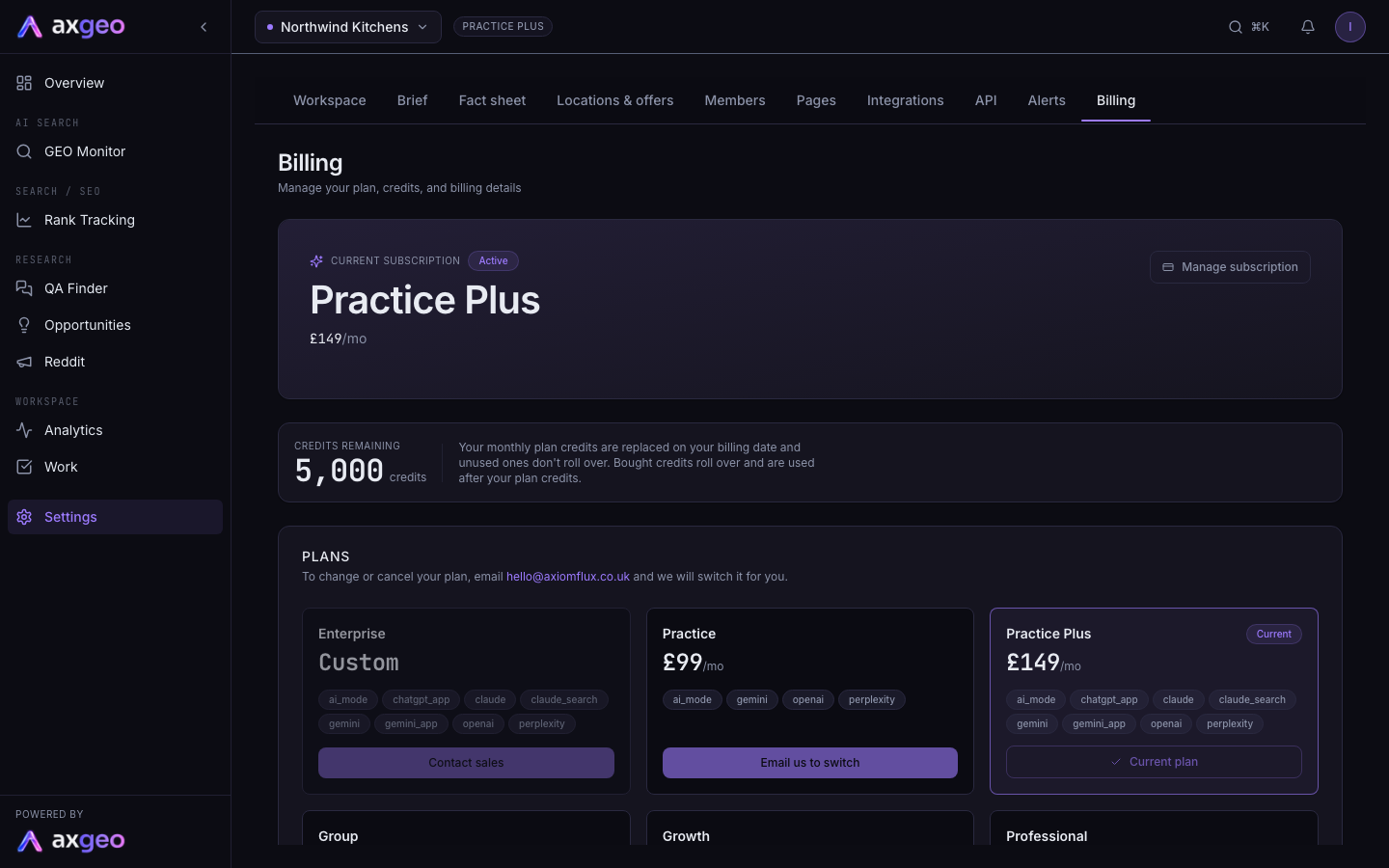
Your plan, your credit balance, the company details printed on your invoices and every invoice we have issued all sit on one tab.
To open it, go to Settings in your sidebar and choose Billing. Anyone who is a member of the workspace can view it.
How to
Choose a plan
If your workspace has no plan yet, the top card reads No active plan. Scroll to Plans, find the one you want and press Subscribe. You finish payment on a secure Stripe checkout page, then return to the Billing tab. A plan that can't be bought online shows Contact sales instead. To compare plans first, see Plans, allowances and credits.
If you already have a plan, don't press Subscribe on another card. Email us instead and we will move you across.
Save your billing details
- Find the Billing details card.
- Fill in Company name, Billing address and VAT number (optional).
- Press Save billing details. You'll see Saved next to the button.
Download an invoice
Scroll to Invoices. Each row has a PDF link that opens the invoice. A dash in that column means no PDF is ready yet.
Buy a credit pack
Once your plan is active, a Top up credits section appears. Pick a pack and press Buy to pay on a Stripe checkout page. Bought credits roll over from month to month. Most work on the current plans is covered by your monthly price, so many workspaces never need a pack.
Change or cancel your plan
To change your plan, cancel it or update the card you pay with, email us at [email protected] and we will sort it for you. Plans are monthly with no contract.
What each part of the screen means
Current subscription
This card shows your plan name, its monthly price and the credits included each period. On the current plans that figure is 0, because the work is paid for by the monthly price. The badge next to it reads Active for a running plan, or None if there is no plan. Where a plan includes monthly credits, a bar shows Used this period and the date it Renews.
Credits remaining
Your current credit balance. When you have credits, the note beside it explains that monthly plan credits are replaced on your billing date, while bought credits roll over and are used after your plan credits. At zero it reads "Out of credits" instead. Work that your plan covers doesn't draw on credits, so on the current plans a zero balance is normal.
Plans
A card for each plan, with its monthly price, a credits figure and the AI engines it includes. Your own plan is marked Current and its button reads Current plan. What each plan includes is set out in Plans, allowances and credits.
Transaction history
Your 10 most recent credit changes. Each row shows the date, a description, the credits added or used and the balance afterwards. The tag on the right says what kind of change it was, such as used, bought, monthly allowance or plan credits expired.
Invoices
Each invoice shows its date, description, amount and status. Status is paid, open, or another state such as refunded.
Banners about your subscription
Payment failed
If a card payment fails, a red banner appears at the top of every page. It reads "Payment failed. Update your card to keep your weekly checks running." Your workspace stays open while the payment is retried, and the workspace owner gets an email headed "Your payment didn't go through". To give us a new card, email [email protected].
Sync paused
If your plan ends or payment can't be collected, an amber banner explains that sync is paused. The headline starts with the reason, for example Subscription cancelled, Payment failed or Subscription required. Your dashboards, reviews, rank history and integrations are all kept and you can still view them. New AI checks, rank tracking, review pulls and Google data syncs pause until your plan is running again. Press Reactivate in the banner to go to the Billing tab.
When a plan ends, the workspace owner gets an email headed "Your plan has ended".
Common problems
Top up credits is missing
The section only shows when your workspace has an active plan. Choose a plan first.
There are no invoices
Invoices appear as your subscription renews. If you have just signed up, check back after your first payment has been processed. For other emails we send, see Alerts.
Someone else needs the billing emails
Billing emails go to the workspace owner. To see who that is, or to add people, see Members. Your workspace name and website are on Workspace settings.