
In brief
Settings, Members lists everyone with access to your workspace. Owners and admins can add people by email, and each person gets an email to join. You choose each person's role and specialism, and the Management specialism decides who approves sign-offs. Your plan sets how many users you can have.
Key points
- The workspace owner and admins can add members.
- Only the workspace owner can change roles or remove people.
- New people get an email with a link to set their password, which works for 7 days.
- Each current plan includes a set number of users, shown as used of total.
- Viewers can look around but can't change tasks, reviews or pages.
- If anyone has the Management specialism, only they can approve sign-offs.
The steps at a glance
- 1
Open Members
Press Settings in your sidebar, then the Members tab.
- 2
Start an invite
Press Add member in the Team members card.
- 3
Enter their details
Type their email address, choose Admin, Editor or Viewer, and pick a specialism.
- 4
Send it
Press Add member. A message confirms the invite was sent.
- 5
Adjust later
Ask the owner to press the pencil next to someone to change their access level or specialism, or the bin to remove them.
Open Settings, then Members, and you land on a page headed Team. It lists every member with their role and specialism, lets you invite new people, and explains how sign-offs work for your team.
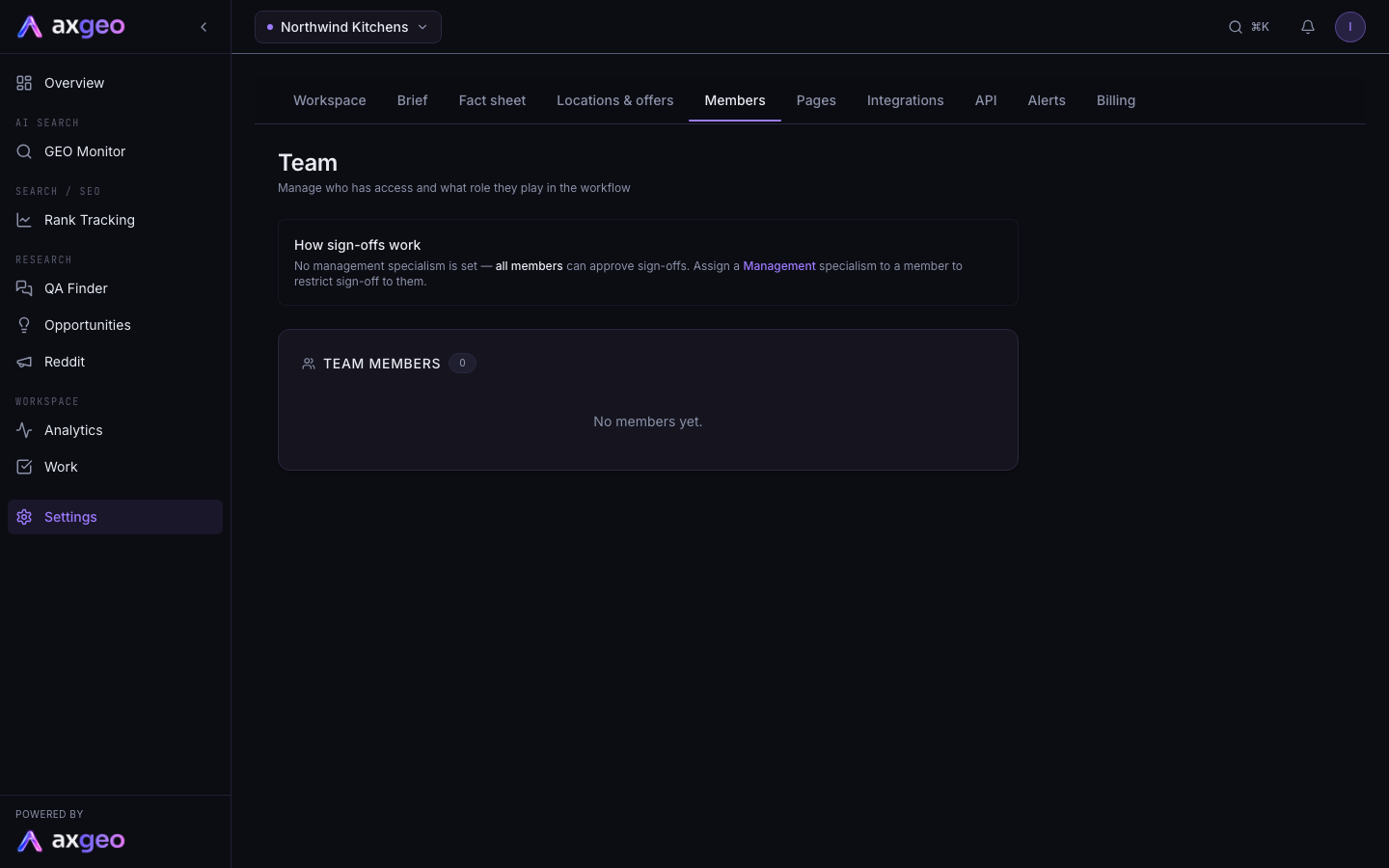
How to add a team member
- Press Settings in your sidebar, then Members.
- Press Add member in the Team members card.
- Type their email address.
- Choose their role, Admin, Editor or Viewer. Editor is selected to start with.
- Pick a specialism. The choices are explained below.
- Press Add member.
A message says the invite was sent. The person gets an email saying who added them and to which workspace. If they are new to axgeo.ai, it includes a link to set their password, which works for 7 days. If they already have a login, they are asked to sign in as usual. Signing in is covered in Sign up and log in.
How to change or remove someone
The workspace owner can press the pencil next to a member to open their settings.
- Press Admin, Editor or Viewer under Access level.
- Choose the type of work they do under Specialism.
- Press Done.
To remove someone, the owner presses the bin next to their name. They are removed straight away, with no confirmation step. The owner's own row has no edit or remove buttons, because the workspace owner can't be demoted or removed.
Roles and what they can do
Owner
The person who set up the workspace. The owner can add members and change the workspace details, and is the only person who can change roles and remove members. Billing emails go to the owner.
Admin
Admins can add members and change the workspace details. On the current plans, admins and the owner can also draft and approve facts on the Fact sheet.
Editor
Editors can create and edit tasks and take part in day-to-day work. New members get this role unless you pick another.
Viewer
Viewers can look around the workspace. They can't change tasks, reviews or pages.
Specialisms and sign-offs
A specialism says what type of work someone does. You can choose from:
- Management, for people who review work and approve sign-offs.
- Content, for people who write pages, articles and copy.
- Technical SEO, covering schema, crawl fixes and Core Web Vitals.
- Link Building, covering outreach, guest posts and citations.
- All-rounder, for people who handle any type of work.
The How sign-offs work box at the top of the page tells you the current rule. If nobody has the Management specialism, every member can approve sign-offs. Once someone has it, only Management members can approve or ask for changes on tasks waiting for sign-off, which show as With client on the Work page. Everyone else completes tasks and sends them for sign-off when they're ready. See Sign-offs for the full process.
User limits on your plan
Each current plan includes a set number of users.
| Plan | Users included |
|---|---|
| Practice | 3 |
| Practice Plus | 5 |
| Group | 10, plus 2 for each extra site |
| Growth | 8 |
| Professional | 10 |
| Agency | 15 |
The badge next to Team members shows how many you are using, for example "3 of 5 users". Axiom staff who work on your account don't count towards it. Older plans without a limit show just the number of members.
When every place is taken, the Add member button is replaced by a note that your plan's users are all in use. Remove someone to add another, or change plan. Plans are compared in Plans and credits.
Common problems
"Only owners can change roles." or "Only owners can remove members."
Admins can see the pencil and bin buttons, but only the workspace owner can use them. Ask your owner to make the change.
"Only owners or admins can add members."
Editors and viewers can't invite people. Ask your owner or an admin.
"User is already a member of this workspace."
That email is already on the list. Check the members above.
"Your plan includes 5 users. Remove someone or change plan to add more."
You have reached your plan's user limit. The number in the message matches your plan.
The invite never arrived
Ask them to check their spam folder. If the set-password link has expired, they can press Forgot password? on the sign-in page with the same email to get a new one.
Choosing who gets emails
Being a member means you get alerts by default. Each person sets their own on the Alerts tab. Weekly work emails are set up on the Work page, covered in Tasks.