
In brief
Settings, Alerts lets you choose which alerts you see in the bell at the top of the screen and which come by email. The checks run every morning for each workspace. This page also explains the other emails axgeo.ai sends, such as the weekly digest, work reports and billing notices.
Key points
- Alert checks run every morning for every workspace.
- Alerts show in the bell, and by email once a day if you want them.
- Every alert starts switched on, both in the app and by email.
- Your choices apply to you only, for this workspace only.
- Weekly digest recipients are set on the Reports page.
- Weekly work emails are off until an owner or admin turns them on.
The steps at a glance
- 1
Open Alerts
Press Settings in your sidebar, then the Alerts tab.
- 2
Choose in-app alerts
Use the In app toggle on each row to show or hide that alert in your notification bell.
- 3
Choose email alerts
Use the Email toggle on each row to get or stop that alert in your daily email.
- 4
Save
Press Save. The page shows Saved when your choices are stored.
axgeo.ai raises an alert when something important changes in your workspace, such as a ranking drop. You choose, alert by alert, whether to see it in the bell at the top of the screen, get it by email, or both. Further down this page is a list of every other email the platform sends, so you know what to expect.
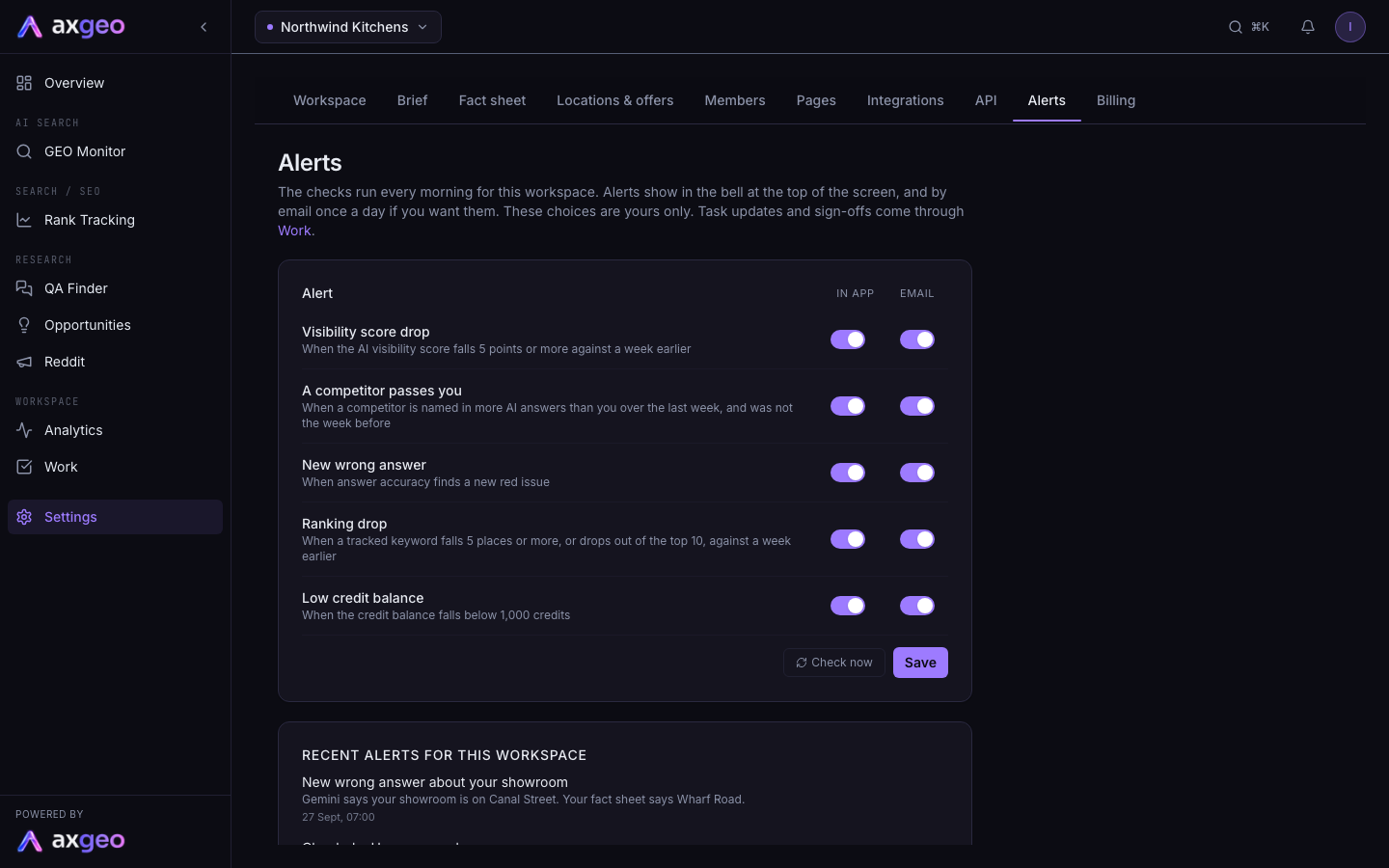
How to choose your alerts
- Press Settings in your sidebar, then the Alerts tab.
- Find the alert you want. Each row has two switches. In app puts it in your notification bell, and Email adds it to your daily alert email.
- Turn the switches on or off.
- Press Save. "Saved." appears when your choices are stored.
Every alert starts with both switches on. Your choices are yours only and apply to this workspace only. If you belong to several workspaces, set each one separately.
The alerts
Visibility score drop
When your AI visibility score falls 5 points or more compared with a week earlier. The score itself is explained in AI visibility metrics.
A competitor passes you
When a competitor was named in more AI answers than you over the last week, and wasn't ahead the week before. See Competitors.
New wrong answer
When an answer accuracy check finds a new red issue, meaning an AI answer that clashes with your fact sheet. This alert appears once answer accuracy is switched on for your workspace. See Answer accuracy.
Ranking drop
When a tracked Google keyword falls 5 places or more, or drops out of the top 10, compared with a week earlier. See Rank tracking.
Low credit balance
When your credit balance falls below 1,000 credits. You only see this alert on credit-based plans. The current plans cover your work without credits, so it is hidden there.
When alerts arrive
The checks run every morning for each workspace. Each alert is logged once, so you are only told about something new. If you have email switched on, you get a single email that lists all your new alerts for the day, with a link to each one. The subject line says how many alerts it holds.
The notification bell
The bell at the top right of every page shows alerts and task updates. A green number shows how many are unread. Open it to see the latest, press one to go to the page it is about, or press Mark all read.
Recent alerts for this workspace
The second card on the Alerts tab lists the latest alerts raised for the workspace, with the date and time of each. Press one to open the page it links to. If nothing has fired yet it says "No alerts yet."
Other emails you might get
Alerts aren't the only emails axgeo.ai sends. Here are the others.
Weekly digest
A weekly summary of your key numbers. It goes to the people listed under Weekly Digest Recipients on the Reports page, and only those switched on there. A workspace admin can add, pause or remove people on that page. The day and time are set by the Axiom team, and digests only go to workspaces with an active plan.
Weekly work emails
Two optional emails go out on Monday mornings. One sends last week's work report, with the PDF and CSV attached, to the people you choose. The other sends each person the tasks assigned to them that aren't done yet. Both are off until an owner or admin turns them on under Weekly emails on the Time tab of the Work page. See Tasks.
Account emails
You get a welcome email when your workspace is ready, a reset email when you ask to reset your password, and an invite email when someone adds you to a workspace. The reset link works for 30 minutes and the invite link for 7 days. See Sign up and log in and Members.
Billing emails
These go to the workspace owner only. If a payment doesn't go through, the owner gets one email asking them to update the card on the billing page. If the plan ends, the owner gets an email saying the scheduled checks have stopped and how to restart the plan. See Billing.
Common problems
I'm not getting alert emails
Check the Email switch is on for the alerts you want and that you pressed Save. Remember that an email only goes out on mornings when something new is found. Check your spam folder too.
I get too many emails
Switch off Email for the alerts you don't need and keep In app on, so they still show in the bell. The footer of each alert email points to Settings, Notifications, which is this Alerts tab. To come off the weekly digest, ask a workspace admin. To come off the work emails, ask an owner or admin.
An alert is missing from the list
Some alerts only appear when they apply. New wrong answer needs answer accuracy switched on, and Low credit balance only shows on credit-based plans.
"Could not save."
Your changes weren't stored. Reload the page and try again.