
In brief
axgeo.ai shows how AI engines such as ChatGPT, Gemini, Perplexity and Google AI Mode talk about your business, and helps you improve it. Start by finishing set-up, checking your facts and prompts, and choosing the Google searches to track. This page shows where every part of the app lives.
Key points
- axgeo.ai asks AI engines the questions your customers ask and records whether you are named, where and with which sources.
- It also tracks your Google rankings, your pages, your Google Business Profile and your reviews.
- The Welcome checklist walks you through the first set-up steps.
- Your fact sheet and brief make AI accuracy checks and drafted content much better.
- The sidebar only shows the tools your plan includes.
- Press Cmd+K or Ctrl+K to jump to any section.
The steps at a glance
- 1
Finish the Welcome checklist
Work through the Welcome checklist after sign-up. Each step has its own button, and you can skip any step and come back later.
- 2
Check your fact sheet
Open Settings, then Fact sheet, and confirm your prices, services, opening hours and other facts. AI answers are checked against them.
- 3
Fill in your brief
Open Settings, then Brief, and describe your business, customers and tone of voice, so drafts and replies sound like you.
- 4
Review your prompts
Open GEO Monitor, then Prompts, and make sure the questions match what your customers really ask. Use Add prompt for any that are missing.
- 5
Track your Google searches
Open Rank Tracking and set up a campaign with the searches you want to follow in your area.
axgeo.ai shows you how AI engines describe your business, and helps you get named more often. Each week it asks ChatGPT, Gemini, Perplexity, Google AI Mode and other engines the questions your customers ask. It records whether you were named, how high up, which competitors appeared and which websites the answer was built from.
Alongside that, it tracks where you rank on Google, checks your pages, follows your Google Business Profile and reviews, and turns what it finds into tasks you can work through. This article covers the first things to do and where each part of the app lives.
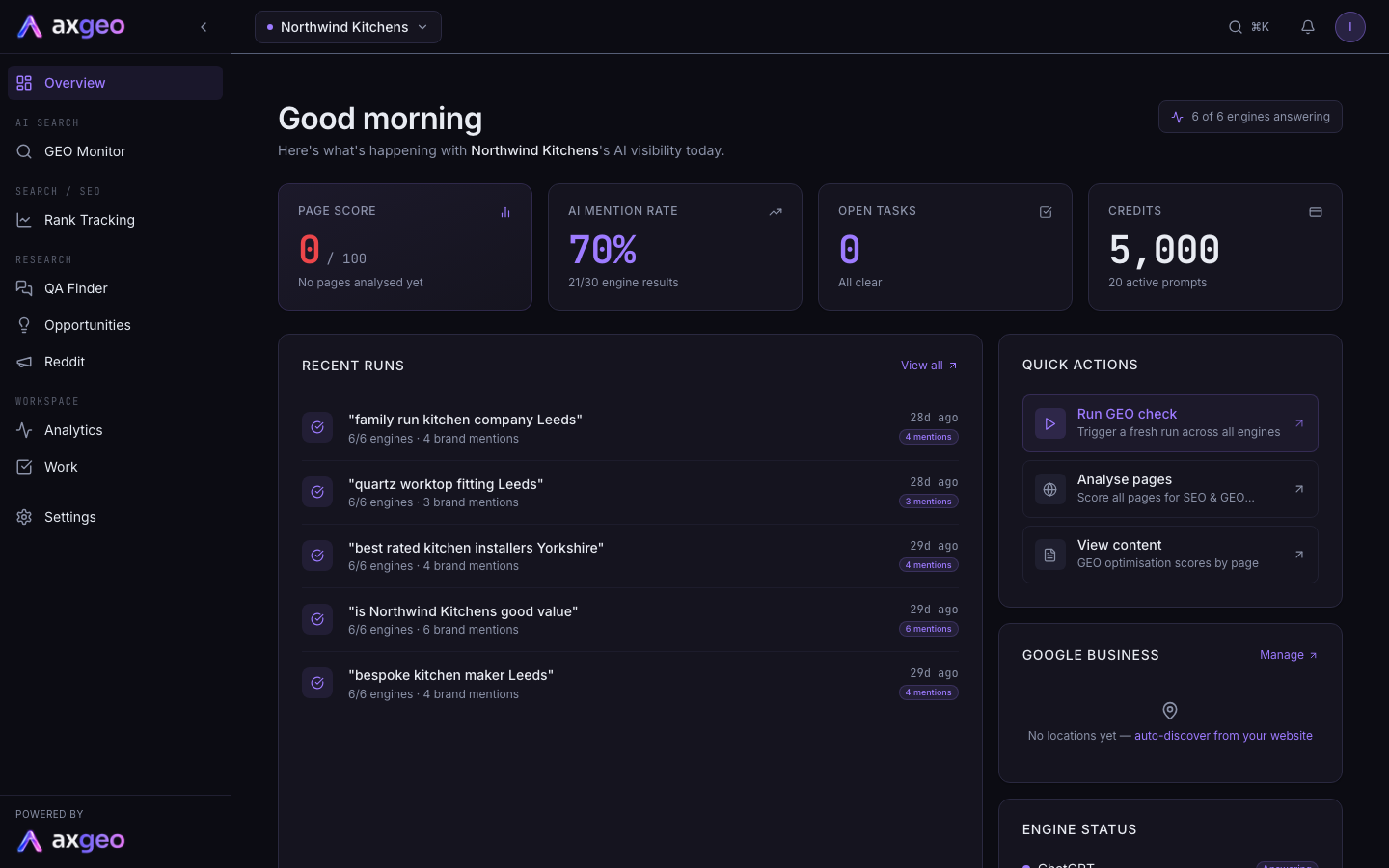
The first five things to do
1. Finish the Welcome checklist
When you first sign in after signing up, a short wizard lets you invite your team and launch your workspace. The Welcome checklist then lists the set-up steps for your plan, such as finding your Google listing and choosing the searches to track. Every step has its own button and a Skip for now button. See Set up your new workspace.
2. Check your fact sheet
Go to Settings, then Fact sheet. It lists the facts about your business, such as services, prices and opening hours. axgeo.ai compares AI answers with these facts and flags anything wrong. See Keep your fact sheet up to date and Check and fix what AI says about you.
3. Fill in your brief
Go to Settings, then Brief. Describe your business, who you serve and how you like to sound. Drafted content and review replies use it, so a good brief saves you editing later. See Write your brief.
4. Review your prompts
Prompts are the questions axgeo.ai asks the AI engines. Go to GEO Monitor, then Prompts, and check they match what your customers really ask. Add any that are missing with Add prompt, and pause any that don't fit. See Add and manage prompts.
5. Track your Google searches
Open Rank Tracking and set up a campaign with the searches you want to follow, for each location you serve. Positions appear after the next overnight check. See Create and manage rank tracking campaigns.
Once these are done, invite anyone else who needs access from Settings, then Members. See Add team members.
Where everything lives
The sidebar on the left holds every section, grouped under headings. It only shows the tools your plan includes, so yours may have fewer items than the list below. Plans, allowances and credits explains what each plan includes.
Overview
Your home page, with headline figures from across the workspace. See Read your Overview page.
AI Search
GEO Monitor is the heart of the app. Start with Read your GEO Monitor dashboard, and use AI visibility metrics explained whenever a number needs explaining. Each of its other tabs has its own guide.
- Prompts, the questions you track: Add and manage prompts.
- Runs, every answer in full: Read individual AI answers.
- Competitors, share of voice and who AI recommends: Compare yourself with competitors.
- Sources, the sites AI cites and the AI bots visiting you: Sources and AI crawlers, plus Cited pages.
- Google AI and Copilot, Google's and Microsoft's own figures: Google AI Overviews and Copilot.
- Accuracy, wrong facts in AI answers: Check and fix what AI says about you.
- Topics, Markets and Optimise: Topic gaps, Compare visibility by market and the Optimise checklist.
Search / SEO
Rank Tracking follows your Google positions (Read your rank tracking results). Pages checks the pages on your site (Find and analyse your pages). Content has the Pages, Prompt gaps, Schema and llms.txt tabs (Content pages and AI article drafts). Link Building appears when it is switched on for your workspace (Use the link building pipeline).
Local
Google Business tracks your profile and reviews (Track your Google Business Profile and Track reviews and write replies). Directory Citations appears when it is switched on for your workspace (Manage directory citations).
Research
QA Finder finds real questions people ask (Find real questions with QA Finder). Opportunities lists pages and searches worth working on (Use your content opportunities list). Reddit shows the communities AI engines cite (See which Reddit communities AI cites).
Workspace
Reports builds and sends reports (Create and send reports). Work holds your tasks and sign-offs (Plan and track work). Analytics appears when it is switched on for your workspace (Analytics).
Settings
The tabs are Workspace, Brief, Fact sheet, Locations & offers, Members, Pages, Integrations, API, Alerts and Billing. Integrations and API are part of Growth, Professional and Agency. Each tab has a guide.
| Tab | Guide |
|---|---|
| Workspace | Your name, logo and report colours |
| Brief | Write your brief |
| Fact sheet | Keep your fact sheet up to date |
| Locations & offers | Your branches and current offers |
| Members | Add team members |
| Pages | Choose which pages to include |
| Integrations | Google and SEMrush |
| API | The data API and CSV exports |
| Alerts | Choose your alerts |
| Billing | Manage billing, invoices and payments |
Help, at the bottom of the sidebar, opens this help centre.
Words you will see
- A prompt is a question axgeo.ai asks AI engines for you. Your plan's questions each week are your active prompts.
- An engine is an AI tool that answers, such as ChatGPT, Gemini, Perplexity or Google AI Mode.
- A run is one prompt asked on its engines at one time. Each engine's reply is an answer.
- A mention is an answer that names your business. A citation is an answer that links to a page as its source. Listings on directory sites are a different thing, called directory citations.
- Share of voice is your share of all the brand mentions in your answers, against the competitors you track.
- An allowance is work your plan pays for. Credits are a separate balance for a few extras.
AI visibility metrics explained defines every number in full.
Getting around
The bar along the top of every page has a few shortcuts.
- Click the workspace name to open the Switch client menu, which lists every workspace you have access to. The one you are in is marked as current. See Work across several workspaces.
- The pill next to it shows your plan.
- Press Cmd+K on a Mac or Ctrl+K on Windows to open the jump menu. Type part of a section name, use the arrow keys to choose and press Enter to go. Press Esc to close it.
- The bell shows your notifications, such as alerts and task updates. Click one to open it, or press Mark all read.
- Click your initial on the right to see your name and email, and to Sign out.
On a phone or small tablet, the sidebar is hidden. Tap the menu button at the top left to open it, and tap outside it or pick a section to close it. On a larger screen you can shrink the sidebar to icons with the arrow at the top of it.
Common problems
A section in this help is missing from my sidebar
Your plan doesn't include it, or it hasn't been switched on for your workspace. Check Plans, allowances and credits to see what your plan covers.
A banner says my sync is paused
This appears when a payment has failed or your subscription has ended. Your stored data is kept, but new checks stop until the plan is active again. Press the button in the banner to go to Billing.
My dashboard is empty
New workspaces need their first AI answers before the charts fill in. Check that you have active prompts on the Prompts tab, then give it a little time. See Add and manage prompts.
I still need help
Email the axgeo.ai team at [email protected]. Tell us your workspace name and the page you were on, and we will get back to you.