
In brief
Settings, Brief holds two pieces of text that feed every AI generation in your workspace. The brief gives the facts about your business. The writing style guide says how the words should read. Fill both in once and every new draft, answer pack and review reply uses them.
Key points
- The brief is treated as background facts, never as instructions.
- The style guide controls tone and wording only. It can't add claims.
- Both feed answer packs, article drafts, review responses and content opportunity analysis.
- You can paste text or upload .md, .markdown or .txt files under 1 MB.
- Saving affects new generations only. Existing outputs are not rewritten.
- The page shows when it was last saved and by whom.
The steps at a glance
- 1
Open the Brief tab
Press Settings in your sidebar, then the Brief tab.
- 2
Write the brief
Type or paste the facts about your business into the brief box, or press Upload .md to import a file.
- 3
Write the style guide
Describe the tone, vocabulary and formality you want in the writing style guide box.
- 4
Save
Press Save changes at the top of the page. The button only works once something has changed.
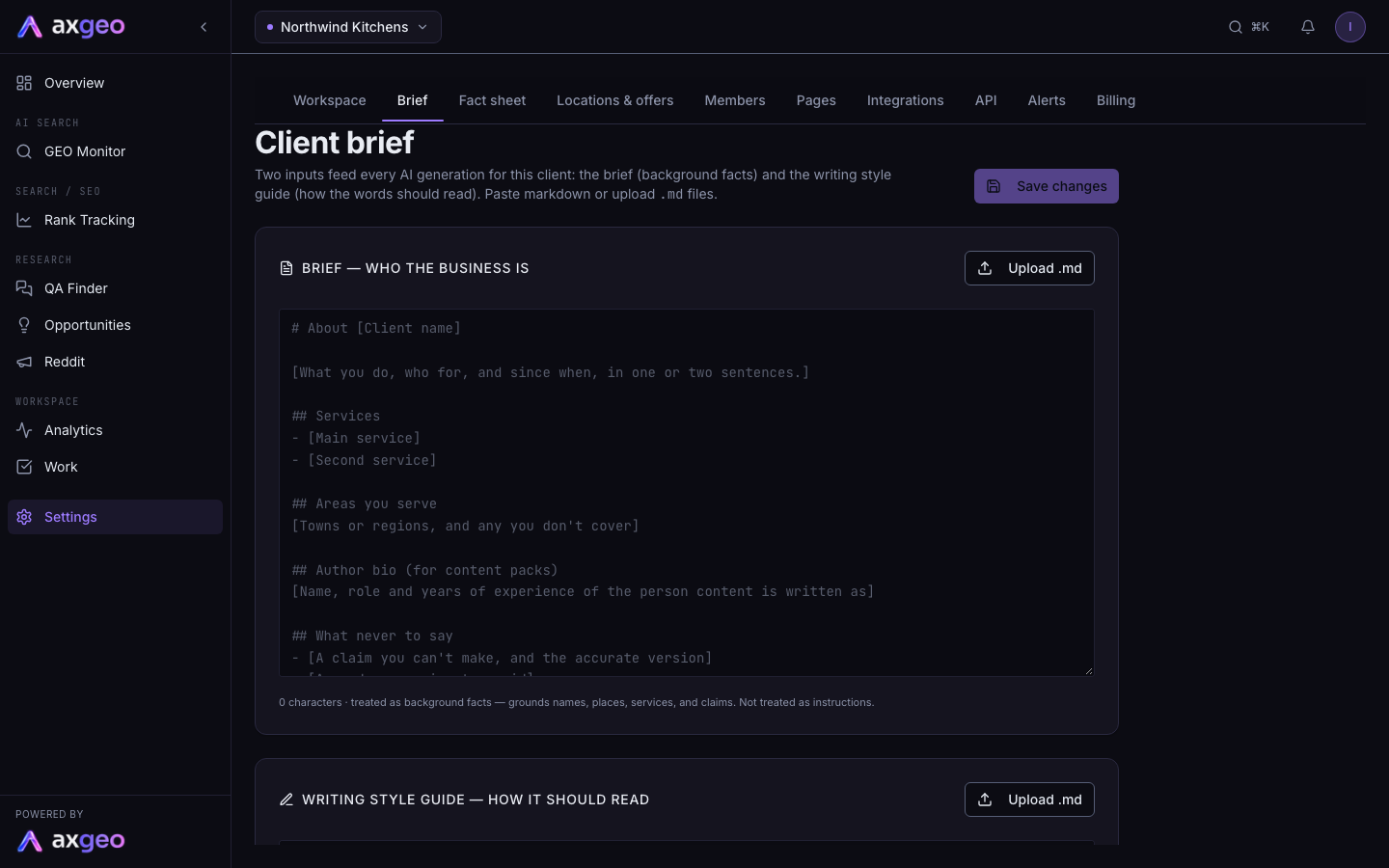
Use the Brief tab to tell axgeo.ai about your business in your own words. Headed Client brief, the page has two boxes. One, the brief, holds background facts. Its partner, the writing style guide, holds the rules for how the writing should sound. Together they shape every piece of AI-written content in your workspace.
How to write your brief
- Press Settings in your sidebar, then the Brief tab.
- Type or paste the facts about your business in the first box. If it is empty, it shows a template with headings to follow.
- Describe how you want the words to read in the second box, the writing style guide.
- Press Save changes at the top right. It is greyed out until you change something.
A message confirms that the next AI generations will use your changes.
Upload a file instead
Each box has an Upload .md button. It accepts .md, .markdown and .txt files under 1 MB. If the box already has text, the file is added underneath, with a dividing line, rather than replacing it. A message tells you how many characters were imported. Press Save changes afterwards, because uploading alone doesn't save.
What goes in each box
The brief
These sections from the template make a good start.
- About your business, saying what you do, who for and since when.
- Your main services.
- The areas you serve, and any you don't cover.
- An author bio for content packs, with the name, role and years of experience of the person content is written as.
- What never to say, such as a claim you can't make and the accurate version.
Everything in the brief is treated as background facts. It grounds names, places, services and claims, so AI-written content uses your real details instead of placeholders. No sentence in it is treated as a command.
The writing style guide
This is about the writing itself. Its template covers tone of voice, vocabulary, formality and things to never do, such as exclamation marks. You might write that you use "we", keep sentences short and always say what a thing costs.
Every generation follows the style guide, but only for how the words read. It can't add factual claims. The platform's own rules always take priority if they clash, such as no em dashes, no invented facts and UK spelling.
Where your brief is used
Both boxes feed answer packs, article drafts, review responses and content opportunity analysis. You can read more about those in content drafts, reviews and Opportunities.
Save once and every later generation reads the latest version. Content created before you saved is not rewritten automatically, so regenerate anything you want in the new style.
What the screen shows
Under each box, a counter shows how many characters it holds. At the bottom, the How the AI uses these card sums up the difference between the two boxes. Below that, you can see when the brief was last saved and the email of the person who saved it.
Common problems
Save changes is greyed out
Nothing has changed since the last save, or the page is still loading. Edit either box and the button becomes active.
"File too large"
Your file is over 1 MB. Split it, or paste the most useful parts.
"File appears empty"
Nothing readable was found in the file. Upload a plain text or markdown file. Word documents can't be read.
My drafts still say something wrong
Check the brief for the old wording and correct it, then regenerate the draft. For facts that AI engines get wrong about you, use the Fact sheet, which is what answers are checked against.