
In brief
The Pages tab in Content lists your pages by score, highest first, so you can see which ones need content work. When you are ready to write, open a task on your Work board and generate an AI article draft with a title, meta description and body you can copy into your site.
Key points
- Content, Pages lists every page with its score, last analysis and number of weak areas.
- Issues counts how many of the six areas score under 60.
- A stale badge means the page was re-crawled after its last analysis.
- AI article drafts are written from inside a task on your Work board.
- Each draft gives you a title, meta description and full HTML to copy.
The steps at a glance
- 1
Find a page to improve
Open Content, stay on the Pages tab and look for low scores and high Issues counts.
- 2
Make it a task
Open the page, then add a failed check as a task, or create a task on your Work board.
- 3
Open the task
Go to Work and click the task. Set its Workstream to Content if it isn't already.
- 4
Generate the draft
Click AI article draft in the AI article drafts section, then click Generate draft.
- 5
Copy it into your site
Use Copy title, Copy meta and Copy full HTML, then edit and publish it on your website.
The Content section of the sidebar opens on the Pages tab. It lists every page on your site by score, highest first, so the pages that need most work sit towards the bottom. When you decide to write or rewrite a page, you can generate an AI article draft from a task on your Work board.
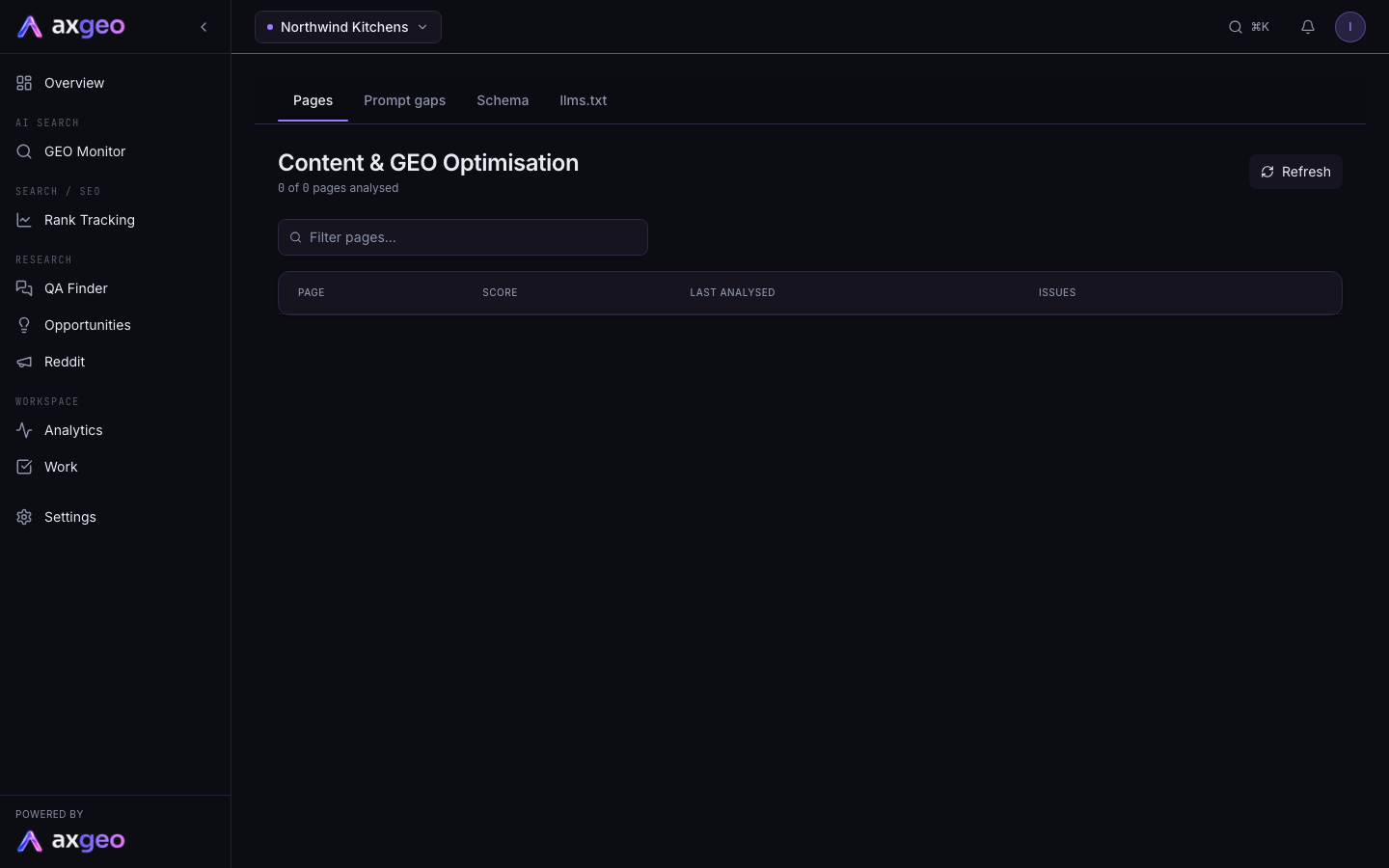
How to go from a weak page to a draft
- Open Content from the sidebar. You land on the Pages tab.
- Scan the list for low scores and high Issues counts. Click a row to see its six area scores.
- Click View page details to open the full checks. The page checks article explains that screen.
- Add a failed check as a task, or create a task on your Work board.
- Open the task on the Work board and generate a draft, as described below.
What the Pages tab shows
The heading shows how many of your pages have been analysed, for example "42 of 60 pages analysed". Click Refresh to reload the list, and type in Filter pages... to find a page by its title or URL.
The table has four columns.
The Page column shows the page title and path, with a link to open the live page.
The Score column shows the overall score out of 100 with a bar. Scores of 71 and above are good, 41 to 70 show in amber and 40 or below show in red.
Last Analysed shows how long ago the page was scored. A stale badge means the page has been re-crawled since then, so the score may not match the current content. Analyse the page again from Pages to bring it up to date.
Issues counts how many of the six areas score under 60. Three or more show in red.
Click any row to expand it. You'll see a Score Radar and a Category Breakdown with a bar for each area. Pages that haven't been analysed yet show a link to open the page instead.
Generate an AI article draft
Drafts are written from inside a task, so the work stays with the job it belongs to.
- Open Work from the sidebar and click a task.
- Find the AI article drafts section, which shows on tasks in the Content workstream. If you can't see it, change the task's Workstream to Content.
- Click AI article draft to open the panel, then click Generate draft.
- Read the result. You'll see the title, the meta description with its length, and a preview of the body with its approximate word count.
- Use Copy title, Copy meta and Copy full HTML to paste the parts into your website editor.
The draft is built from the task title. If the task came from QA Finder, it also uses that question and its answer pack. Your workspace brief shapes the wording, so a clear brief gives better drafts.
Want a different take? Click Generate another version. Every version is kept, and the numbered Version buttons switch between them. The newest is shown first.
Always read a draft before you publish it. Check facts, prices and claims, and add your own photos, examples and local detail.
Answer packs
On the Opportunities page, Generate answer pack opens QA Finder with that search already filled in. QA Finder builds the questions people ask and an answer pack for each. It is included on the Agency plan. See the QA Finder article for how it works.
Credits and plans
The Content section is part of every current plan. Content drafts are included in every current plan too, so generating one doesn't use credits. On older credit-based plans each draft uses credits, and any credit figure on the button applies to those plans.
Common problems
I can't see the AI article drafts section
It shows on tasks in the Content workstream, and on any task that already has a draft. Open the task and set Workstream to Content.
Generate draft does nothing or shows an error
Members with the Viewer role can read drafts but can't create them. On a credit-based plan, an empty balance also stops a draft. See plans and credits.
The scores on this tab look out of date
This tab shows the last analysis for each page. Look for the stale badge, then analyse those pages again from the Pages screen.