
In brief
Opportunities is your ranked worklist of what to write or fix next. It is built from your Search Console, rank tracking and AI prompt data, grouped by page and sorted by commercial value. Refresh it, filter it, analyse an item with AI and send the work to your tasks board.
Key points
- Click Refresh opportunities to work out the list from your latest data.
- Seven kinds of opportunity cover Google rankings, click rates and AI answers.
- Queries for the same page are grouped into one job.
- Informational and brand searches are hidden by default but one click away.
- Add to tasks and Add page to tasks send the work to your Work board.
The steps at a glance
- 1
Refresh the list
Open Opportunities in the sidebar and click Refresh opportunities.
- 2
Filter it
Use the Filter chips for the kinds you want and the Intent chips to choose which searches to show.
- 3
Open a job
Click a grouped page to see all its queries, or read a single item directly.
- 4
Get advice
Click Analyse for an AI diagnosis, recommended actions and a suggested title and meta description.
- 5
Send it to your tasks
Click Add to tasks, or Add page to tasks for a whole page, then mark items done when finished.
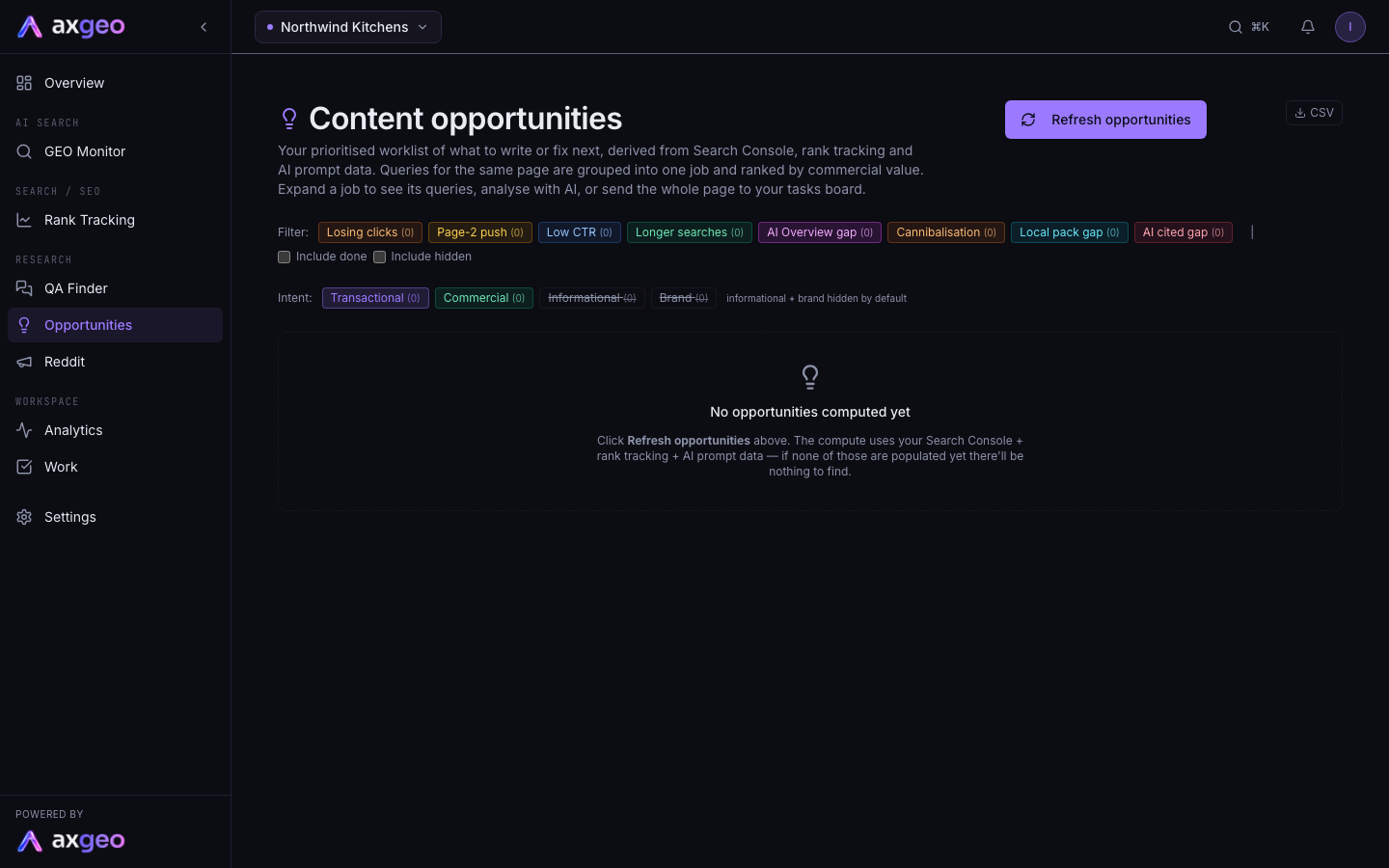
Opportunities is a ranked list of what to write or fix next. It looks across your Search Console data, rank tracking and AI prompt answers, then groups queries for the same page into one job and sorts the jobs by commercial value. Open Opportunities from the Research part of the sidebar. It is in every workspace.
How to use Opportunities
- Click Refresh opportunities. A message tells you how many opportunities were found, and how many are new or updated.
- Use the Filter chips to show only certain kinds. Hover over a chip to see what it means. Click Show all to clear the filter.
- Use the Intent chips to choose which kinds of search to show.
- Click a grouped page to expand its queries.
- Click Analyse on an item to get AI advice on what to do.
- Click Add to tasks, or Add page to tasks on a grouped page, to send the work to your Work board.
- Click the tick to mark an item done when you've finished. Click the cross to hide items that aren't relevant.
Click CSV to download the list.
The seven kinds of opportunity
Losing clicks shows pages whose Google clicks fell over the last 28 days compared with the 28 days before. Refresh these before writing anything new.
Page-2 push shows searches where you rank in positions 11 to 20. A small climb onto page one can bring a big jump in clicks.
Low CTR shows searches where you're already in the top 10 but get far fewer clicks than that position usually earns. A better title and meta description is often the fix.
AI Overview gap shows searches where Google's AI Overview cites competitors and not you. Clear, factual, well-structured content gives you the best chance of being cited.
Cannibalisation shows searches where two or more of your own pages compete. Merge them, or make each page clearly about something different.
Local pack gap shows searches where the local map results appear but your business isn't in them. Fix it through your Google Business Profile rather than with new content.
AI cited gap shows prompts where AI engines cite websites, but never yours. Each usually points to a missing page that answers the question properly.
Losing clicks, Page-2 push and Low CTR need Search Console connected. AI Overview gap, Cannibalisation and Local pack gap come from your rank tracking results. AI cited gap comes from your AI prompt answers.
Intent
Each search is labelled by how commercial it is. Transactional means ready to buy, such as searches for prices, quotes or "near me". Commercial means researching a purchase, or terms that match what you sell. Informational means browsing or how-to searches. Brand means people searching for your name.
Informational and brand searches are hidden by default, because they rarely lead to new work. Click either chip to show them again.
What each item shows
Each item shows its kind and intent, plus chips when the Google results include an AI Overview, a featured snippet or a knowledge panel. Where we can estimate it, you'll see clicks/mo potential. That's the extra monthly clicks if you fully win the opportunity. Treat it as a rough planning figure.
Below the title you'll see the page it relates to and figures such as position, impressions, clicks and click rate compared with the expected rate. Some items also list who the AI Overview cites, your competing pages or who is in the local pack.
A grouped page shows how many queries it covers, a mix of kinds and intents, and a combined clicks estimate.
Analyse with AI
Analyse runs an AI review of one opportunity. It uses your page, your brief and your verified facts, and gives you the following.
- A diagnosis of what's holding the page back.
- Recommended actions, each with an effort and impact rating.
- A suggested title and meta description, each with a Copy button.
- A content outline and related queries to target.
If no existing page fits, it says the opportunity needs a new page. Click View analysis or Hide analysis to show or hide a saved result, and Re-analyse to run it again.
Analyse uses credits on every plan. The result is saved, so viewing it again is free. See plans and credits.
Other actions
Generate answer pack opens QA Finder with the search already filled in. QA Finder is included on the Agency plan. If you don't see it in your sidebar, it isn't part of your plan.
Add to tasks creates a task for one item, including the AI analysis if you've run it. The button then changes to In tasks. Add page to tasks creates one task covering every query for that page, and changes to Page in tasks.
Tick Include done or Include hidden to bring back items you've marked.
Common problems
No opportunities computed yet
Click Refresh opportunities. If the list is still empty, there isn't enough data yet. Connect Search Console, set up rank tracking and let your AI prompts run for a while, then refresh again.
The list hasn't changed
The list only updates when you click Refresh opportunities. Refresh after new Search Console or rank tracking data arrives.
Analyse shows an out of credits message
Analyse uses credits. Top up or check your balance in Settings, Billing.