
In brief
The Copilot tab shows how often Microsoft Copilot and Bing's AI answers cited your pages, using the AI Performance report from Bing Webmaster Tools. You export the report and upload it here, then add the searches Bing ran to your tracked prompts.
Key points
- The data comes from the AI Performance report in Bing Webmaster Tools.
- Microsoft reports citations in this report. It doesn't report clicks.
- Upload CSV, Excel or zip files. Each upload adds to the history.
- Grounding queries are the searches Bing ran when it used your site in an answer.
- Tick grounding queries and add them to your prompts in one go.
- Uploading and viewing this report uses no credits.
The steps at a glance
- 1
Open AI Performance in Bing
In Bing Webmaster Tools, choose your site and open AI Performance.
- 2
Set the dates and export
Set the date range, then use Export on the chart, the pages table and the grounding queries table.
- 3
Open the Copilot tab
In axgeo.ai, go to GEO Monitor and choose the Copilot tab.
- 4
Upload the files
Press Upload Bing AI Performance export and pick the files. Upload them one at a time or together in a zip.
- 5
Add queries to your prompts
In Grounding queries, tick the ones worth tracking and press Add to prompts.
Microsoft Copilot and Bing's AI summaries cite websites when they answer. The Copilot tab shows how often they cited yours, which pages they used, and the searches that led there. It uses Microsoft's own figures from Bing Webmaster Tools.
You'll find it in GEO Monitor, on the Copilot tab.
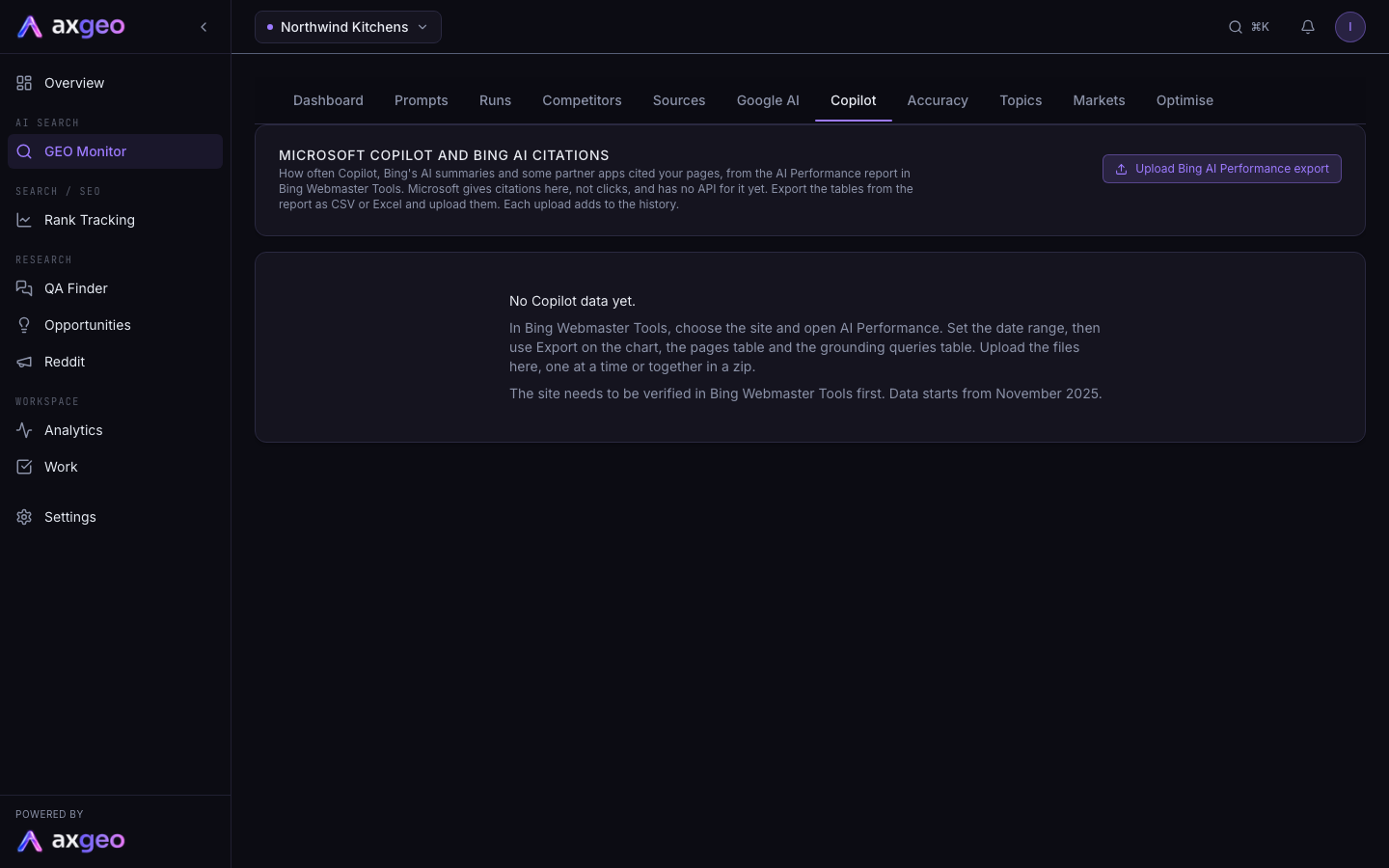
How to upload your Bing data
Microsoft has no API for this report yet, so the figures come from files you export and upload.
- In Bing Webmaster Tools, choose your site and open AI Performance.
- Set the date range.
- Use Export on the chart, on the pages table and on the grounding queries table. CSV or Excel both work.
- In axgeo.ai, go to GEO Monitor and choose Copilot.
- Press Upload Bing AI Performance export and pick the files. You can upload them one at a time, all at once, or together in a zip.
- A note confirms what each file added, such as the number of days, cited pages or grounding queries.
Your site needs to be verified in Bing Webmaster Tools first. Microsoft's data starts from November 2025. Each upload adds to the history.
Under the upload button you'll see the date of the last upload. Once there is data, a CSV button downloads it.
What each part of the screen means
The three numbers at the top
- Citations, last 28 days is how many times Copilot and Bing AI cited your site in the last 28 days, with the change against the 28 days before. It needs the chart export.
- Pages cited is the number of your pages in the latest pages export, with their total citations underneath.
- Grounding queries is the number of queries in the latest export, and how many of them you already track as prompts.
Microsoft reports citations here. It doesn't report clicks. A citation means one of your pages was used as a source in an AI answer.
Daily citations in Copilot and Bing AI answers
A line chart of citations by day. If the export includes it, a second line shows the number of pages cited each day.
Grounding queries
These are the searches Bing ran when it used your site in an answer. Microsoft shows a sample of them. The table shows each query and its citations. Some exports also include a share figure.
Queries you already track are marked Tracked in the Prompt column. The rest have a tick box.
Your pages cited by Copilot and Bing AI
Each of your cited pages and its number of citations. The Other engines column shows which of your tracked AI engines also cited that page in answers to your prompts in the last 90 days. If none did, it says None.
How to turn grounding queries into prompts
Grounding queries are a useful source of real questions. Adding them to your prompts lets you see how ChatGPT, Gemini, Perplexity and the other engines answer them too.
- In the Grounding queries table, tick the queries worth tracking.
- Press Add to prompts. The button shows how many you've ticked.
- A note confirms how many were added, and how many were already tracked.
The new prompts are added to a prompt set called Copilot grounding queries, and they run with the rest of your prompts. If you've reached your plan's question limit, the extra ones wait as pending and don't run until there is room. See Plans and credits for each plan's weekly questions.
Once they've run, read the answers on the Runs tab.
Common problems
No Copilot data yet
You haven't uploaded a file yet. Follow the steps above. If AI Performance is missing in Bing Webmaster Tools, check that your site is verified there.
Citations, last 28 days says to upload the chart export
The daily figures come from the chart export. Go back to AI Performance, use Export on the chart, and upload that file.
A file says some tables were not recognised
The note lists how many tables in the file weren't recognised. Export each table from AI Performance directly, without editing the file, and upload it again.
Some queries were added as pending
Your plan's question limit has been reached. To make room, look at the prompts you no longer need on the Prompts tab.
For Google's version of this report, see Google AI Overviews.