
In brief
Settings, API lets you make read-only keys to pull your workspace's data into spreadsheets, dashboards and your own tools. Across the app, CSV buttons download the data on the main screens. Neither uses credits.
Key points
- API keys are read only and use no credits.
- Each key can make 60 requests a minute.
- Only workspace owners and admins can make and revoke keys.
- A new key is shown once, so copy it straight away.
- Five of the data addresses can return CSV as well as JSON, ready for Google Sheets.
- CSV buttons on the Prompts, Competitors, Sources, Accuracy, Topics, Opportunities and rank tracking screens download that data.
The steps at a glance
- 1
Open the API tab
Go to Settings in your sidebar and choose the API tab.
- 2
Name your key
Type what the key is for in the Keys card, for example Looker Studio.
- 3
Make the key
Press Make a key. Copy the key from the box that appears, as it won't be shown again.
- 4
Use the key
Send it as the header Authorization: Bearer followed by your key, or paste a ready-made formula into Google Sheets.
- 5
Revoke when done
Press Revoke next to a key you no longer need. Anything using it stops working.
There are two ways to take your data out of axgeo.ai. The data API lets your own tools, spreadsheets and dashboards read your workspace's data whenever they need it. CSV buttons on the main screens download a file there and then.
The API tab is part of Growth, Professional and Agency. The Practice, Practice Plus and Group plans leave it out. The CSV buttons work on every plan.
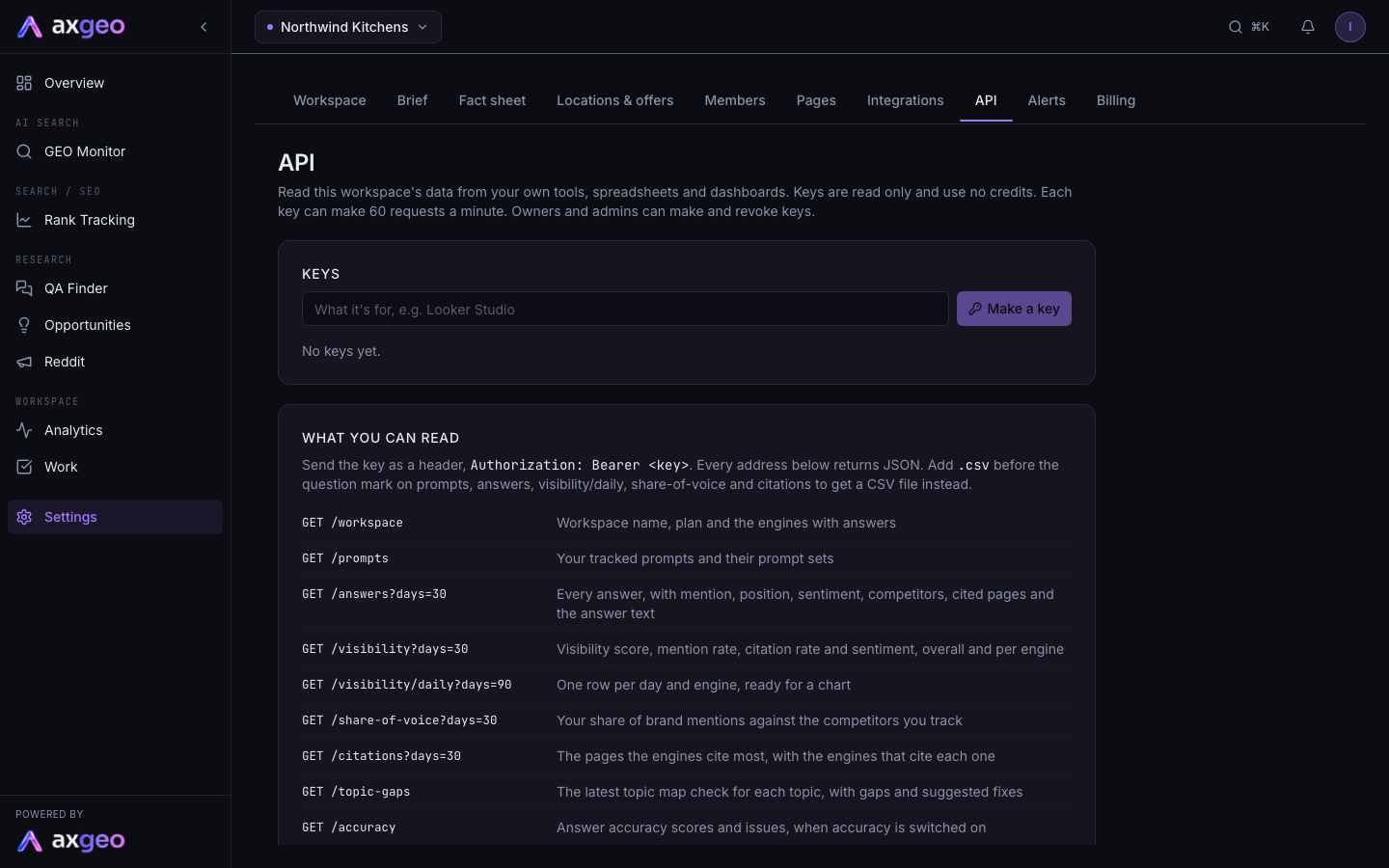
How to make an API key
- Open Settings and choose the API tab.
- Type what the key is for in the box on the Keys card, for example Looker Studio.
- Press Make a key.
- Copy the key from the box that appears. It is only shown once.
Only workspace owners and admins can make and revoke keys. See Members for roles. A workspace can have up to 10 active keys.
Keys are read only and use no credits. Each key can make 60 requests a minute. The API works while your workspace has an active plan.
How to use the key
Send the key as a header, Authorization: Bearer followed by the key. Every address returns JSON. The What you can read card lists them, with a copyable example.
| Address | What it returns |
|---|---|
| /workspace | Workspace name, plan and the engines with answers |
| /prompts | Your tracked prompts and their prompt sets |
| /answers | Every answer, with mention, position, sentiment, competitors, cited pages and the answer text |
| /visibility | Visibility score, mention rate, citation rate and sentiment, overall and per engine |
| /visibility/daily | One row per day and engine, ready for a chart |
| /share-of-voice | Your share of brand mentions against the competitors you track |
| /citations | The pages the engines cite most, with the engines that cite each one |
| /topic-gaps | The latest topic map check for each topic, with gaps and suggested fixes |
| /accuracy | Answer accuracy scores and issues, when accuracy is switched on |
Most addresses take a days setting, such as days=30, up to 365 days. Add .csv before the question mark on prompts, answers, visibility/daily, share-of-voice and citations to get a CSV file instead of JSON. The metrics are explained in AI visibility metrics.
Google Sheets and Looker Studio
Google Sheets can't send headers, so a sheet puts the key in the address instead. The Google Sheets and Looker Studio card has ready-made IMPORTDATA formulas labelled Daily, Answers, SoV and Citations. Copy one and paste it into cell A1 of an empty tab. Google refreshes the data about once an hour while the sheet is open.
For Looker Studio, build the sheet first. Then add a data source in Looker Studio, choose Google Sheets and pick that sheet and tab. The daily tab works well for trend charts, with date as the dimension and mention rate as the metric, split by engine.
Anyone who can see a sheet's formulas can see its key. Make a separate key for each sheet, and revoke it if the sheet is shared more widely.
What the Keys list shows
Each key shows its name, the first few characters of the key, when it was made and by whom, when it was last used and how many requests it has made. Press Revoke to switch a key off. Anything using it stops working straight away.
CSV exports across the app
Look for the small button with a download icon. Each one downloads a CSV file of the data on that screen. They use no credits.
- On the GEO Monitor Prompts tab, Last 30 days CSV downloads every answer from the last 30 days. See Prompts.
- On the Competitors tab, Share of voice CSV downloads each brand's share of mentions over the last 30 days. See Competitors.
- On the Sources tab, Cited domains CSV downloads the domains AI answers cited over the last 30 days. See Sources and AI crawlers.
- On the Accuracy tab, Issues CSV downloads your answer accuracy issues.
- On the Topics tab, the CSV button next to a topic downloads that topic's gaps.
- On Opportunities, CSV downloads your list of opportunities.
- In a rank tracking campaign, Latest positions CSV downloads the latest positions for its keywords. See Rank tracking.
For a finished summary to share, use Reports instead.
Common problems
"This API key is not valid or has been revoked"
Check you copied the whole key. If it was revoked or lost, make a new one.
"This workspace has no active plan"
The API only answers while your plan is running. See Billing.
"Only workspace owners and admins can manage API keys"
Ask an owner or admin of the workspace to make the key for you.
The accuracy address returns an error
The /accuracy address only works when answer accuracy is switched on for your workspace.