
In brief
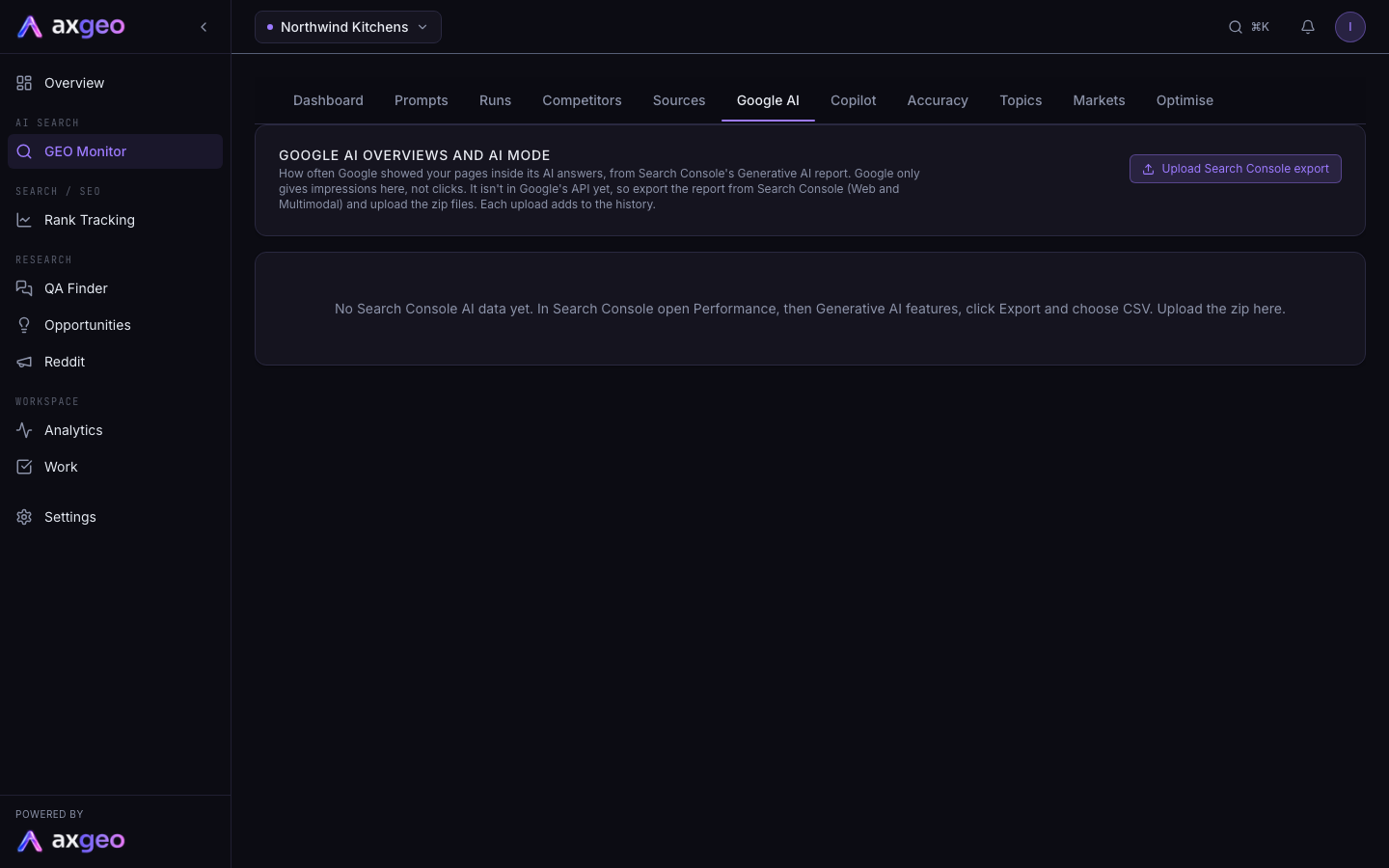
The Google AI tab shows how often Google showed your pages inside AI Overviews and AI Mode. Google doesn't offer this report through its API yet, so you export it from Search Console and upload the file here. Each upload adds to your history.
Key points
- The data comes from the Generative AI features report in Google Search Console.
- Google reports impressions for this report. It doesn't report clicks.
- Upload a zip or CSV file of up to 5 MB.
- Web and Multimodal exports are kept separately.
- Each upload adds to the history, so you can build a longer record than Search Console keeps.
- Green engine pills show which AI engines also cited each page in your tracked prompts.
The steps at a glance
- 1
Open the report in Search Console
In Google Search Console, open Performance, then Generative AI features.
- 2
Export it
Click Export and choose CSV. Google downloads a zip file. Do this for the Web type, and for Multimodal if you want image search figures too.
- 3
Open the Google AI tab
In axgeo.ai, go to GEO Monitor and choose the Google AI tab.
- 4
Upload the file
Press Upload Search Console export and pick the zip file. You can pick more than one file at once.
- 5
Check the result
A note confirms how many days and impressions were loaded. The charts and tables then refresh.
Google now answers many searches with an AI Overview or in AI Mode. The Google AI tab shows how often your pages appeared inside those answers, using Google's own figures from Search Console.
You'll find it in GEO Monitor, on the Google AI tab.
How to upload your Search Console data
Google shows this report in Search Console but doesn't offer it through its API yet. So the figures come from a file you export and upload.
- In Google Search Console, open Performance, then Generative AI features.
- Click Export and choose CSV. Google downloads a zip file.
- In axgeo.ai, go to GEO Monitor and choose Google AI.
- Press Upload Search Console export and pick the zip file. You can choose several files at once.
- A note confirms what was loaded, such as the number of days and impressions. The page then refreshes.
Files can be zip or CSV and up to 5 MB each. Search Console reports Web and Multimodal search types separately, and each export is filed under the right type automatically.
Each upload adds to the history. If two uploads cover the same day, the newer figure replaces the older one, so days are never counted twice. Over time this builds a longer record than Search Console keeps on its own.
What each part of the screen means
Under the upload button, a line tells you the dates the latest file covers.
If you've uploaded both types, buttons let you switch between Web and Multimodal (image searches).
The three numbers at the top
- Impressions, last 28 days is how many times Google showed your pages in AI answers in the last 28 days of your data. Below it, the change against the 28 days before.
- Impressions, latest file is the total in the most recent upload.
- Pages shown in AI answers is the number of your pages listed in the latest file.
An impression means one of your pages was shown inside an AI Overview or in AI Mode. Google doesn't report clicks for this.
Daily impressions in Google AI answers
A line chart of impressions by day, across all your uploads.
Your pages shown in Google AI answers
Each of your pages, with its Google AI impressions from the latest file. On the Web view there is also a pill for each AI engine you track. A green pill with a tick means that engine cited the page in answers to your tracked prompts in the last 90 days. A grey pill means it didn't. Hover over a pill to see the count.
This shows you which pages Google likes and whether ChatGPT, Perplexity and the other engines agree. To see more about any page, open it in Pages.
Devices and Top countries
Impressions by device, and the top countries, from the latest file.
How this fits with the rest of GEO Monitor
Google AI Mode is also one of the engines your prompts run on, so you can read its full answers on the Runs tab. The Google AI tab is different. It counts how often Google showed your pages across all real searches, including ones you don't track as prompts.
Microsoft has a similar report for Copilot and Bing. See Copilot.
Rank Tracking can also spot Google AI Overviews that cite your pages for your tracked keywords. You'll see these on each page's own checks page, under Google AI Overviews citing this page. See Page checks and Rank tracking.
Common problems
No Search Console AI data yet
You haven't uploaded a file yet. Follow the steps above. In Search Console, the report is under Performance, then Generative AI features.
"This doesn't look like a Search Console export"
The upload needs the Chart.csv file that Search Console includes in its export. Upload the whole zip as Google downloaded it, rather than a single file from inside it.
"File too large"
Each file can be up to 5 MB. Export a shorter date range and upload it in parts.
The change against the previous 28 days is missing
It only shows when your history includes impressions from the 28 days before. Upload an earlier export, or upload again next month.