
In brief
The Google Business page tracks the rating and reviews on each of your Google Business Profile listings. Add your listings with Auto-discover or by hand, and they are kept in sync for you. You can also tag reviews to campaigns and see which ones bring in reviews.
Key points
- Auto-discover finds your main listing from your business name and website.
- You can add other locations by hand with a name and address.
- Tracked locations are refreshed automatically, and you can sync one at any time.
- The primary location is the one your reports use for the headline rating.
- Marketing campaigns let you tag reviews to a mailshot, salesperson or advert.
- Google Business is included on every current plan.
The steps at a glance
- 1
Open Google Business
Choose Google Business from the Local group in your sidebar. The Google (auto-sync) tab opens first.
- 2
Find your listing
Press Auto-discover. axgeo.ai looks up your main listing using your business name and website and adds it.
- 3
Add other locations
Type the location name and address for each other branch, then press Add manually.
- 4
Sync and check
Press the sync button on a location to refresh its summary and request its reviews. Reviews usually land within a few hours.
- 5
Set the primary location
Press the star on the location you want reports to use for your headline rating.
The Google Business page keeps track of the rating and reviews on each of your Google Business Profile listings. It also brings in reviews from other platforms, and lets you tag reviews to the campaigns or people that brought them in. Ratings and reviews feed your reports, so it is worth setting this up early.
Google Business is included on every current plan. You'll find it under Local in your sidebar.
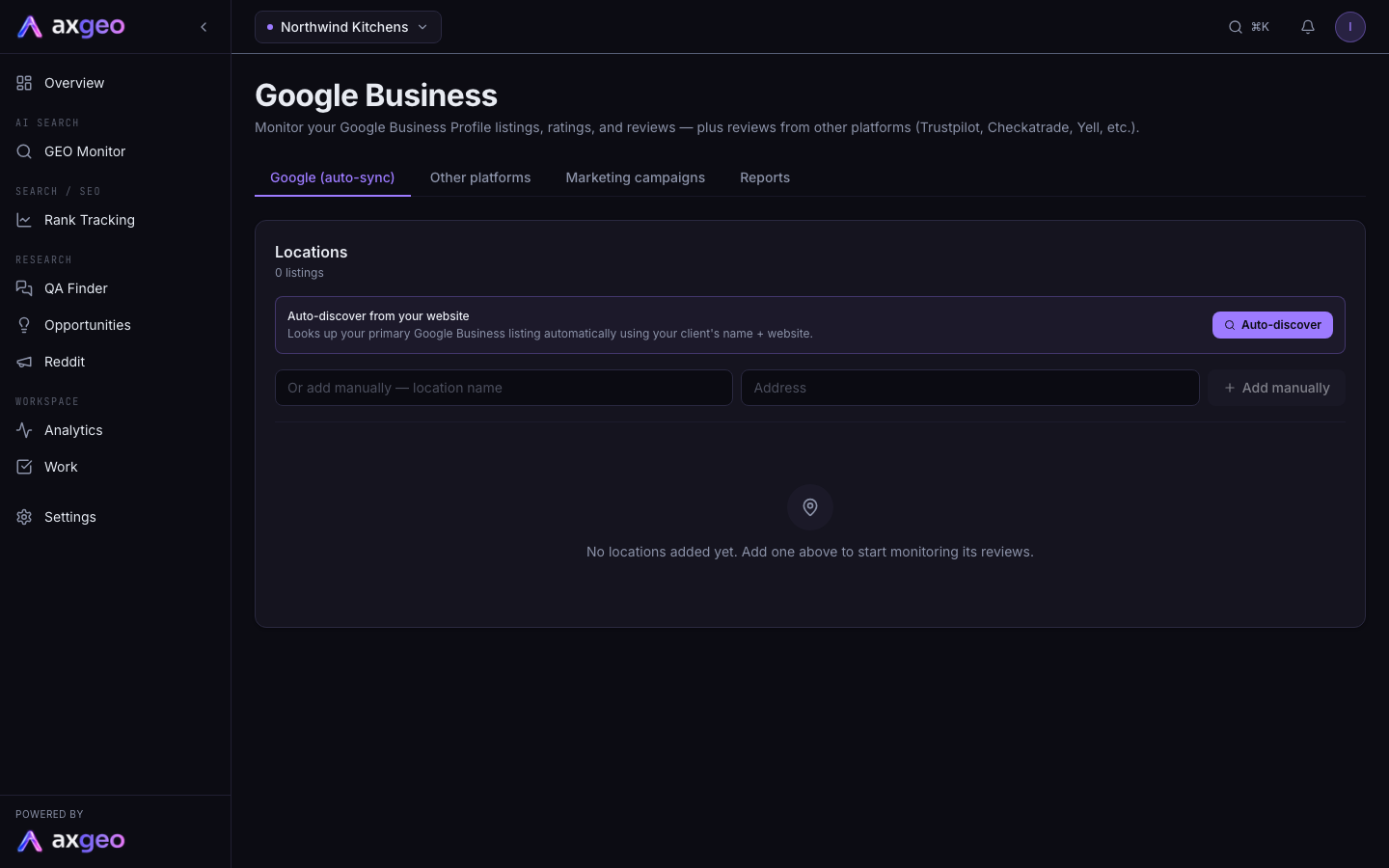
How to add your listings
You don't need to sign in to Google for this page. Locations are found from your public listing.
- Choose Google Business from the Local group in your sidebar. The Google (auto-sync) tab opens first.
- Press Auto-discover. axgeo.ai looks up your main Google Business listing using your business name and website, adds it, and pulls in any reviews it finds.
- Type the name of each other branch in the location name box, add the address, then press Add manually.
- Press the sync button on each location to refresh it straight away.
When you press sync, the location's summary is refreshed and a review pull is queued. A Pull queued label shows on the location while it waits. Reviews usually land within a few hours. If a pull is already queued, the message says so, so there's no need to press it again.
Search Console, Google Analytics and other Google connections are set up separately. See Google integrations.
The Google (auto-sync) tab
Summary cards
- Average rating is the average star rating across all your locations that have a rating.
- Total reviews is the number of Google reviews across all locations.
- Lowest-rated shows the location with the lowest rating, so you can see where to focus.
Locations
The Locations card lists every listing, with its address, star rating, review count and when it was last synced. Each location has a row of buttons.
- The star sets it as your primary location. Only one location can be primary, and reports use it for your headline rating.
- The bell turns daily tracking on or off. A muted location shows a Muted label and is skipped by the automatic sync.
- The sync button refreshes the location and queues a review pull.
- The arrow opens the reviews for that location.
- The bin deletes the location.
If something goes wrong with a sync, the reason is shown in red under the location.
Opening a location's reviews shows each review with its stars, the reviewer's name, when it was posted and when it was imported. You can write a reply with AI from here too. See reviews and replies.
Marketing campaigns
The Marketing campaigns tab is for tracking what brings in reviews. Add a campaign with a name, a kind, optional start and end dates and notes, then press Add campaign. The kinds are Sales person, Email push, Campaign, Paid ad, Event and Other.
To tag a review, open a location's reviews and use the Attributed to list under the review. Choose an existing campaign, or choose + New salesperson / campaign to create one and tag the review in one step. Leave it on organic / none for reviews that came in by themselves.
Each campaign in the All campaigns list shows how many reviews are tagged to it and their average rating. Press Pause to stop it showing in the Attributed to list, and Resume to bring it back. Deleting a campaign removes the tag from its reviews, but their notes are kept.
Reports
The Reports tab totals your tagged reviews. Choose a From and To date, then pick how to Group by: Campaign / source, Kind, Location, Day, Week or Month. You can filter to one location or one campaign. The table shows the number of reviews and the average rating for each group. Use it to answer questions like whether a spring mailshot brought in more reviews.
Common problems
Auto-discover can't find my listing
It searches using the business name and website on your workspace. Check both are correct on workspace settings, or add the location by hand with Add manually.
A location shows no reviews
If it has never been synced, press the sync button and wait a few hours. If it has been synced and still shows No reviews returned for this location, the listing may have no public reviews yet.
I have the same branch twice
Delete the extra one with the bin button. Mute it with the bell instead if you want to keep it on the page but stop it syncing.
Addresses for AI checks
The locations here are for reviews. To tell axgeo.ai which addresses and offers AI answers should mention, use Locations and offers. You can import your Google locations there in one click.