
In brief
The SEMrush section on Settings, Integrations brings your SEMrush Position Tracking rankings into axgeo.ai. Add your API key, create a campaign for each location and device, then upload a CSV export or sync by project ID.
Key points
- SEMrush is on the Integrations tab for Growth, Professional and Agency.
- Your SEMrush API key is stored securely and is never shown again after saving.
- Each campaign covers one location and device, such as London Mobile.
- You can upload a Position Tracking CSV or sync from the SEMrush API with a project ID.
- Uploading the same file twice is safe, as rows are updated rather than duplicated.
- Imported rankings feed the AI Overview Coverage card on the GEO Monitor Dashboard.
The steps at a glance
- 1
Open Integrations
Go to Settings in your sidebar and choose the Integrations tab.
- 2
Save your API key
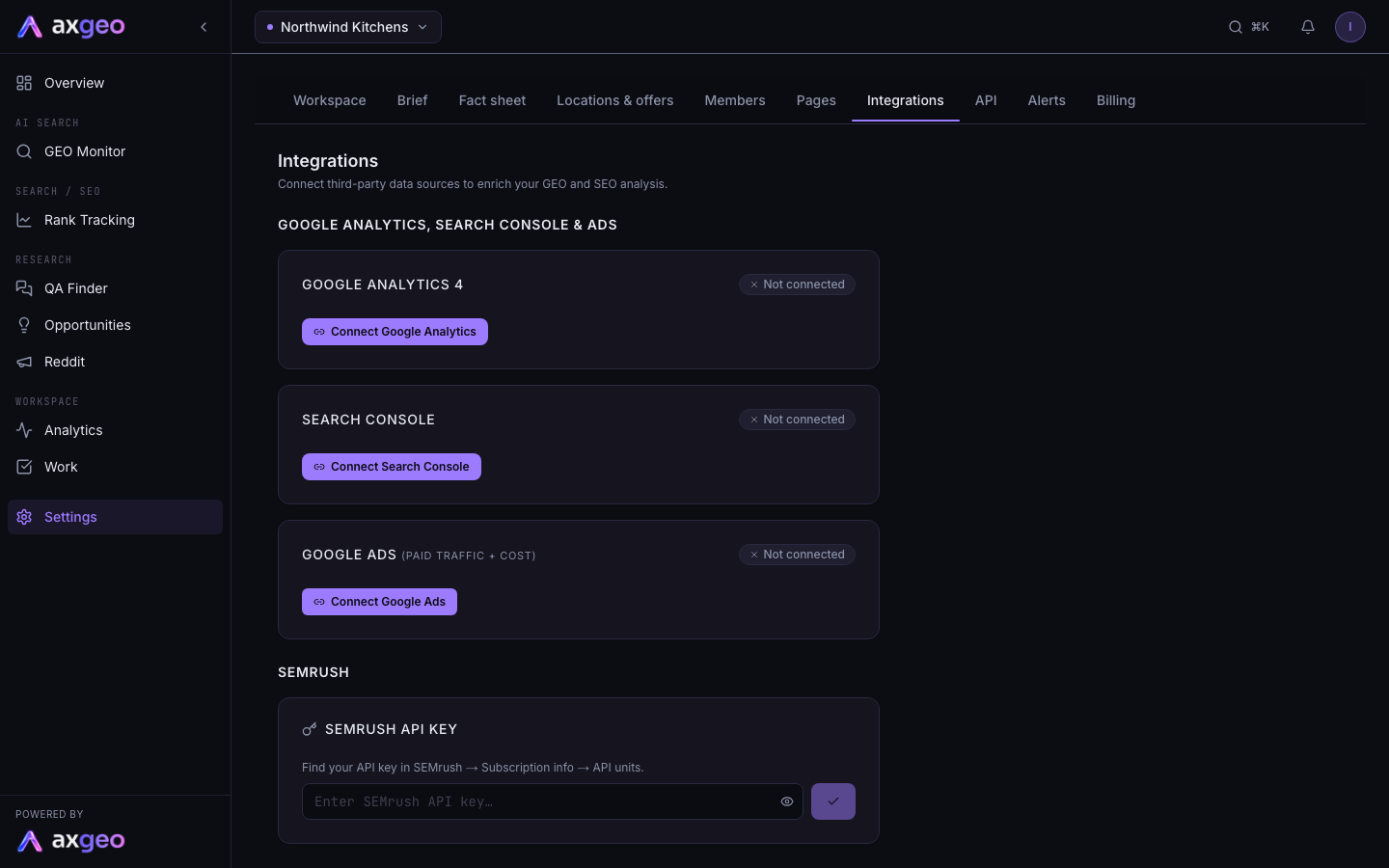
Paste your key into the box in the SEMrush API Key card and press the tick button.
- 3
Add a campaign
Press Add campaign in the Campaigns card, give it a name, location and device, add your SEMrush project ID if you have one, then press Add campaign.
- 4
Bring in your rankings
Press the upload icon on the campaign row to upload a Position Tracking CSV, or press the sync icon to pull from the SEMrush API.
SEMrush is the other data source you can connect on Settings, Integrations, alongside the Google connections described in Google integrations. It brings your SEMrush Position Tracking rankings into axgeo.ai, so you can see which of your keywords trigger Google AI Overviews.
SEMrush is included on Growth, Professional and Agency. The Integrations tab is not shown on the Practice, Practice Plus and Group plans. You don't need SEMrush for rankings, as axgeo.ai's own Rank Tracking is on every plan.
How to connect SEMrush
Save your API key
- Find your key in SEMrush under Subscription info, then API units.
- Open Settings in axgeo.ai, then Integrations.
- Paste the key into the "Enter SEMrush API key..." box in the SEMrush API Key card. Use the eye icon to check what you typed.
- Press the tick button. You'll see "SEMrush API key saved" and a Connected badge.
Once saved, the card says "API key is stored securely" and shows when it was last used. Press Update key to change it or Remove to delete it.
Add a campaign
A campaign tracks one location and device, for example London Mobile.
- Press Add campaign in the Campaigns card.
- Fill in a name, a location such as London, United Kingdom, and a device. Device can be Mobile, Desktop or All devices.
- Add your SEMrush project ID if you want to sync from the SEMrush API. You can leave it blank.
- Press Add campaign.
Import rankings
Each campaign row has small icon buttons on the right.
- The upload icon, Upload CSV, takes a SEMrush Position Tracking CSV export. When it finishes you'll see how many rows were imported and the date range they cover.
- The refresh icon, Sync from SEMrush API, pulls rankings straight from SEMrush. It only appears once the campaign has a project ID.
- The pencil icon edits the campaign, and the bin icon deletes it.
The first API sync pulls up to 90 days of history. Later syncs pull everything since the last one. API syncs use your own SEMrush API key, so they draw on your SEMrush API units.
What the screen shows
The SEMrush API Key card shows whether a key is saved and when it was last used.
Each campaign row shows its name, a device badge, the location, the project ID if set and Last synced with the date of the last API sync.
Where SEMrush data appears
Imported rankings feed the AI Overview Coverage card on the GEO Monitor Dashboard. It shows the share of your tracked keywords that trigger an AI Overview, for example "12 of 40 keywords", with a trend line. Before any data arrives, the card says "Connect SEMrush to see which keywords trigger AI Overviews" with a Set up link back to Integrations.
You can also bring SEMrush history into an axgeo.ai rank tracking campaign. Open the campaign and press Import history. See Rank tracking campaigns for details.
If you want to take data out of axgeo.ai rather than bring it in, see Data API and CSV exports.
Common problems
"Invalid SEMrush API key"
The key was rejected by SEMrush. Copy it again from Subscription info, then API units, and press Update key.
"Campaign has no SEMrush project ID"
API sync needs the project ID. Press the pencil icon on the campaign, add the ID and press Save.
"SEMrush project not found. Check the project ID."
The ID doesn't match a project on the SEMrush account that owns your key. Check the ID in SEMrush and edit the campaign.
"No valid rows found in CSV"
The file isn't a Position Tracking export, or it has no ranking rows. Export again from Position Tracking in SEMrush and upload the .csv file.