
In brief
The Pages screen lists every page we have found on your website and scores each one for SEO, technical health, content, linking, trust and AI signals. Crawl your site or add pages by hand, run the analysis, then work through the lowest scores first.
Key points
- Crawl Site finds pages from your sitemap and by following links on your site.
- Add Pages lets you paste URLs, with an optional target keyword for each one.
- Analyse All scores every active page across six categories out of 100.
- Pages you have analysed before are checked again for free every Wednesday.
- Settings, Pages controls which pages are included or excluded.
The steps at a glance
- 1
Crawl your site
Open Pages from the sidebar and click Crawl Site. Pages appear shortly.
- 2
Add any missing pages
Click Add Pages, paste one URL per line, add | and a keyword after a URL if you want, then click Add pages.
- 3
Run the analysis
Click Analyse All. A message tells you roughly how long it will take.
- 4
Find the weakest pages
Click a bar or a Worst button in Average Scores by Category to sort the table by the lowest score in that category.
- 5
Open a page
Click any row to see its full list of checks and what to fix.
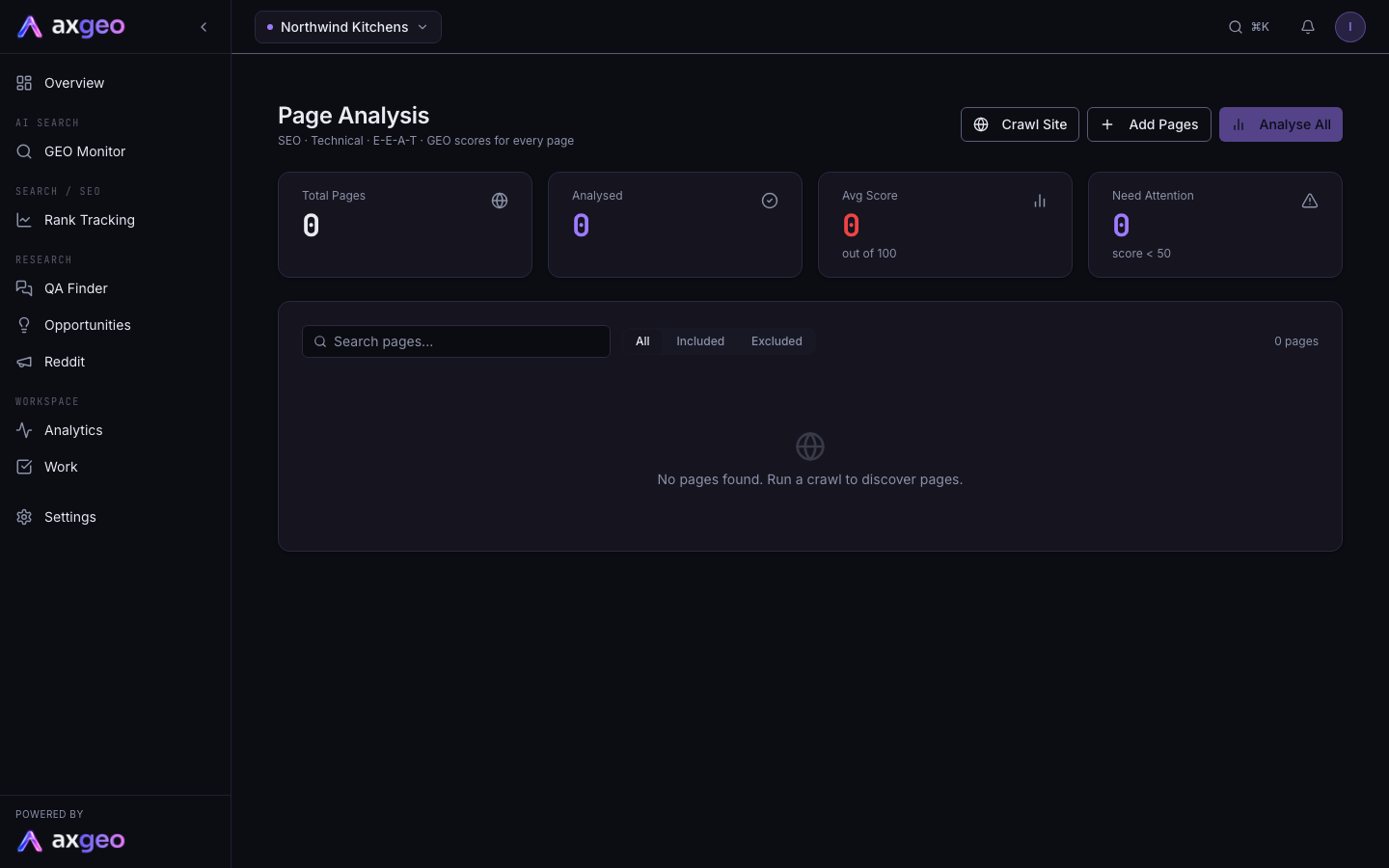
The Pages screen is where you see how healthy each page on your website is. Every page gets a score out of 100, split into six areas, so you can see what to fix and where to start. Open it from Pages in the Search / SEO part of the sidebar.
How to get your pages analysed
- Click Crawl Site. We read your sitemap first, then follow links on your site to catch pages the sitemap misses. You'll see "Crawl started" and the pages appear shortly.
- Click Add Pages to add any page the crawl missed. Paste one URL per line.
- Click Analyse All. The message tells you how many pages are being analysed and roughly how many minutes it will take.
- Click a row once the scores arrive to open that page and see every check. The page checks article explains that screen.
To re-analyse a single page, use the refresh button at the end of its row.
Add pages with a target keyword
In the Add Pages panel you can add a keyword after a URL, separated by a vertical bar. For example, https://example.com/kitchens | fitted kitchens, kitchen prices. The page's checks are then judged against those keywords. Without one, we use the page's top Search Console queries when Search Console is connected for your workspace.
Set target keywords later
Click the tag button in the Keywords column. Type a keyword, press Enter or click Add, then click Save & Reanalyse. The page is scored again straight away against the new keywords.
What the Pages screen shows
Summary cards
Total Pages is every active page we hold for your site. Analysed is how many have a score. Avg Score is the average score out of 100 across analysed pages. Need Attention counts pages scoring under 50.
Average Scores by Category
This chart shows your average in each of the six areas. On-Page SEO covers titles, meta descriptions, headings and URLs. Technical SEO covers HTTPS, sharing tags and structured data. Content Quality looks at word count, images and how the page is laid out. Internal Linking counts links to and from the page. E-E-A-T looks for trust signals such as authors, contact details and reviews. GEO Signals looks for things AI answers like to quote, such as direct answers and FAQs.
Click any bar, or one of the Worst buttons under the chart, to sort the table so the weakest pages for that area come first. Click View per-page details to jump to the table in its normal order.
The page table
Each row shows the page path, its title with a length badge and a meta description length badge. A title between 30 and 60 characters and a description between 120 and 160 characters show as fine. Shorter or longer ones are flagged, and missing ones show Missing.
Score is the page's overall score. Scores of 80 and above are good, 50 to 79 show in amber and under 50 show in red. The Categories dots give a quick view of all six areas. AI citations counts how often AI answers have linked to the page. Analysed shows how long ago the last check ran.
Use Search pages... to find a page, and All, Included or Excluded to filter the list.
Automatic weekly checks
Every Wednesday at 02:30 UTC we re-check every page that has been analysed at least once. This keeps scores in line with your live site and your current Search Console queries. It doesn't use credits. New pages are not included until you analyse them for the first time.
Exclude pages in Settings, Pages
Go to Settings and open the Pages tab to manage your page list. The screen is called Page Management.
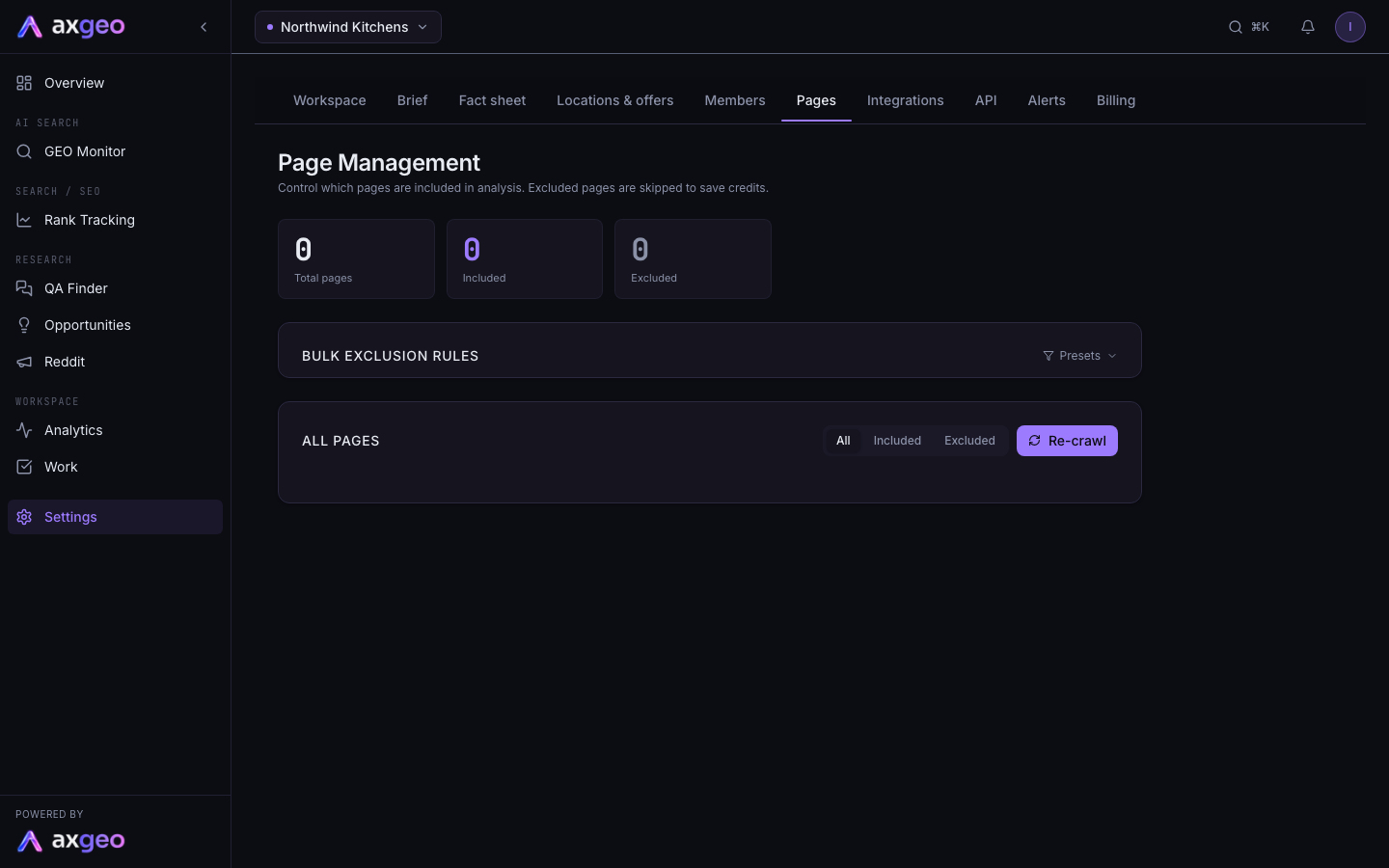
At the top you'll see your total, included and excluded counts. Under Bulk exclusion rules, click Presets to see three ready-made groups. These are Utility / legal, Account / company and Case studies. Each shows how many of your pages match, with Include all and Exclude all buttons.
The same panel has a box for your own rule. Type part of a URL path (for example conservatories) and click Include or Exclude. Every page whose URL contains that path is changed.
In All pages, click the eye icon next to a page to exclude or include it. Hover over a page and click the bin icon to remove it. Click Re-crawl to crawl your site again.
Excluded pages stay in your list but are left out of your llms.txt file, the schema audit and other tools that read your page list.
Credits and plans
Page analysis is included in every current plan and doesn't use credits. On older credit-based plans, each page analysed uses credits, and Analyse All stops when your balance runs out. See plans and credits for details.
Common problems
No pages appear after a crawl
Crawls run in the background, so give it a minute and refresh. If the table says "No pages found. Run a crawl to discover pages.", check that Website URL is filled in on Settings, Workspace. Without it, the crawl can't start.
A page won't analyse
If a page can't be fetched, or it returns no readable content, we don't score it. This usually means the page is built entirely in JavaScript or a security check blocked our visit. Scores from an empty page would be meaningless, so we skip it.
I can't start a crawl
Members with the Viewer role can see pages but can't crawl or add them. Ask a workspace owner to change your role in Settings, Members.