
In brief
The llms.txt tab builds a plain text file that lists your main pages with their titles and descriptions. Build it from your own pages, check and edit it in the app, then download it and upload it to your website. It is included in your plan and uses no credits.
Key points
- The file is built from your crawled pages, leaving out any you have excluded.
- It reads up to 60 pages and takes up to a minute.
- No AI writes the text, so it only says what your site already says.
- You can edit the file in the app before you copy or download it.
- Upload it to the top level of your site so it opens at yoursite/llms.txt.
The steps at a glance
- 1
Open the tab
Go to Content in the sidebar and click llms.txt.
- 2
Add a summary if you like
Type a short line about what you do, where and who for, or leave it blank to use your homepage description.
- 3
Build the file
Click Build the llms.txt and wait up to a minute.
- 4
Check and edit
Read the file, remove any pages you don't want listed and fix any lines.
- 5
Upload it
Click Download, then upload llms.txt to the top level of your website.
An llms.txt file is a short plain text file that lists your most useful pages, with a title and a line about each. It sits at the top level of your website, at an address like yoursite.com/llms.txt. The llms.txt tab in Content builds one for you from your own pages. It is included in your plan and uses no credits.
It is an optional extra that takes a few minutes once your pages have been crawled. For more background, read our llms.txt guide.
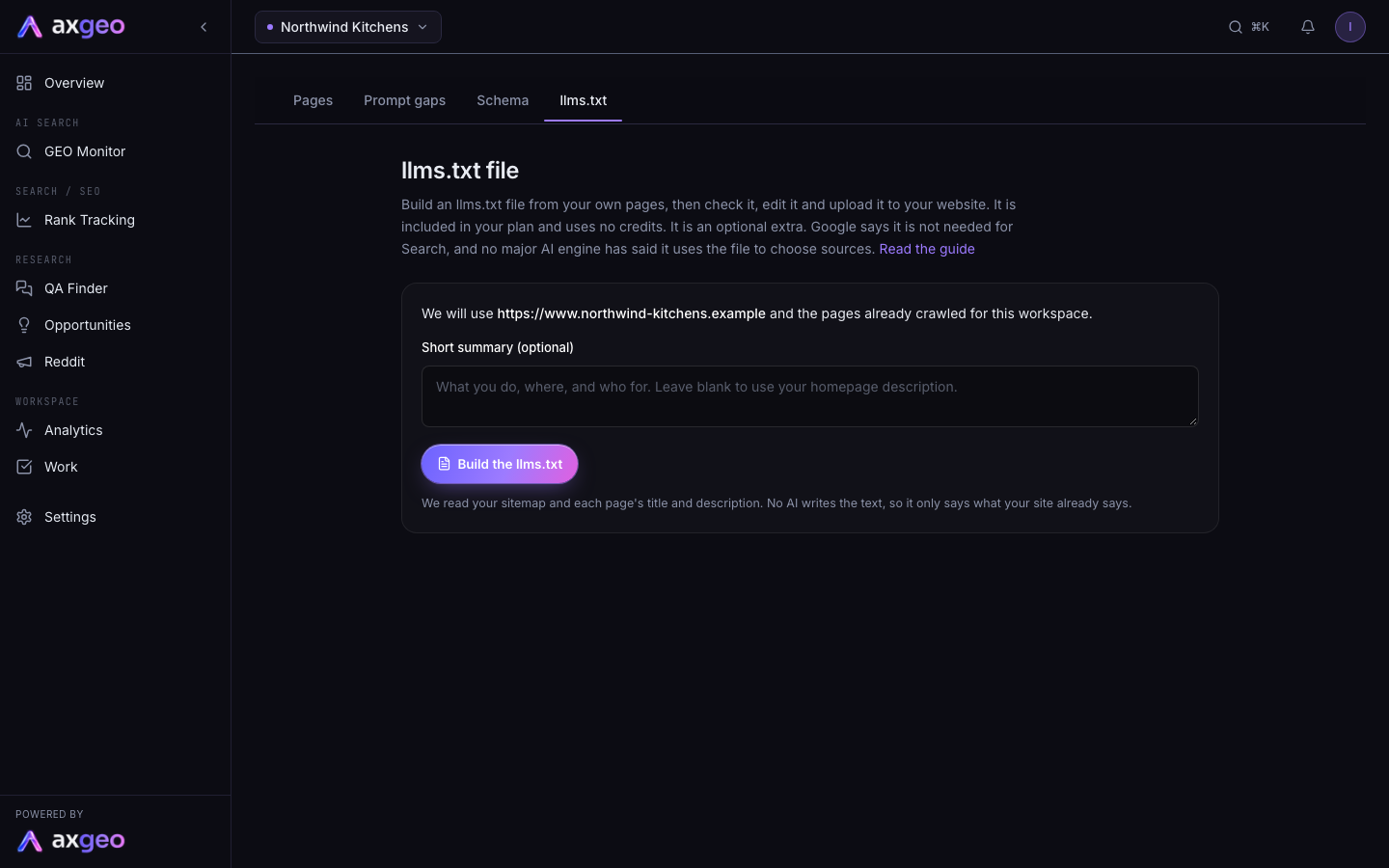
How to build and publish your llms.txt
- Open Content from the sidebar and click the llms.txt tab.
- Describe what you do, where and who for in Short summary (optional). Leave it blank to use your homepage description.
- Click Build the llms.txt. It reads up to 60 pages and can take up to a minute.
- Read the file in the box. You can edit it directly.
- Click Copy or Download. Download saves a file called llms.txt.
- Upload the file to the top level of your website, so it opens at your address followed by /llms.txt.
Click Build it again whenever you add or remove important pages.
What the screen shows
After the file is built, four boxes sit above it.
Pages found is how many pages we could use. Pages listed is how many made it into the file. No description counts listed pages with no meta description, which appear with a title only. Taken from tells you where the page list came from.
If any pages have no description, a note suggests adding a short line for each before you publish. You can type those lines into the file yourself, or better, add proper meta descriptions to the pages. The page checks article shows which pages are missing one.
Where the content comes from
We use your website address and the pages already crawled for your workspace. Pages you've excluded in Settings, Pages are left out. If there are no crawled pages, we read your sitemap instead, and failing that the links on your homepage.
We take each page's title and meta description as they are. No AI writes the text, so the file only says what your site already says. That makes it a good reason to tidy up your titles and descriptions first. See Pages for how to find them.
Before you upload
Read the file through and remove any pages you wouldn't want AI tools to start from, such as old offers or thin pages. Check the summary line at the top describes your business clearly. Keep the file name exactly llms.txt, in lower case.
How you upload it depends on your website platform. Many let you add a file to the site root, or your web developer can do it in a few minutes. Once it's live, open the address in your browser to check it shows as plain text.
Common problems
It says to add the website address first
The tool needs your website address. Fill in Website URL on Settings, Workspace, then crawl your site from Pages.
Some important pages are missing
The file lists up to 60 pages. Make sure the page has been crawled and isn't excluded in Settings, Pages, then build the file again. You can also add a line for it by hand in the edit box.
Copy doesn't work
Some browsers block copying. Select the text in the box and copy it by hand, or use Download instead.