
In brief
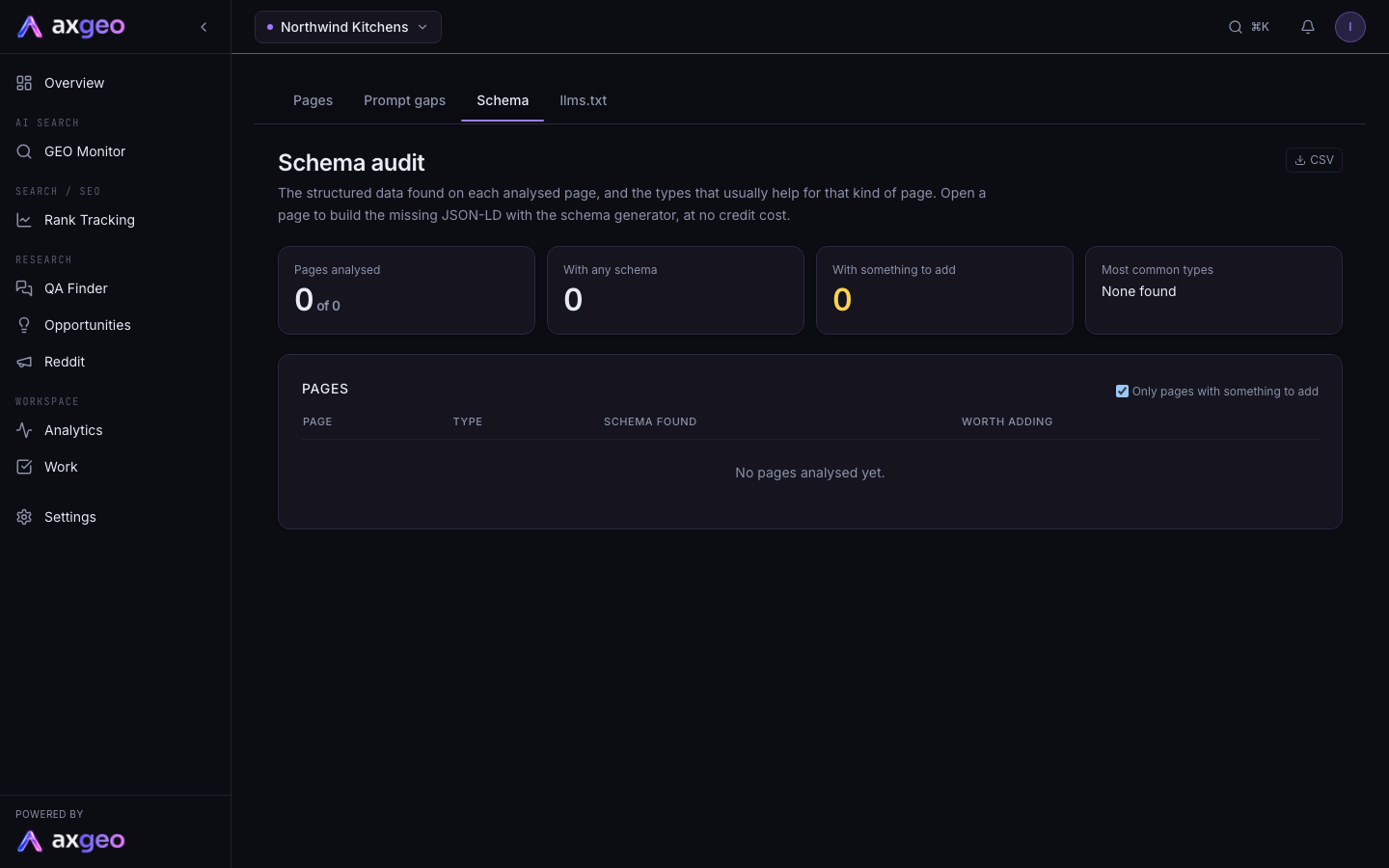
The Schema tab shows the structured data found on each analysed page and the schema types that usually help for that kind of page. Use it to find pages with something missing, then open each one to build the JSON-LD with the schema generator at no credit cost.
Key points
- The audit reads the schema found when each page was last analysed.
- Each page is sorted into Homepage, Article, Location or Page.
- Worth adding lists the usual schema types the page is missing.
- Generate opens the page's schema generator, which uses no credits.
- Excluded pages and pages not yet analysed are left out.
The steps at a glance
- 1
Open the Schema tab
Go to Content in the sidebar and click Schema.
- 2
Find pages to fix
Leave Only pages with something to add ticked and read the Worth adding column.
- 3
Open the generator
Click Generate next to a page to open its checks screen.
- 4
Copy the JSON-LD
Click Generate schema, then Copy on each block you need.
- 5
Publish and re-check
Paste the code into the page's head, publish it and click Analyse on the page.
Schema is a small block of code that describes a page to search engines and AI tools, such as who you are, where you are and what the page is about. The Schema tab in Content checks each of your analysed pages and shows which useful types are missing.
How to fix missing schema
- Open Content from the sidebar and click the Schema tab.
- Leave Only pages with something to add ticked. Pages with the most missing types are listed first.
- Read the Worth adding column for a page, then click Generate next to it.
- Scroll down the page's checks screen to Schema generator and click Generate schema.
- Click Copy on the block you need and paste it into the page's
<head>. - Publish the change, then click Analyse on the page so the audit picks it up.
The page checks article explains the schema generator in more detail. It builds each block from the page's own content, your business record and your map listing, so keep your fact sheet and Google Business Profile accurate.
Click CSV at the top right to download the whole audit.
What the screen shows
Summary cards
Pages analysed shows how many pages have been analysed out of all your included pages. With any schema counts pages with at least one schema type. With something to add counts pages missing a type that usually helps. Most common types lists the types found most often across your site.
If some pages haven't been analysed yet, a note under the cards tells you how many. Run page analysis from Pages to include them.
The table
Page is the page path. Type is the kind of page we think it is. Schema found lists the types already on it. Worth adding lists what is missing, or says "Nothing obvious" when the page has the usual types.
How pages are checked
We sort each page into one of four types from its URL, then look for the schema that usually suits it.
The homepage should have Organization or LocalBusiness schema, and WebSite schema.
A page is treated as an Article when its URL contains a section such as /blog, /news, /guides, /articles, /insights or /advice. Articles should have Article schema.
A page is treated as a Location when its URL contains /contact, /locations, /showroom, /branches or /stores. Location pages should have LocalBusiness schema.
Every page other than the homepage should have BreadcrumbList schema. Any page with no schema at all is flagged with "Any schema".
These are sensible defaults. If a suggestion doesn't fit a page, you can leave it.
Common problems
A page I fixed still shows missing schema
The audit uses each page's last analysis. Click Analyse on the page after publishing. Pages analysed before are also re-checked every Wednesday.
A page is shown as the wrong type
The type comes from the page's URL. A location page without /contact or /locations in its address is treated as a general page. You can still add LocalBusiness schema using the generator.
Pages are missing from the audit
Pages you've excluded in Settings, Pages are left out, as are pages that haven't been analysed. Include them again or analyse them from the Pages screen.