
In brief
The NAP audit reads each of your directory listings and checks the business name, phone number and postcode against the details you have confirmed. Press Check all listings, then fix anything marked Mismatch or No details shown.
Key points
- The audit checks the business name, phone and postcode on each listing page.
- It compares them with your locations, Google Business Profile locations and fact sheet.
- Only listings with a listing URL are checked.
- Some directories block automated checks, so those show as Could not read.
- Send to Work turns a mismatch into a task on your Work page.
- The NAP audit does not use credits.
The steps at a glance
- 1
Check your details
Make sure your phone numbers and postcodes are in Settings, Locations and offers or on your fact sheet. The check will not start without at least one.
- 2
Open the NAP audit
Go to Directory Citations in the sidebar and choose the NAP audit tab.
- 3
Run the check
Press Check all listings. The button shows Checking while it runs.
- 4
Review the problems
Start with the Needs attention filter, which opens first and shows listings marked Mismatch or No details shown.
- 5
Send fixes to Work
Press Send to Work on a mismatch to create a task for correcting that listing.
The NAP audit checks that your business name, phone number and postcode are the same on every directory listing. When these details differ from one site to the next, AI engines and search engines can't be sure which is right. Finding and fixing the odd ones out keeps your business information consistent.
You find it on the NAP audit tab of Directory Citations, which appears in your sidebar when it is switched on for your workspace. The audit checks the listings you have added on the Directories tab.
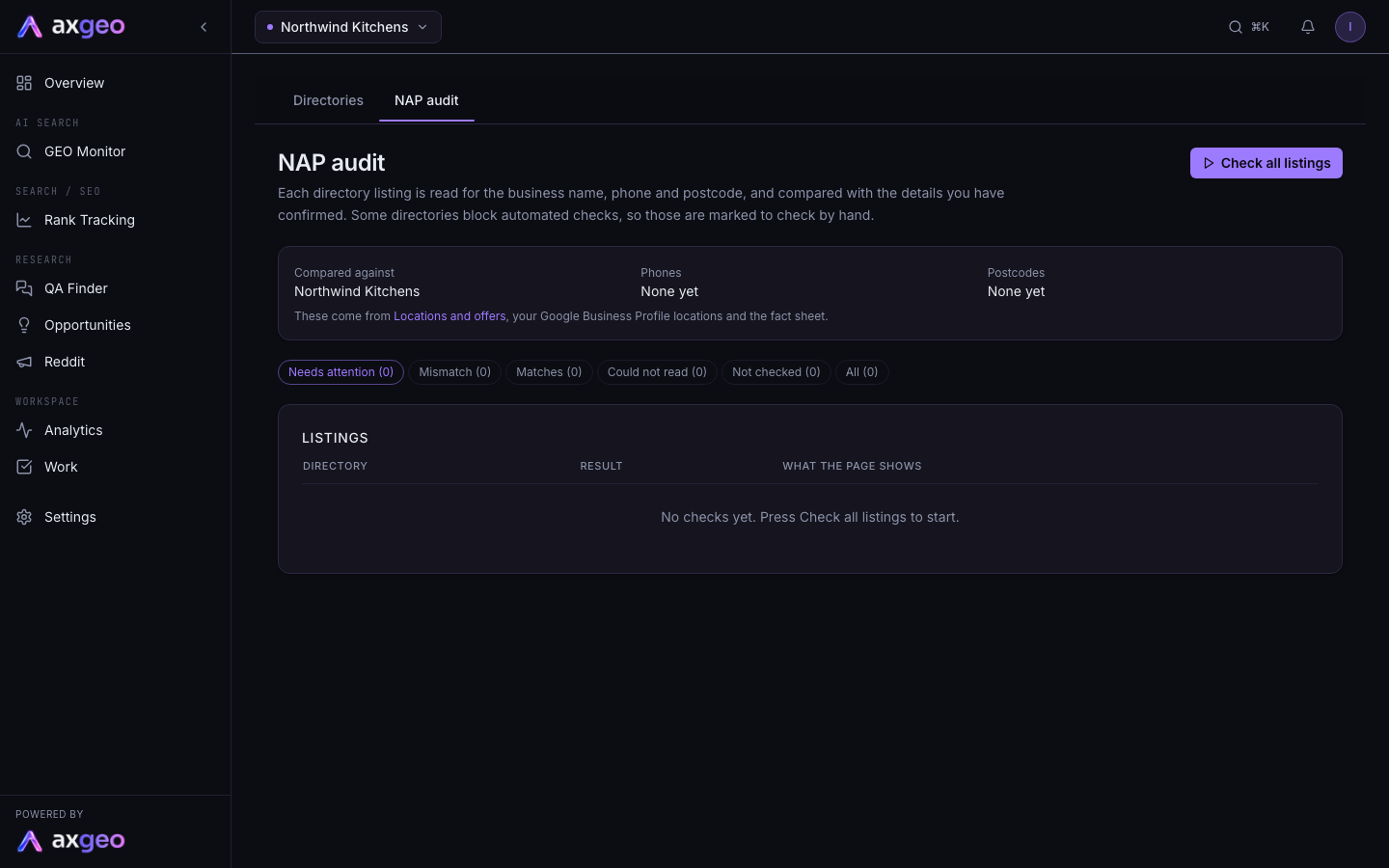
How to run a NAP audit
- Check your correct details are in the app. Phone numbers and postcodes come from Locations and offers and your fact sheet. Your Google Business Profile addresses add postcodes too.
- Go to Directory Citations and open the NAP audit tab.
- Press Check all listings.
- Wait a few minutes. A message tells you the check is running and that you can leave the page.
- Read the message when it finishes. It says how many listings were checked, and the table updates.
- Work through the Needs attention list. Press Send to Work on any mismatch you want to fix.
- Press Check all listings again after you correct a listing, to confirm it now matches.
The NAP audit does not use credits.
What each part of the screen means
Compared against
This card shows the details the audit treats as correct. Compared against is your business name. Phones lists every phone number it knows. Postcodes lists your postcodes, with the first eight shown and a count of any more.
If a phone number or postcode is wrong or missing here, update it at the source, in Locations and offers or the fact sheet.
Filters
Needs attention shows listings marked Mismatch or No details shown. You see this view first. Mismatch, Matches, Could not read and Not checked show only that result. All shows every listing. Each button shows a count. The date on the right shows when listings were last checked.
Results
Matches means the business name was found and the phone numbers and postcodes on the page agree with yours.
Mismatch means something on the page doesn't line up. The business name may be missing, or the page shows a phone number or postcode that isn't one of yours and none that is. The What the page shows column explains which.
No details shown means the page loaded but didn't show a phone number or postcode to compare.
Could not read means the page didn't load for the checker. The column gives the reason, often that the site blocks automated checks. Check these by hand.
Not checked means the listing has a link but hasn't been checked yet.
No listing link means the listing has no listing URL, so it can't be checked. Add the listing URL on the Directories tab.
What the page shows
For a mismatch, this column lists the problems found. For other results it gives the reason, or the phone numbers and postcodes the page showed.
Send to Work
On a Mismatch row, Send to Work creates a task on your Work page called "Correct the listing on" followed by the directory name. The task includes the problems found, a link to the listing and a short checklist. Once sent, the button changes to In Work, which takes you to your tasks.
Common problems
The check won't start
You need at least one phone number or postcode in Settings, Locations and offers, or on the fact sheet. Add one and try again.
A listing shows Mismatch but the details look right
The audit only knows the phone numbers and postcodes in the Compared against card. If you use another number, such as a tracking number, add it to your locations or fact sheet so the audit treats it as yours.
Lots of listings say Could not read
Some directories block automated visits. That isn't a fault with your listing. Open each one using the directory name link and check the details yourself.
The check stopped early
You'll see "The check stopped early. Please try again." Press Check all listings again. Listings that haven't been checked for longest are checked first.
A fixed listing still shows Mismatch
Results update only when you run the check again. Some directories also take time to publish changes, so wait a day or two before you check again.