
In brief
Directory Citations keeps a record of every directory and platform where your business is listed. On the Directories tab you add listings, set whether each one is live, claimed, pending or not claimed, and see how much of your directory list is active.
Key points
- The Directories tab is your list of business listings across directories and platforms.
- Add one listing with Add citation, or upload many at once with a CSV file.
- Each listing has a status. The choices are Not Claimed, Live, Claimed, Pending and N/A.
- Directory coverage counts Live and Claimed listings as active.
- You can link a listing to one of your locations, or leave it for the whole brand.
- Directory Citations shows in your sidebar when it is switched on for your workspace.
The steps at a glance
- 1
Open Directory Citations
Choose Directory Citations under Local in the sidebar. The Directories tab opens first.
- 2
Add a listing
Press Add citation, stay on Add one, enter the directory name and any other details, then press Save.
- 3
Or upload a CSV
Press Add citation, choose Upload CSV, then Choose CSV file. The file needs a directory_name column.
- 4
Set the status
Use the status menu on each card to set the listing to Not Claimed, Live, Claimed, Pending or N/A.
- 5
Link it to a location
Pick a location from the menu on the card if you have locations, or leave it as Whole brand.
Directory Citations is where you keep track of every directory and platform that lists your business. AI engines and search engines read these listings, so it helps to know where you appear and whether each listing is under your control.
These directory citations are listings of your business on other sites. They are not the same as citations in AI answers, where an engine links to a page as its source. Those are covered in Cited pages.
Directory Citations sits under Local in your sidebar. It appears when it is switched on for your workspace. The section has two tabs, Directories and NAP audit. This article covers Directories.
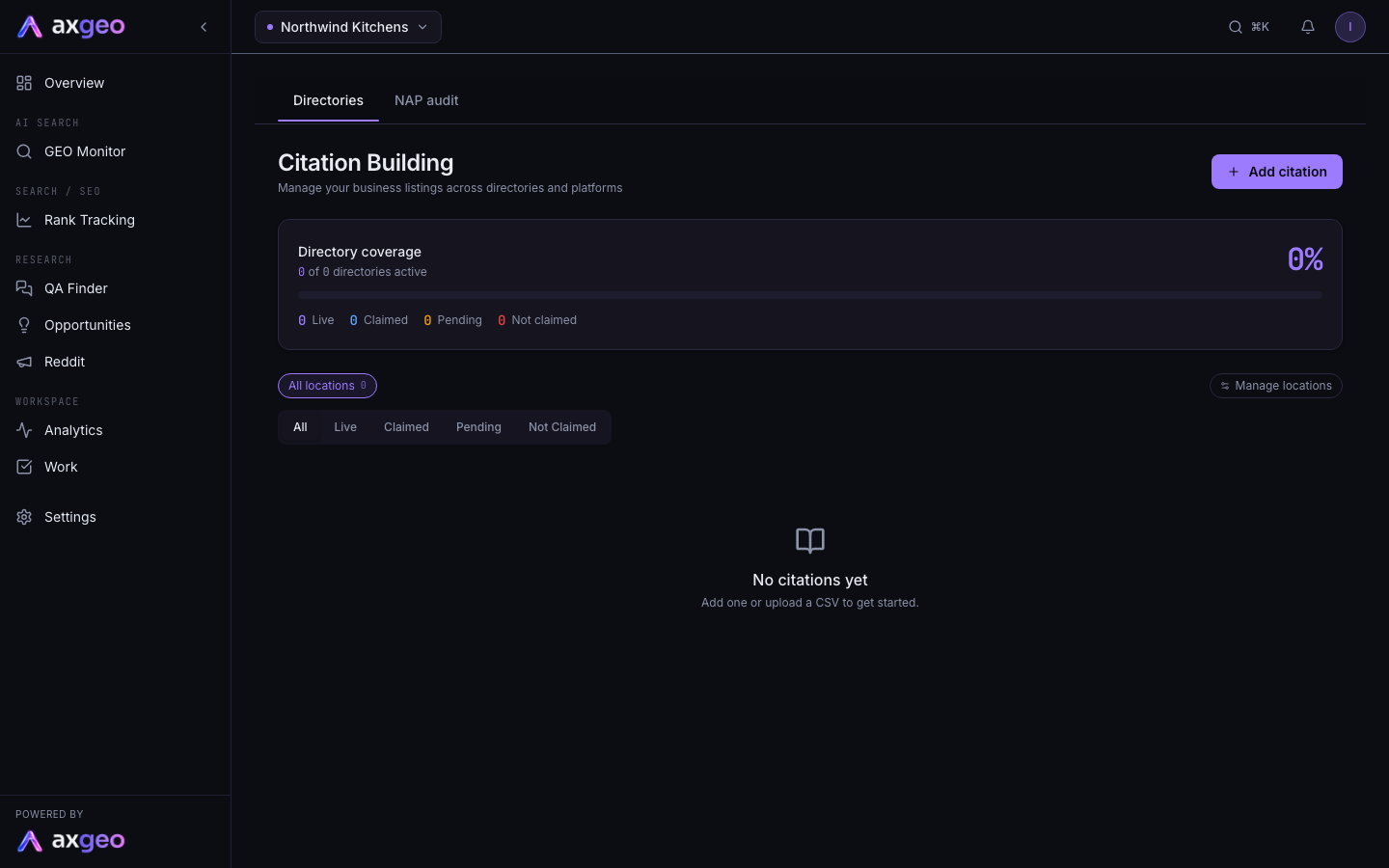
How to add and manage citations
Add one listing
- Press Add citation at the top right.
- Stay on the Add one tab.
- Fill in Directory name, the only required field.
- Add a category if you like, such as Trade or Social.
- Add the Directory URL (the directory's homepage) and the Listing URL (the direct link to your page on it).
- Pick a status and, if you have locations, a location. The default location is No location (whole brand).
- Press Save.
Add the listing URL wherever you can. The NAP audit can only check listings that have one.
Upload a CSV
- Press Add citation, then choose Upload CSV.
- Press Choose CSV file and pick your file.
The file must have a directory_name column. You can also include directory_url, listing_url, category and status. Status must be one of live, claimed, pending, not_claimed or not_applicable. Any other value is saved as not_claimed. Rows without a directory name are skipped.
Listings imported by CSV are not linked to a location. Set the location on each card afterwards if you need to.
Update a listing
Each card has a status menu at the bottom. Change it and the new status saves straight away. Use the arrow icon to open the listing in a new tab, and the bin icon to delete it.
To delete several at once, tick the box on each card, or press Select all. Then press Delete with the number shown.
What each part of the screen means
Directory coverage
The coverage card shows how many of your listings are active, for example "12 of 20 directories active", and the same figure as a percentage. Live and Claimed listings count as active. Below the bar you see a count for each of Live, Claimed, Pending and Not claimed.
Statuses
Live means the listing is up and showing your business. Claimed means you have taken control of the listing. Pending means you have submitted or claimed it and are waiting. Not Claimed means the listing exists but you do not control it yet. N/A is for directories that do not apply to you.
Use the filter buttons above the grid to show only one status, or All to show everything.
Location filter
The row of buttons above the filters lets you narrow the list. All locations shows everything. Each location button shows the listings linked to it, with a count. Unassigned shows listings that are for the whole brand.
Manage locations
Press Manage locations to open Manage GBP locations. Here you can add a location with a name and an optional address, rename one by editing its name, or delete it. Deleting a location does not delete its citations. They become unassigned instead.
Each location row shows how many citations are attached. After a review sync it also shows the star rating and review count. The refresh icon syncs reviews from Google, and the arrow opens the most recent reviews. For the full picture of your reviews, use Google Business and the reviews pages.
Verified date
When a card shows "Verified" and a date, that is when the NAP audit last checked the listing.
Common problems
I can't find Directory Citations
It only shows in the sidebar when it is switched on for your workspace. See plans and credits for what each plan includes.
My CSV upload failed
Check the file has a column headed directory_name, and that at least one row has a name in it. Save it in CSV format before you upload it.
All my imported listings say Not claimed
That happens when the status column is missing or uses a value the app doesn't know. Use live, claimed, pending, not_claimed or not_applicable, or change each card's status after import.
The NAP audit skips some listings
Listings without a listing URL can't be checked. Open the card, delete it and add it again with the listing URL, or include listing_url in your CSV.
I want to fix a listing as a task
Run the NAP audit. Any listing with a mismatch has a Send to Work button that adds a task to your Work page.