
In brief
The Optimise tab is a checklist of 28 GEO and SEO checks for each page you add. Check the live page to tick what is already in place, tick the rest by hand as you fix them, and send anything outstanding to Work.
Key points
- Each page has 28 checks in six groups, from schema to images.
- Check the page reads the live page and ticks what it finds.
- Four checks can't be seen from the page code, so you tick those yourself.
- Pages cited in AI answers get an AI Cited badge.
- Send one check or every failing check in a group to Work.
- Checking the page uses no AI and no credits.
The steps at a glance
- 1
Open the Optimise tab
Go to GEO Monitor and choose the Optimise tab.
- 2
Add pages
Press Import from Crawled Pages, or paste web addresses one per line and press Import.
- 3
Open a page
Click a page in the list to open its checklist.
- 4
Check the live page
Press Check the page. Anything found on the page is ticked for you.
- 5
Work through the rest
Fix what is still to do and tick each check as you go, or send it to Work.
The Optimise tab helps you work through the changes that make a page easier for AI engines and search engines to understand and cite. Each page you add gets a checklist of 28 checks, and you can see your progress across the whole site.
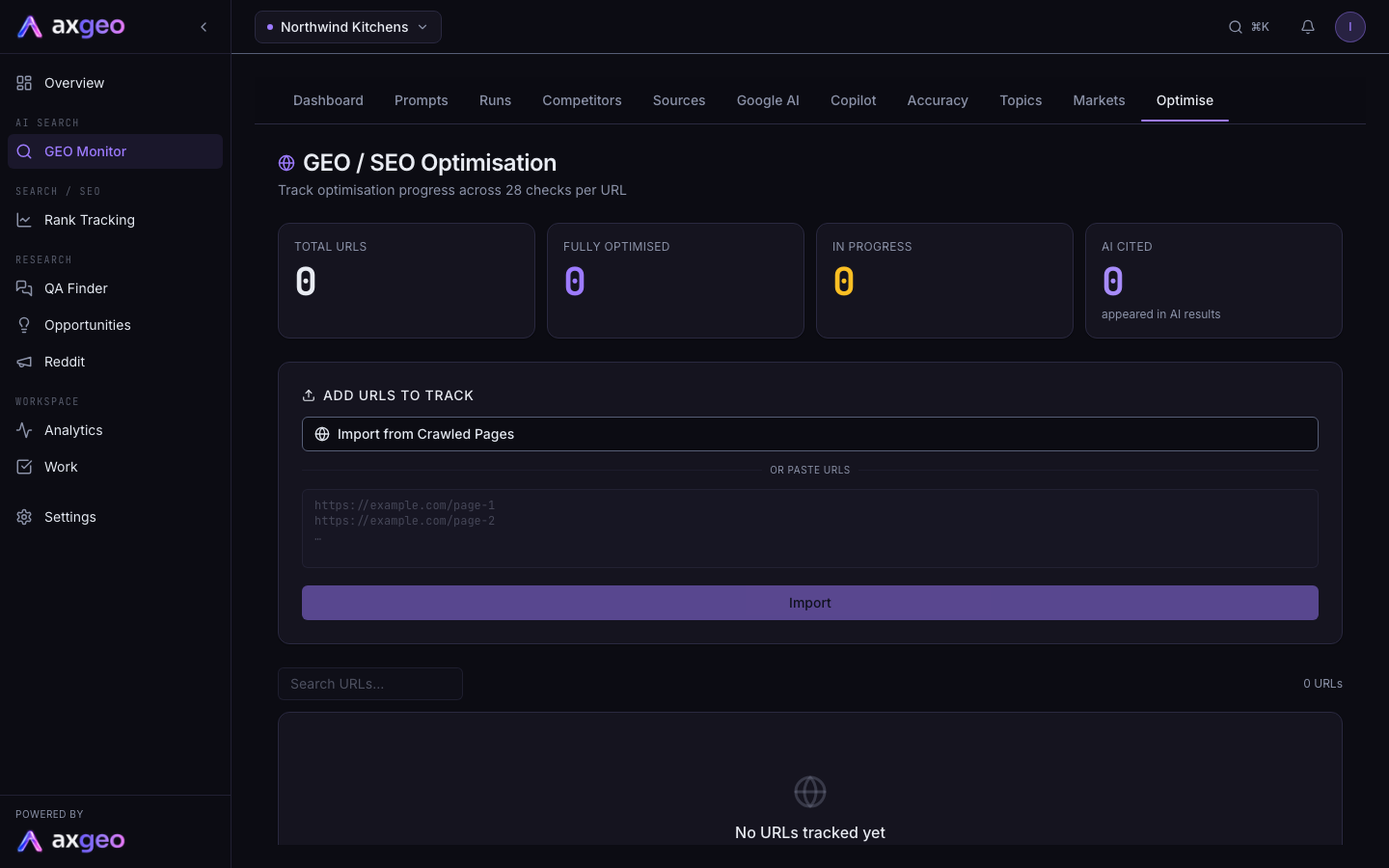
You'll find it in GEO Monitor, on the Optimise tab. The page heading is GEO / SEO Optimisation.
How to add pages
Use the Add URLs to Track box.
- Press Import from Crawled Pages to add every page in your Pages list. Pages already on the list are skipped.
- Paste web addresses into the box instead if you prefer, one per line. Each must start with http. Then press Import.
A message confirms how many pages were added, and how many were already tracked.
How to work through a page
- Click a page in the list to open it.
- Press Check the page. axgeo.ai reads the live page and ticks every check it can find. A message says how many were newly found.
- Use Still to do, Done and All to choose which checks to show.
- Fix the items still to do on your website. Tick each one by clicking its box, or press Check the page again after your changes.
- Click the task icon next to a check to hand it to someone. Add an assignee if you like, and confirm. A task is created in Work.
- Press Send failing on a group's header to send every unticked check in that group at once.
Each page also has Comments for notes, and Additional Tasks for anything not on the checklist.
To remove a page from the list, press the bin icon on its row.
The 28 checks
The checks are grouped as follows.
- Schema & Structured Data covers page schema, FAQ, breadcrumb, review and HowTo schema.
- On-Page SEO covers the title tag, meta description, heading structure, table of contents and URL.
- GEO / AI Signals covers a direct-answer paragraph, author byline, a named reviewer, entity markup, a Q&A section and statistics with sources.
- Content Quality covers long-form content of 800 or more words, internal links, links to other authority sites, the target keyword in the opening and a conversational tone.
- Technical SEO covers page speed, mobile-friendliness, the canonical tag, removing noindex and Google AI Overviews eligibility.
- Images & Media covers image compression and alt text.
For help adding schema, see Schema.
What each part of the screen means
The cards at the top
- Total URLs is the number of pages you're tracking.
- Fully Optimised is the number of pages with every check done, and their share of the total.
- In Progress is the number of pages with some checks done.
- AI Cited is the number of pages that have appeared in AI results.
Daily Activity (14 days) shows how many pages were worked on each day. Completion splits your pages into fully done, in progress and not started.
The page list
Each row shows the web address, an AI Cited badge if AI answers have cited that page, and a progress bar with checks done out of the total. When a row is closed, the first five outstanding checks show under the address. Use the search box above the list to find a page.
Inside a page
The summary line shows how many checks are in place and how many are still to do. After a page check, it says when the live page was last checked.
Under each check you may see a short note from the page check, such as the schema types found or the number of words. Next to a done check you'll see who ticked it and when. Checks found automatically say Found on the page.
A warning under a ticked check means it was ticked by hand, but the last page check didn't find it. Look at the page again to confirm.
Four checks can't be seen from the page code. These are page speed, image compression, conversational tone and Google AI Overviews eligibility. Tick them yourself once you've checked them.
How this fits with other tools
The Optimise tab tracks progress. For a page's full analysis and suggested fixes, open it in Page checks. To see which of your pages AI engines already cite, see Top citations and URL mentions. If a check needs new content, use Content drafts.
Common problems
No URLs tracked yet
You haven't added any pages. Use Import from Crawled Pages, or paste addresses into the box.
No crawled pages found
Your Pages list is empty. Add or crawl your site's pages in Pages first, or paste addresses instead.
No valid URLs found
Each pasted address must start with http, with one address per line.
Could not check the page
The live page couldn't be read. Check the address opens in a browser, then try again.