
In brief
Rank Tracking shows where your website appears on Google for the keywords you track, in each location. The list page compares your locations, and each campaign page shows daily positions, search features and how rankings have moved between two dates.
Key points
- Each campaign tracks a set of keywords for one location and one device.
- Active campaigns are checked automatically every night.
- Positions are checked to the top 30 results, which is three pages of Google.
- You can count organic results, the map pack, or the best of both.
- Each location is checked on its own country's Google, so a UK town uses google.co.uk.
- Rank Tracking is included on every plan.
The steps at a glance
- 1
Open Rank Tracking
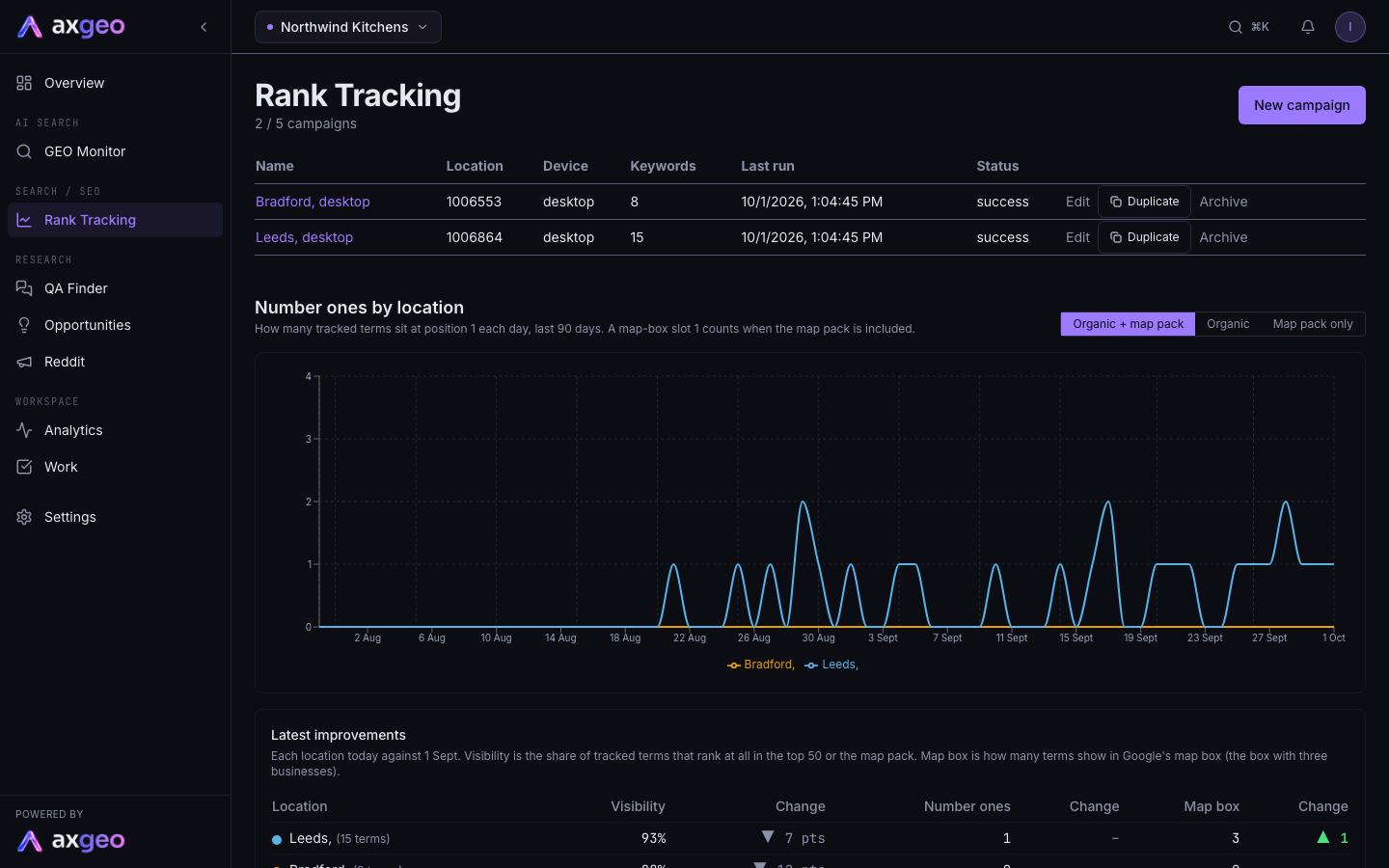
Choose Rank Tracking under Search / SEO in the sidebar. You see your campaigns and, below them, the Number ones by location chart.
- 2
Pick what counts
Use the Organic + map pack, Organic or Map pack only switch to choose which results count towards your positions.
- 3
Open a campaign
Click a campaign name in the list to see its daily positions, search features and keyword table.
- 4
Choose the features to show
Click the features you want as columns under SERP features shown in table, or use All or Organic only.
- 5
Compare two dates
Scroll to Change and pick a From and To date to see which keywords improved, declined, were newly ranked or dropped out.
Rank Tracking shows where your website sits on Google for the searches your customers make. Each campaign tracks a list of keywords for one location and one device, so you can see how you rank in each town or region you serve. To set up or change a campaign, see Create and manage rank tracking campaigns.
Rank Tracking is included on every plan. You'll find it under Search / SEO in the sidebar.
How to read your rankings
- Open Rank Tracking from the sidebar.
- Check the campaign list for when each campaign last ran and its status.
- Use the switch above the chart to choose Organic + map pack, Organic or Map pack only.
- Click a campaign name to open its results.
- Pick the search features you want to see in the keyword table.
- Use the Change section to compare any two dates.
How rankings are checked
Every active campaign is checked automatically each night, starting at 01:00 UTC. Paused campaigns are skipped. If Google returns a page that is cut short or not localised, the app tries that search again at 06:30 and 11:30 UTC, so the day's figures reflect the real results page.
Google often serves the same search in slightly different versions, even minutes apart. To avoid false drops, the app reads each search more than once and keeps the reading where your site ranks best. Searches you have ranked for recently get extra readings if they seem to have slipped.
Each check looks at the top 30 results, which is three pages of Google. Each location is searched on its own country's Google, so a UK location uses google.co.uk rather than google.com.
The campaign list
The heading shows how many campaigns you are using against your plan's limit, for example 2 / 5 campaigns. The table shows each campaign's Name, Location, Device, number of Keywords, Last run and Status. From here you can Edit, Duplicate or Archive a campaign.
Number ones by location
This chart shows how many of your tracked keywords sit at position 1 each day, over the last 90 days, with one line per location. When the map pack is included, a first place in the map box counts as a number one.
Latest improvements
This table compares each location today with 30 days earlier. Biggest gains are listed first.
- Visibility is the share of tracked keywords that rank at all, within the top 30, the map pack or either, depending on the switch.
- Number ones is how many keywords are at position 1.
- Map box is how many keywords show you in Google's map box, the box with three businesses.
- Each Change column shows the movement since the comparison date. Gains show as a green up arrow.
A campaign's results page
The header shows the campaign name, device, location and the domain being tracked. If you have more than one campaign, a dropdown lets you switch between locations. Latest positions CSV downloads the current positions.
Daily position distribution
This section groups your keywords by position for each day. Choose 7d, 14d, 30d or 90d, and the same Organic + map pack, Organic or Map pack only switch.
- #1 means position 1.
- Top 3 means positions 2 to 3.
- Top 10 means positions 4 to 10.
- Top 20 means positions 11 to 20.
- Top 30 means positions 21 to 30.
- Not Ranked means outside the top 30. It is hidden at first, so the chart focuses on keywords that rank.
Click any bucket to hide or show it. The bar chart shows each day, and the Latest snapshot pie shows the most recent day.
The keyword table
Under SERP features shown in table, pick which Google features appear as columns. Options include AI Overview, Organic, Local Pack, People Also Ask, Featured Snippet, Video, Images, Knowledge Panel, Sitelinks, Top Stories, Shopping and Twitter / X. Organic, AI Overview and Local Pack are on by default. Use the Date picker to look at an earlier day.
The Key above the table explains each cell.
- A green icon with a number means your site appears in that feature, at that position.
- An amber icon means the feature is on the page but your site is not in it.
- A dash means the feature was not on the page at all.
- Not visible means your site was not found anywhere on that results page.
Click a column heading to sort by it. For more on AI Overviews, see Google AI Overviews.
Change
Change compares positions between two tracked dates. It starts with the last month, and you can widen the range with the From and To dates. The summary shows how many keywords improved, were newly ranked, declined, dropped out or stayed unchanged. It also shows how many are in the map pack and how many are not ranked. The Map pack column shows your map slot on the To date and how it has moved.
Import history
If you have older ranking data from SEMrush, use Import history to upload it as a CSV. It needs keyword, date and position columns, and can also include url, search_volume, location_code and device. New keywords in the file are added to the campaign.
Common problems
A campaign shows no data yet
New campaigns are checked in the next nightly run, so results appear the following morning. If the campaign has no keywords, the page asks you to add some first.
A campaign has stopped updating
Check that the campaign isn't paused. Open Edit and look at Status. If you have several campaigns, the location dropdown on a campaign page also shows (paused) after a paused campaign's name. Paused campaigns are not checked, so open Edit and set Status to Active.
My rank jumped or dropped for one day
Google results move around, and the app keeps the best of several readings to smooth this out. Look at the trend over a few days, or use the Change section with a wider range, before acting on a single day.
I want to share rankings with my team
Use Latest positions CSV on a campaign page to download the current positions. For PDF reports and weekly email digests, see Create and send reports. If your business has a Google Business Profile, Google Business shows your listing and reviews, which go hand in hand with your map pack results.