
In brief
The Reports page is where you make PDF reports of your AI visibility and other results for any date range. You can also choose who receives the weekly email digest, add your own recommendations to reports, and download or share past reports.
Key points
- Generate PDF Report builds a report for the dates and sections you choose.
- The form starts on Monthly, with last month's dates filled in.
- Enabled people on Weekly Digest Recipients get a weekly email with your headline figures.
- Only members with the Admin role can change digest recipients or delete reports.
- Custom recommendations appear in PDF reports alongside the automatic ones.
- Reports are included on every plan.
The steps at a glance
- 1
Open Reports
Choose Reports under Workspace in the sidebar.
- 2
Pick a report type
Choose Monthly, Weekly, Custom period or Staff summary under Generate PDF Report.
- 3
Set the dates
Check the From and To dates. The form starts with last month filled in.
- 4
Choose sections
Tick the sections you want under Include modules.
- 5
Generate it
Click Generate PDF Report. The report is queued and appears in Recent Reports.
- 6
Download it
Click Download when the status says Ready.
The Reports page, headed Reports & Exports, is where you turn your results into PDF reports to keep or share. You can also choose who receives the weekly email digest and add your own recommendations to every report.
Reports are included on every plan. You'll find Reports under Workspace in the sidebar.
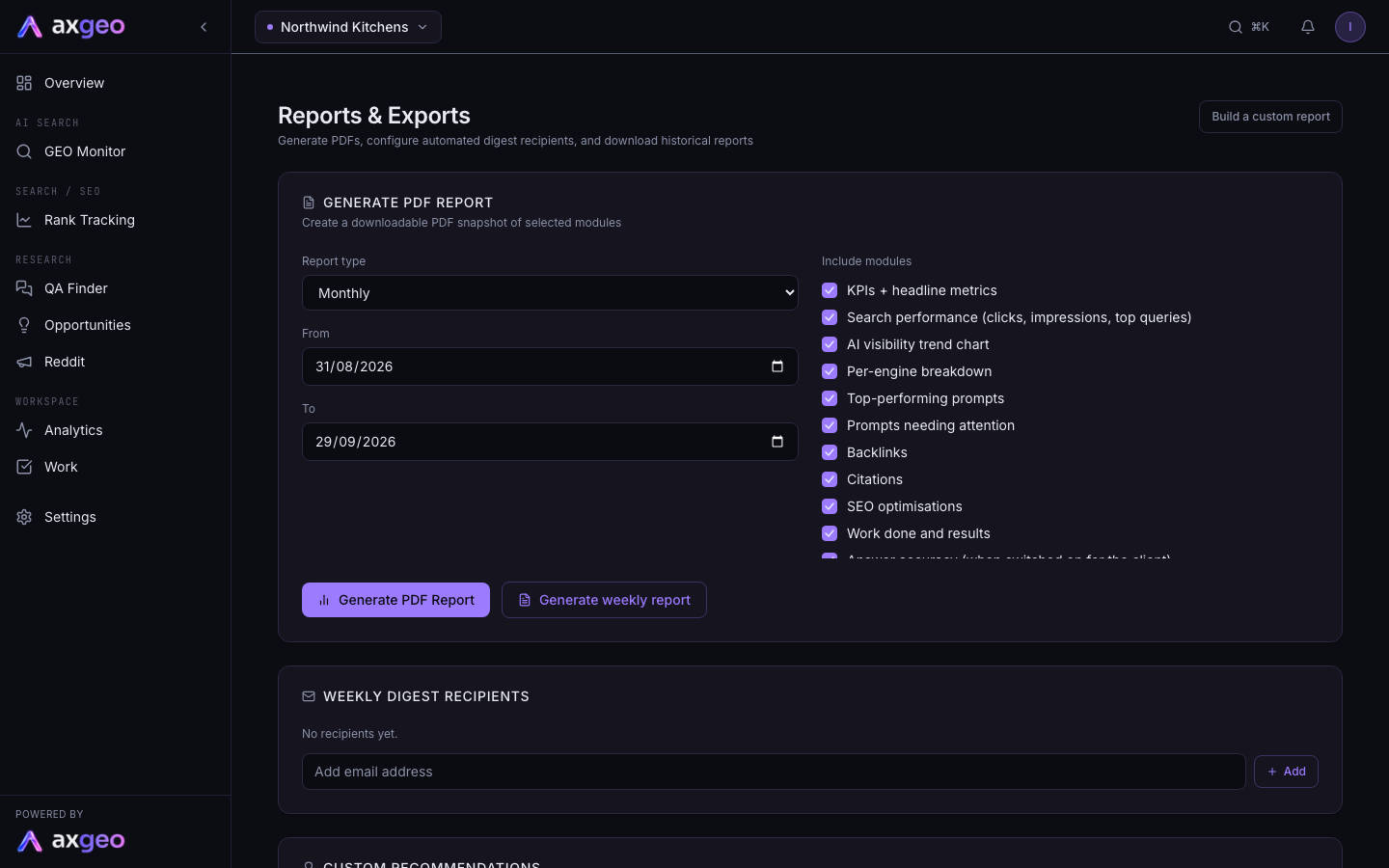
How to create a PDF report
- Open Reports from the sidebar.
- Choose a Report type under Generate PDF Report.
- Pick a Staff member if you want to limit the Tasks section to one person. Otherwise leave it on Whole team.
- Check the From and To dates.
- Tick the sections you want under Include modules. All of them are ticked to start with.
- Click Generate PDF Report.
You'll see "Report queued. It will appear below once ready." The report shows in Recent Reports and the page updates by itself when it is done.
Report types
Choose Monthly, Weekly, Custom period or Staff summary. The type labels the report in your list. What goes into it depends on the From and To dates and the sections you tick. The form starts on Monthly with last month's dates, so for a monthly report you can usually just click Generate PDF Report.
Sections you can include
- KPIs + headline metrics.
- Search performance (clicks, impressions, top queries).
- AI visibility trend chart.
- Per-engine breakdown.
- Top-performing prompts.
- Prompts needing attention.
- Backlinks.
- Citations.
- SEO optimisations.
- Work done and results.
- Answer accuracy (when switched on for the client).
- Recommendations.
Sections that need a part of the app your plan doesn't include are left out of the list. For what the AI figures mean, see AI visibility metrics explained. The Work done and results section comes from your Work page, and answer accuracy from the Accuracy tab.
The weekly performance report
Generate weekly report makes a weekly performance report for the latest Search Console week. It comes as a PDF and a Word document (DOCX). Workspaces with Search Console connected also get one made automatically every Tuesday at 07:00 UTC. There is only ever one per week, so making it again replaces that week's copy.
In Recent Reports, a weekly performance report has PDF and DOCX download buttons. Some also have a Video button. Share link copies a link that anyone can use to view the report, without logging in.
Weekly Digest Recipients
People on this list who are ticked as Enabled receive a weekly KPI digest by email. It covers the past seven days, with your headline figures and answer accuracy, and links back to your dashboard. The axgeo.ai team sets the day and time it goes out.
To add someone, type their email address in Add email address and click Add. They don't need a login. Untick Enabled to pause their emails, or click the bin to remove them. Only members with the Admin role can change this list. See Team members and roles.
The digest is separate from alert emails, which you set on Alerts.
Custom Recommendations
Add your own advice for the reader here. Recommendations appear in PDF reports alongside the ones the app works out for you.
- Type a number in the small box on the left. Lower numbers are shown first.
- Type the recommendation in Add a manual recommendation.
- Click Add.
Use the pencil to edit one, the archive button to take it out of future reports, or the bin to delete it.
Recent Reports
This list shows your past reports with their Period, Type, Status and Size. Status is Queued or Generating while it is being made, then Ready or Failed. Click Download on a ready report to save the PDF. Members with the Admin role can delete a report with the bin button.
Custom Report
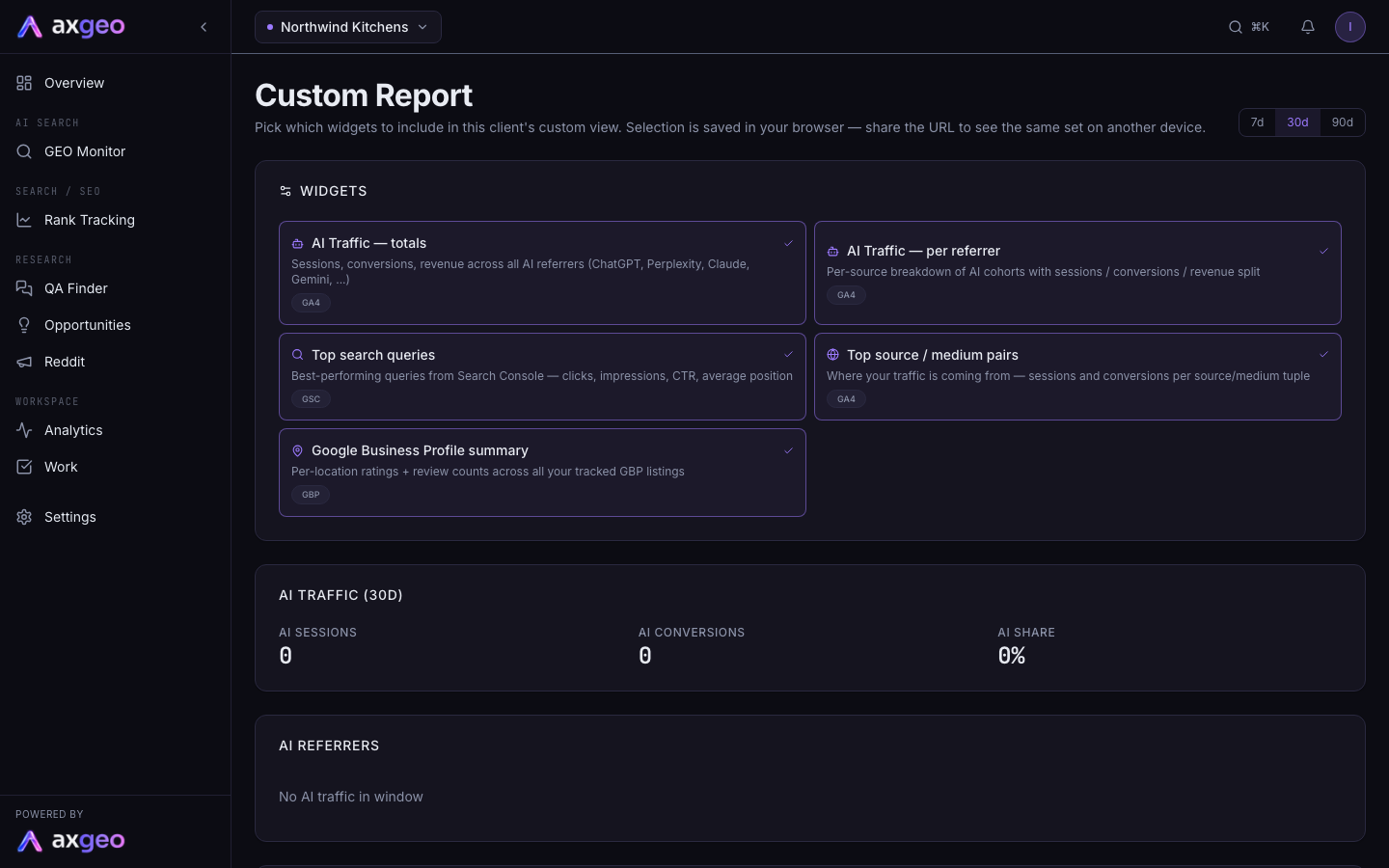
The Custom Report page shows a live view of chosen widgets, rather than a PDF. To open it, add /builder to the end of the Reports page address. Pick from AI Traffic totals, AI Traffic per referrer, Top search queries, Top source / medium pairs and Google Business Profile summary, then choose 7d, 30d or 90d. Your choice is saved in your browser.
Common problems
A report says Failed
Try generating it again. If it fails a second time, try fewer sections or a shorter date range, and let us know if it keeps happening.
A section is empty
Some sections need connected data. Search performance needs Search Console, for example. See Analytics for what your Google data powers.
Nobody is getting the digest
Check that each person is ticked as Enabled. Digests are only sent while your subscription is active.
I want a quick view instead of a PDF
The Overview page shows your main figures at a glance.