
In brief
A rank tracking campaign is a list of keywords checked on Google for one location and one device. Create a campaign with New campaign, change it with Edit, and use Duplicate to track the same keywords in another town or on another device.
Key points
- Each campaign covers one location and one device, desktop or mobile.
- Your plan sets how many campaigns you can have and how many keywords each one holds.
- Paused campaigns still count towards your limit. Archived campaigns do not.
- Duplicate copies all active keywords into a new campaign for another location or device.
- Removing a keyword stops future checks but keeps its history.
- Changing a campaign's location or device starts a new run of data.
The steps at a glance
- 1
Start a campaign
Click New campaign on the Rank Tracking page.
- 2
Name it
Type a Campaign name, for example the service and town you are tracking.
- 3
Pick a location
Click Location, type a town, city, county or region and choose it from the list.
- 4
Choose a device
Pick desktop or mobile. Mobile is selected to start with.
- 5
Add keywords
Type your keywords one per line in the Keywords box.
- 6
Create it
Click Create campaign. The campaign opens and is checked in the next nightly run.
A rank tracking campaign is a list of keywords that the app checks on Google for one location and one device. Most businesses set up one campaign for each town or area they serve. Once a campaign is running, see Read your rank tracking results for what the charts and tables mean.
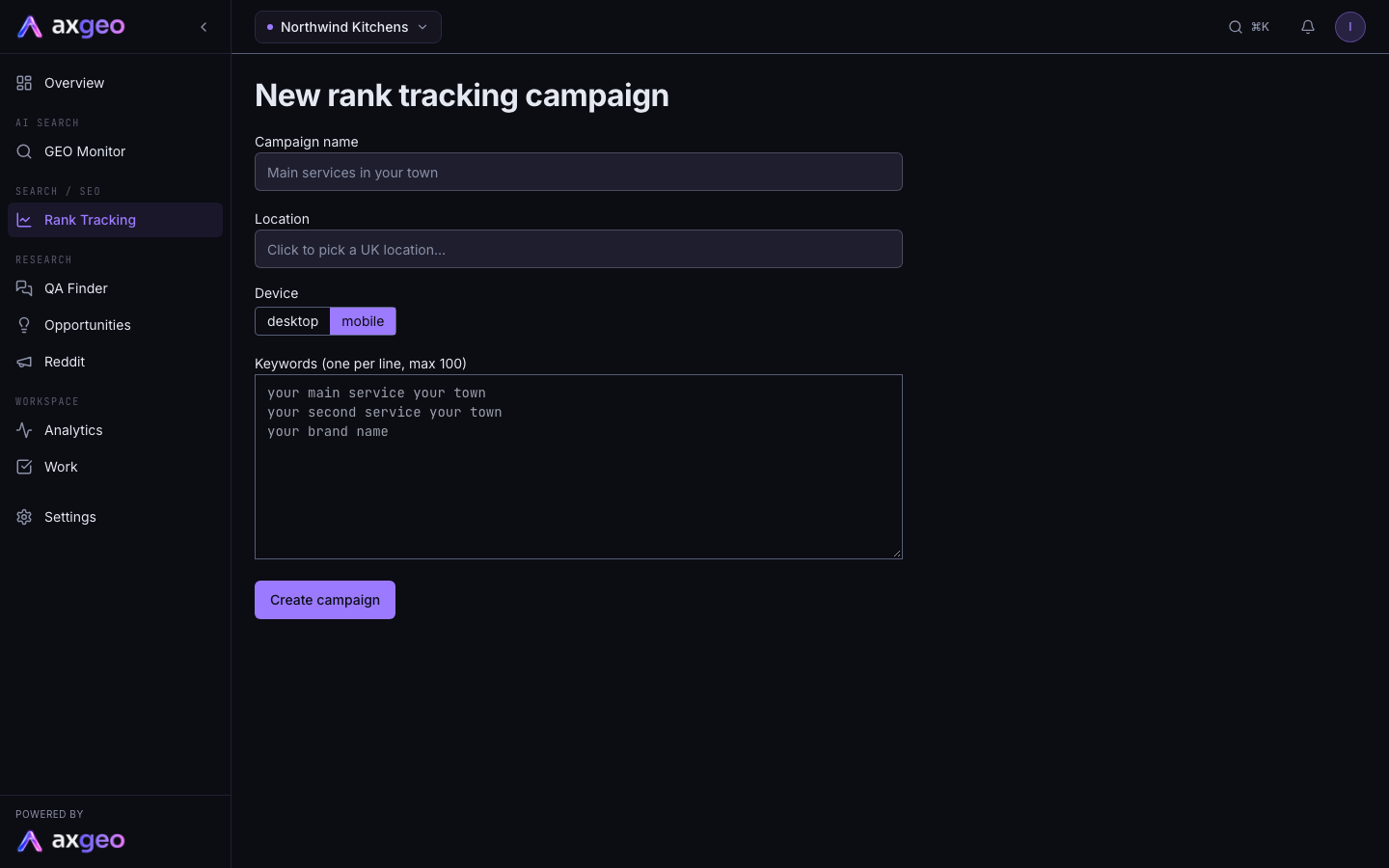
How to create a campaign
- Open Rank Tracking under Search / SEO in the sidebar.
- Click New campaign.
- Type a Campaign name. A name like "Dentists Guildford" makes campaigns easy to tell apart.
- Click Location, type a town, city, county or region, and pick it from the list. If your workspace has a default location, it is filled in for you.
- Choose desktop or mobile under Device. Mobile is selected to start with.
- Type your keywords in the Keywords box, one per line.
- Click Create campaign.
The campaign page opens straight away. Positions appear after the next nightly check, which starts at 01:00 UTC.
Choosing good keywords
Track the searches a customer would type when they are ready to buy, such as a service plus your town. Add your business name as well, so you can see how you show up for people looking for you directly. Keywords are saved in lower case, extra spaces are removed, and repeated keywords are skipped.
How many campaigns and keywords you get
Each location is one campaign, and each campaign checks one device. Your plan sets both limits.
| Plan | Campaigns (locations) | Keywords per campaign |
|---|---|---|
| Practice | 1 | 10 |
| Practice Plus | 1 | 25 |
| Group | 5 | 10 |
| Growth | 3 | 30 |
| Professional | 5 | 30 |
| Agency | 3 | 100 |
Each extra Group site adds one more campaign. The Rank Tracking page shows how many campaigns you are using, for example 1 / 1 campaigns. When you reach the limit, New campaign is greyed out.
Paused campaigns still count towards the limit. Archived campaigns don't. The keyword limit is checked when you save, and the app tells you if a list would take a campaign over it. For more on what each plan includes, see Plans, allowances and credits.
How to edit a campaign
Click Edit next to a campaign in the list. You can change the following.
- Campaign name.
- Status, either Active (daily fetch enabled) or Paused (no daily fetch).
- Device, desktop or mobile.
- Location.
- Tracked keywords. Click the cross next to a keyword to stop tracking it. This happens straight away, without pressing Save.
- Add more keywords (one per line).
Click Save to keep your other changes and go back to the campaign page.
Changing location or device
If you change the location or device, a Heads up note appears. Past readings stay with the old location and device, so your charts will show a break at the point you switched. If you want a clean start and want to keep the old data, use Duplicate instead.
Removing keywords
Removing a keyword stops future checks. Its history is kept. To fix a spelling mistake, remove the keyword and add the corrected one under Add more keywords.
How to duplicate a campaign
Duplicate is the quickest way to track the same keywords in another place or on another device.
- Click Duplicate next to the campaign in the list, or on the campaign page.
- Check the Name. It starts as the original name with "(copy)" at the end.
- Pick a new Location.
- Choose desktop or mobile.
- Click Create copy.
All active keywords are copied across and the new campaign opens. The copy counts towards your campaign limit.
How to pause or archive a campaign
To pause, open Edit, set Status to Paused (no daily fetch) and click Save. Set it back to Active whenever you like.
To archive, click Archive in the campaign list and confirm. An archived campaign is no longer checked and no longer counts towards your limit. There is no button to bring it back, so pause instead if you may need it again.
Common problems
New campaign is greyed out
You have used all the campaigns your plan includes. Archive one you no longer need, or email us at [email protected] to move to a plan with more locations. Billing shows the plan you are on.
Tier limit reached when adding keywords
The list you added would take the campaign over your plan's keyword limit. Remove some keywords or add fewer. If you see this while creating a campaign, look for the new campaign in the list, open Edit and add a shorter list there.
My location isn't in the list
Try a nearby town, the county or the region. The list shows the places Google's location data supports.
I track several branches
Set up one campaign per branch location, then use Duplicate to copy your keyword list to each one. Your branch details for AI answers live on Locations and offers, and your map listings on Google Business.