
In brief
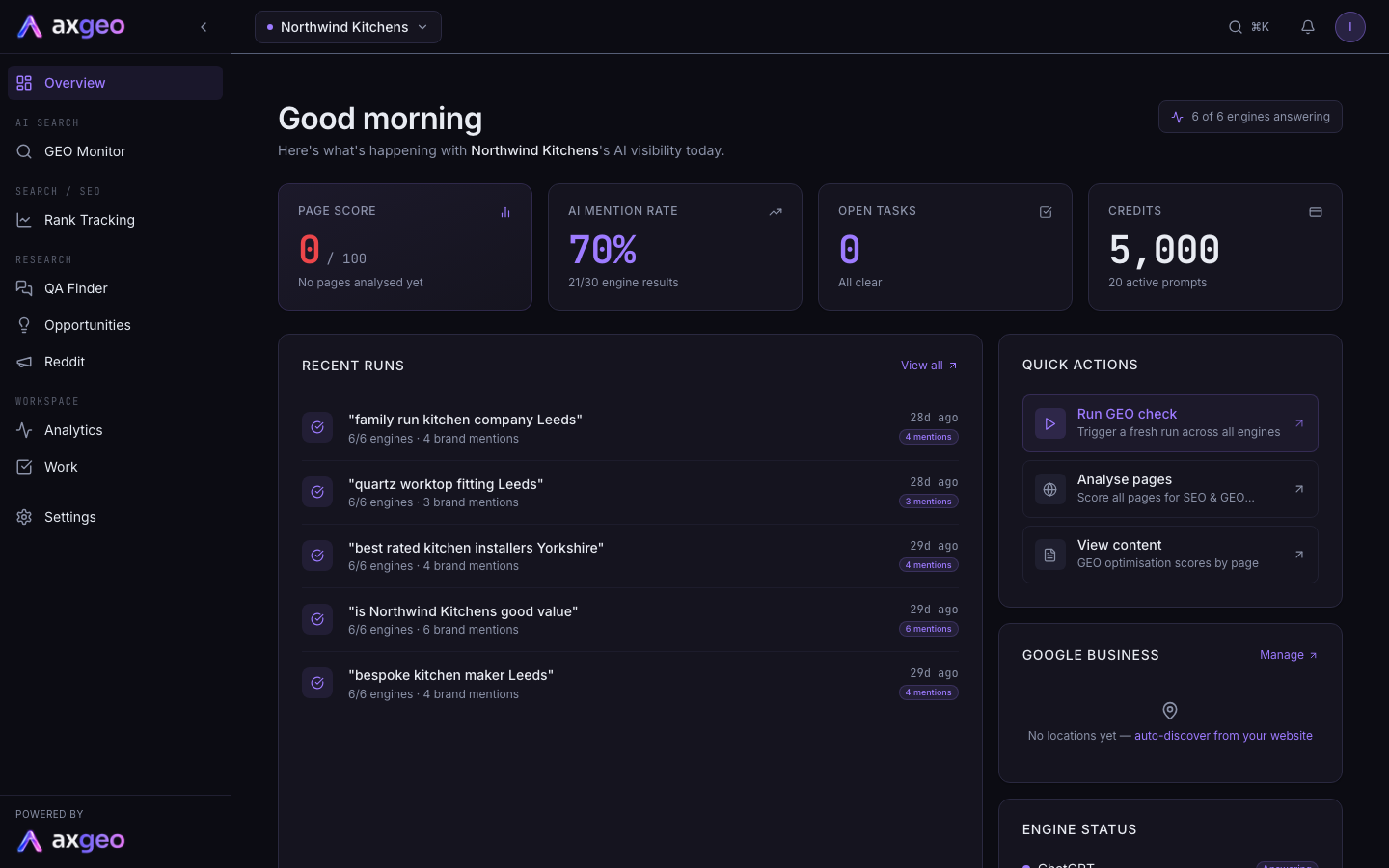
The Overview is the first page you see in a workspace. It sums up your page scores, how often AI engines mention you, open tasks and your Google Business rating. Each card links through to the page with the detail.
Key points
- Overview is always in your sidebar, whatever your plan.
- Page Score is the average score of your analysed pages, out of 100.
- AI Mention Rate is worked out from your five most recent runs.
- Scores of 70 and above show green, 45 to 69 amber, and below 45 red.
- Recent Runs lists the last five AI checks, with how many engines named you.
- The Google Business card averages the rating across all your locations.
The steps at a glance
- 1
Open the Overview
Choose Overview at the top of your sidebar. It is also the page you land on when you open a workspace.
- 2
Scan the four cards
Read Page Score, AI Mention Rate, Open Tasks and Credits along the top.
- 3
Check recent activity
Look at Recent Runs to see your latest AI checks. Press View all to open the Runs tab.
- 4
Jump to the detail
Press a card, a View all link or a Quick Actions button to open the full page.
The Overview is the home page of your workspace. It greets you by name and gives a one-screen summary of how your business is doing. Use it to spot what has changed, then click through to the page with the detail.
How to use the Overview
- Choose Overview at the top of your sidebar. It is also where you land when you switch workspace.
- Read the four cards along the top. Three of them are links, so press one to open the full page.
- Check the Page Health strip for pages that need attention. It appears once your pages have been analysed.
- Look at Recent Runs for your latest AI checks.
- Use Quick Actions on the right to jump straight to common jobs.
What each card means
Page Score
The average score of the pages that have been analysed, out of 100. The line underneath says how many pages were analysed. Press the card to open Pages. If nothing has been analysed yet, it shows a dash and "No pages analysed yet".
AI Mention Rate
How often AI engines named your business in your five most recent runs. Each engine that answered counts as one result. The card divides the results that mentioned you by all the results, so 8/10 engine results gives 80%. Press it to open the Runs tab.
Because it only uses the last five runs, it can move quickly. For trends over time, use the GEO Monitor Dashboard. The AI visibility metrics guide explains how mention rate differs from share of voice.
Open Tasks
How many tasks are still open, meaning not archived, approved or done. It says "All clear" when there are none. Press it to open the Work page, covered in Tasks.
Credits
Your credit balance, with the number of active prompts underneath. On the current plans, work your plan covers does not use credits, so this often shows 0. See Plans and credits.
The colours
Page Score and AI Mention Rate change colour with the number. Green means 70 or above, amber means 45 to 69, and red means below 45. Open Tasks shows amber when tasks are waiting and green when everything is clear.
The rest of the page
Page Health
This strip appears once at least one page has been analysed. It shows how many of your pages have been analysed, as a bar and a percentage, and the average score. A red box counts the pages that need attention. On wide screens you also see the average for each area, SEO, Tech, Content, E-E-A-T and GEO. Press View all to open Pages.
Recent Runs
Your five latest AI checks. Each row shows the question that was asked, how long ago it ran and how many engines answered, for example "4/4 engines" and "2 brand mentions". A green badge shows how many engines mentioned you. A red cross means the run failed, and a clock means it is still running. Press View all to see every run.
Quick Actions
Three shortcuts. Run GEO check opens your prompts so you can start a fresh check. Analyse pages opens Pages. View content opens the Content section.
Google Business
Your average star rating across all your locations, with Total reviews and the number of Locations. If you have more than one location, it also names the Lowest-rated one. A red warning appears if any location has a sync error. Press Manage to open Google Business. If no location is set up, the card offers a link to auto-discover one from your website.
Engine Status
A short list of AI engine names, each with a Ready badge. The engines that check your questions depend on your plan, as set out in Plans, allowances and credits.
Common problems
The cards are empty on a new workspace
That's normal for the first few minutes. Your first AI checks need to finish before Recent Runs and AI Mention Rate fill in. Pages appear once they have been analysed.
AI Mention Rate jumped up or down
It only looks at the last five runs, so a single run with different questions can move it a lot. Check the trend on the GEO Monitor Dashboard before reading too much into it.
A location has a sync error
Open Google Business to see which location is affected. The Google Business guide explains each location's status.