
In brief
Sign-offs lists the tasks waiting for your approval. Open one to approve it or ask for changes. Each decision records your name, the time and the exact version you saw, so there is a clear record of what was agreed.
Key points
- A task waits for sign-off when its status is With client.
- The Sign-offs view on the Work page lists every task waiting for approval.
- Approve records your name, the time and the exact version you saw.
- Request changes needs a note saying what should change.
- After either decision the task moves back to In progress.
- If anyone has the Management specialism, only they can sign off.
The steps at a glance
- 1
Open Sign-offs
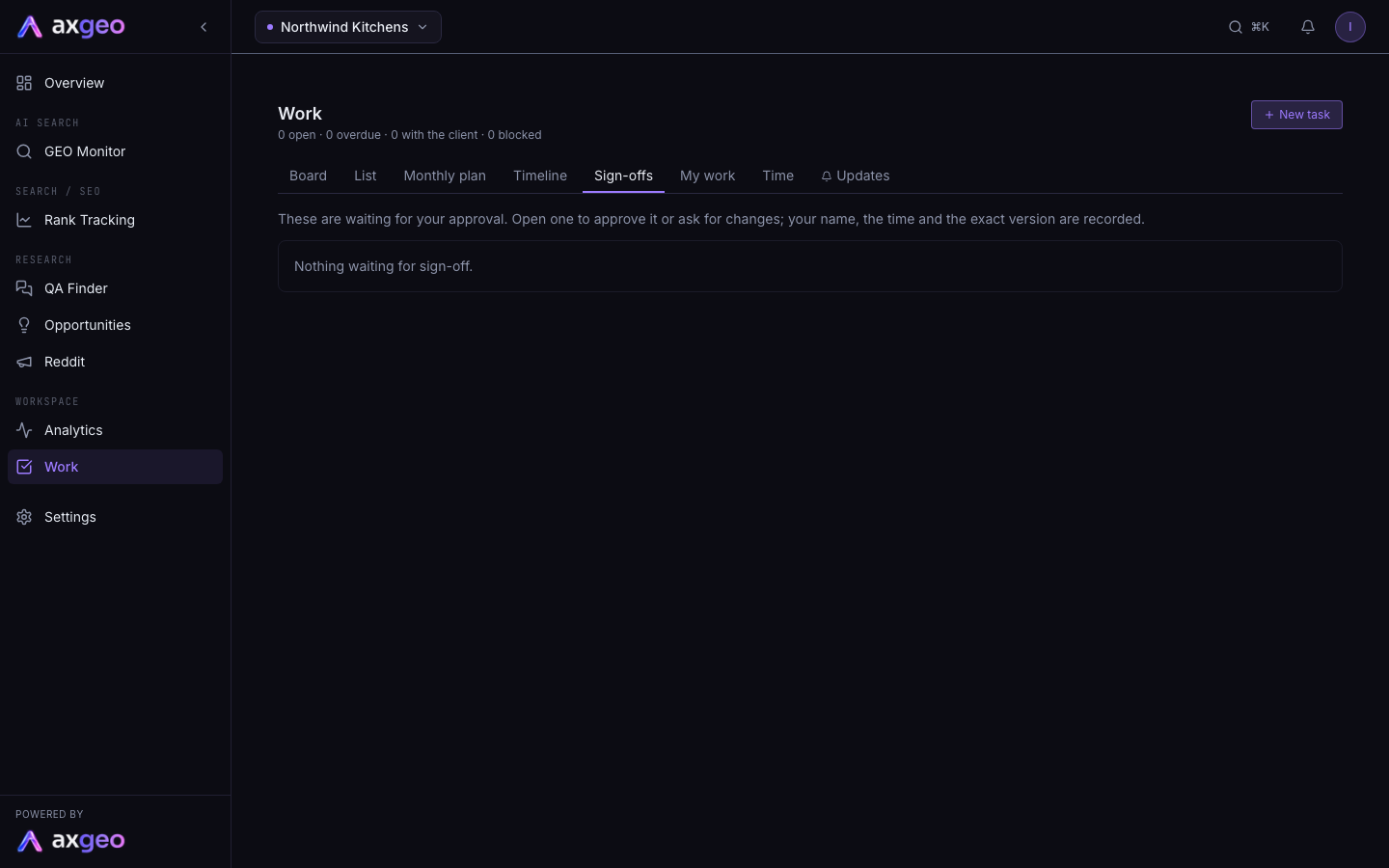
Open Work under Workspace in the sidebar and click Sign-offs. The tab shows how many tasks are waiting.
- 2
Open a task
Click a task in the list to see its brief, evidence, checklist and any AI draft.
- 3
Add a note if needed
Type a note in the Client sign-off section. It is optional to approve and required to ask for changes.
- 4
Decide
Click Approve, or Request changes if something needs fixing.
Sign-offs is where you approve work before it goes ahead, such as a new page, an article draft or a change to your website. Each approval records who made it, when and exactly which version they saw, so everyone can see what was agreed.
Sign-offs is a view on the Work page, which is included on every plan. For the rest of the Work page, see Plan and track work.
How to approve a task
- Open Work under Workspace in the sidebar.
- Click Sign-offs. A number on the tab shows how many tasks are waiting.
- Click a task to open it.
- Read the brief, the evidence and any AI article draft.
- Type a note in the Client sign-off section if you want to add one.
- Click Approve.
The approval appears under Client sign-off with your name, the time and the version you approved. The task moves back to In progress so the work can carry on.
How to ask for changes
- Open the task from Sign-offs.
- Type what needs to change in the box under Client sign-off. The box says Changes needed (required to request changes).
- Click Request changes.
Your request is recorded in the same way, with your note. The task moves back to In progress so it can be updated and sent back to you.
What the Sign-offs list shows
The list shows every task with the status With client. Each row has the task's priority (P1, P2 or P3), its title, its workstream and the date it has been waiting since. If nothing is waiting, you'll see Nothing waiting for sign-off.
If you can approve, the list says the tasks are waiting for your approval. If you can't, it says they are waiting for the client's approver.
The approval record
Every decision is kept on the task under Client sign-off. Each one shows the following.
- Approved or Changes requested, with the person's name and the date and time.
- The version, such as "AI draft of" a date and time, or "Task brief as shown", with a short code.
- Any note that was added.
The version is taken from the AI draft if the task has one. Otherwise it comes from the task's title, brief and page. If any of these change later, a new sign-off will show a different code, so you can tell exactly which version each person agreed to. Drafts are covered in Content drafts.
The task's Activity list also shows who approved or asked for changes, and when.
Who can sign off
By default, any member of your workspace who can edit work can approve. Viewers can't.
To limit sign-off to certain people, give them the Management specialism on Settings, Members. Once anyone has it, only Management members can approve or ask for changes. See Team members and roles.
Sending a task for sign-off
Anyone who can edit work can send a task for approval. Open the task and set Status to With client, or drag its card into the With client column on the Board. It then appears on the Sign-offs view.
Common problems
I can't see the Approve button
You may not be an approver. If your workspace has members with the Management specialism, only they can approve. Viewers can't approve either. Ask the workspace owner to check your role and specialism on Members.
Request changes is greyed out
Type a note saying what needs to change first. The button works once there is a note.
A task I approved is back in progress
After any decision the task returns to In progress so the work can go ahead or be revised. Your approval stays on record, and finished work shows in your reports.