
In brief
The Topics tab checks what AI engines connect with your brand for each of your core topics, compared with up to three competitors and your own website. It lists the gaps, where engines link a sub-topic to competitors but not to you, with a suggested fix for each.
Key points
- A topic is one core service, product or subject, in two to four words.
- Compare each topic with up to three competitors.
- The knowledge score shows, out of 100, how much of the topic engines connect with each brand.
- Gaps are rated Critical, Significant or Minor, or Waiting for AI.
- Each check takes about five minutes and can repeat weekly, monthly or every 3 months.
- Topic gaps is included on Growth, Professional and Agency.
The steps at a glance
- 1
Open the Topics tab
Go to GEO Monitor and choose the Topics tab.
- 2
Add a topic
Press Add topic, or press Suggest topics and then Add next to a suggestion.
- 3
Set it up
Enter the topic, an optional description, up to three competitors separated by commas, and how often to check again.
- 4
Run the check
Press Save and check now. The check takes about five minutes, and you can leave the page.
- 5
Read the gaps
Open the Gaps list to see each gap, the engines behind it and the suggested fix.
- 6
Send fixes to Work
Press Send to Work on a gap to make a task for it.
The Topics tab shows how well AI engines know you for the things you do. For each topic, it compares what engines connect with your brand against your competitors and your own website. Then it lists the gaps and how to close them.
You'll find it in GEO Monitor, on the Topics tab. Topic gaps is included on Growth, Professional and Agency. If your plan doesn't include it, the tab shows a message saying so.
How to add and check a topic
- Go to GEO Monitor and choose Topics.
- Press Add topic. Or press Suggest topics to get ideas based on your prompts and pages, then press Add next to any you want.
- Enter one core service, product or subject in two to four words under Topic, such as "Emergency appointments".
- Add a short description under What you mean by it (optional) if the topic could be read more than one way.
- Enter up to three competitors under Competitors to compare with, separated by commas. The box is filled with your most-seen competitors to start with.
- Choose how often to check under Check again: Every week, Every month, Every 3 months or Only when I run it.
- Press Save and check now, or Save to check later.
A check takes about five minutes. The topic card shows each stage, from Asking the AI engines to Working out the gaps and fixes. You can leave the page and come back.
Suggested topics are added with a monthly check. Press Edit on any topic to change it, and Check again to run it at any time. You can track up to 25 topics.
What each part of the screen means
The topic list
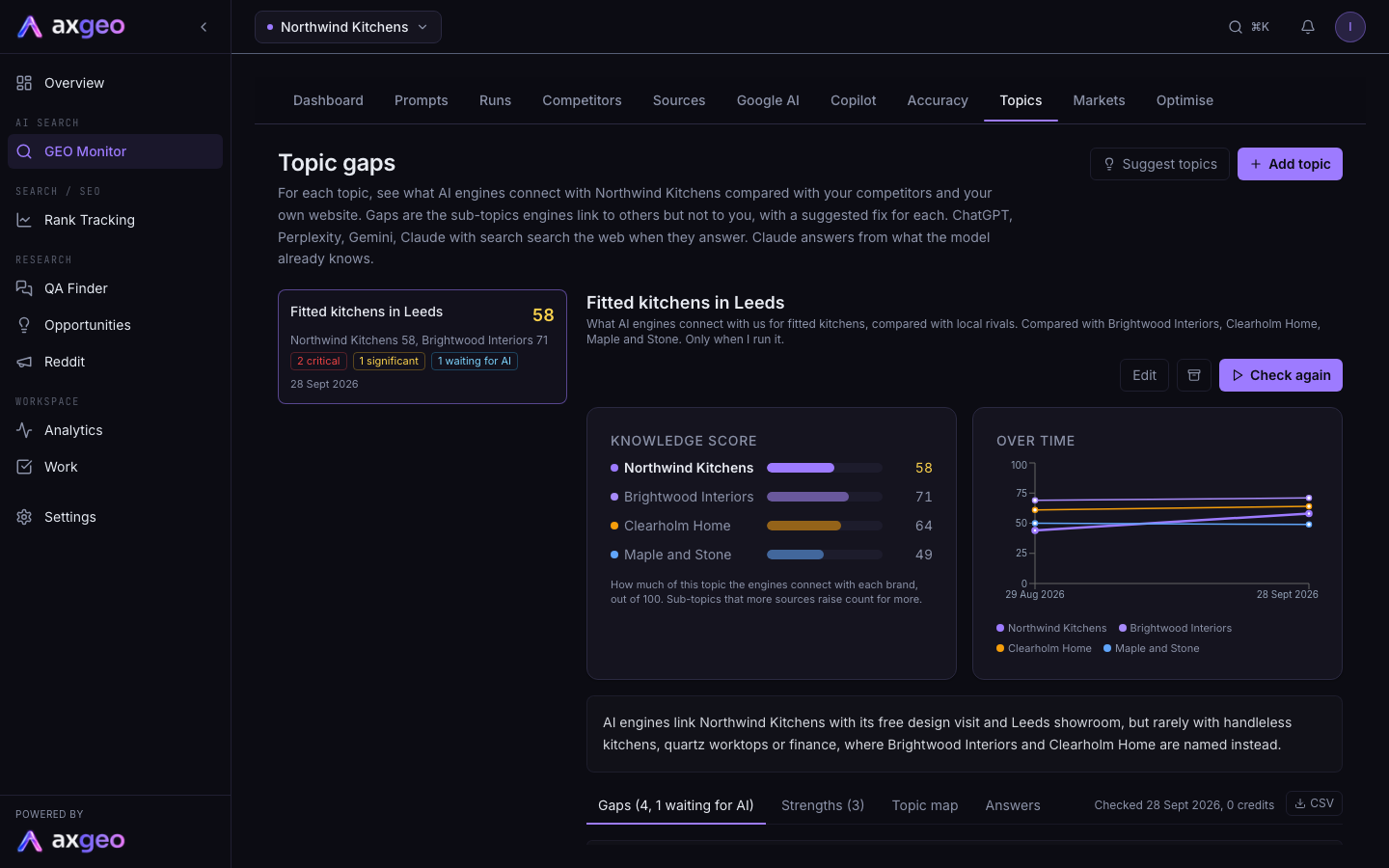
Down the left is each topic, with your knowledge score and the best competitor's score. Under that you'll see counts of critical and significant gaps, any waiting for AI, and the date of the last check.
Knowledge score
How much of the topic each engine connects with each brand, out of 100. Sub-topics that more sources raise count for more. Your brand is listed first.
Over time charts each brand's score. The trend appears after the second check.
Under the scores, a short summary explains the result. If an engine didn't show real knowledge of your brand for the topic, a note says which one.
Gaps
A gap means engines link part of the topic to a competitor and not to you. Each gap shows:
- its rating, Critical, Significant or Minor, based on how strongly engines link it to competitors and not to you
- what your website has on it, such as Not found on the pages checked or Only mentioned on your website
- which engines connect it with you and with each competitor
- a suggested fix, and the page to update or an idea for a new page
Waiting for AI means your website already covers the sub-topic well. The engines haven't picked it up yet. The fix is to make those pages easier to find and to get them mentioned on other trusted sites.
Use the buttons above the list to filter by rating. Sub-topics that probably don't apply to you sit at the bottom, under Probably not relevant to you.
Press Send to Work on a gap to turn it into a task. It then shows In Work. See Tasks.
Strengths
Sub-topics that at least half the engines connect with you, with the page on your site that covers them.
Topic map
A table of every sub-topic. A filled square means that engine connects the sub-topic with that brand. Topic in general shows whether engines raise it when describing the topic with no brand named. Your website shows Covered, Mentioned or Not found in pages checked.
Answers
The full answer from each engine for each brand. Each one says whether the engine Searched the web or answered From memory.
Press the download button next to the tabs to export the results as a CSV.
Plans and credits
On Growth, Professional and Agency, topic checks are covered by your plan. On older credit-based plans that include topic gaps, each check uses credits, and a check with more competitors uses more. If there aren't enough credits, the check stops and says how many it needs. See Plans and credits.
Turning gaps into content
Most gaps are fixed by adding or expanding a page on your site. Use Content drafts to write it, and Prompt gaps to see which questions you're missing from. To see which competitors appear most in AI answers overall, use Competitors.
Common problems
Topic gaps is not included in this plan
Your plan doesn't include topic gaps. It is included on Growth, Professional and Agency.
Last check did not finish
A message explains why. Press Check again to run it again.
No gaps found
The engines connect you with the main sub-topics they raise. Look at Strengths and the Topic map to confirm.
A gap is about something we don't offer
Gaps describe what engines say about the topic. They don't judge what you sell. If it doesn't apply, ignore it. Sub-topics that clearly don't fit are moved to Probably not relevant to you.