
In brief
Straight after sign-up you see a short wizard to invite your team and launch your workspace. It then opens a Welcome checklist of set-up steps, such as finding your Google listing and choosing searches to track. Every step can be skipped and finished later.
Key points
- The wizard runs once, straight after you pay and sign in.
- Inviting your team is optional and can be done later from Settings.
- The Welcome checklist shows how many steps are done and how many you skipped.
- Every checklist step has a Skip for now button.
- On dental plans your patient questions are already live when you arrive.
- You can reopen the checklist any time at /c/your-workspace/welcome.
The steps at a glance
- 1
Invite your team
Type your colleagues' email addresses, one per line, or leave the box empty.
- 2
Launch the workspace
Press Launch workspace. A short confirmation shows, then the Welcome checklist opens.
- 3
Work through the checklist
Use the button on each step, such as Find my listing or Choose searches. Press Skip for now on anything you want to leave.
- 4
Open your dashboard
Press Skip rest, go to dashboard at any time, or Open dashboard once every step is done or skipped.
Your first sign-in after paying opens a short set-up in two parts. A quick wizard lets you invite your team and launch the workspace. Then a Welcome checklist lists the set-up steps that make your results more useful. Nothing here is compulsory, and you can come back to the checklist whenever you like.
How to finish set-up
The set-up wizard
The wizard opens straight after sign-up. A row at the top shows where you are.
- Press Continue if you see Choose your modules. Your plan already sets which tools appear in your sidebar, and dental plans skip this step.
- List anyone who should have access on Invite your team, one email address per line. You can leave the box empty.
- Press Launch workspace.
You see a message that your workspace is ready, and after a moment the Welcome checklist opens. Anyone you listed is added as an editor and gets an email with a link to set their password. You can change their role later on the Members tab.
The Welcome checklist
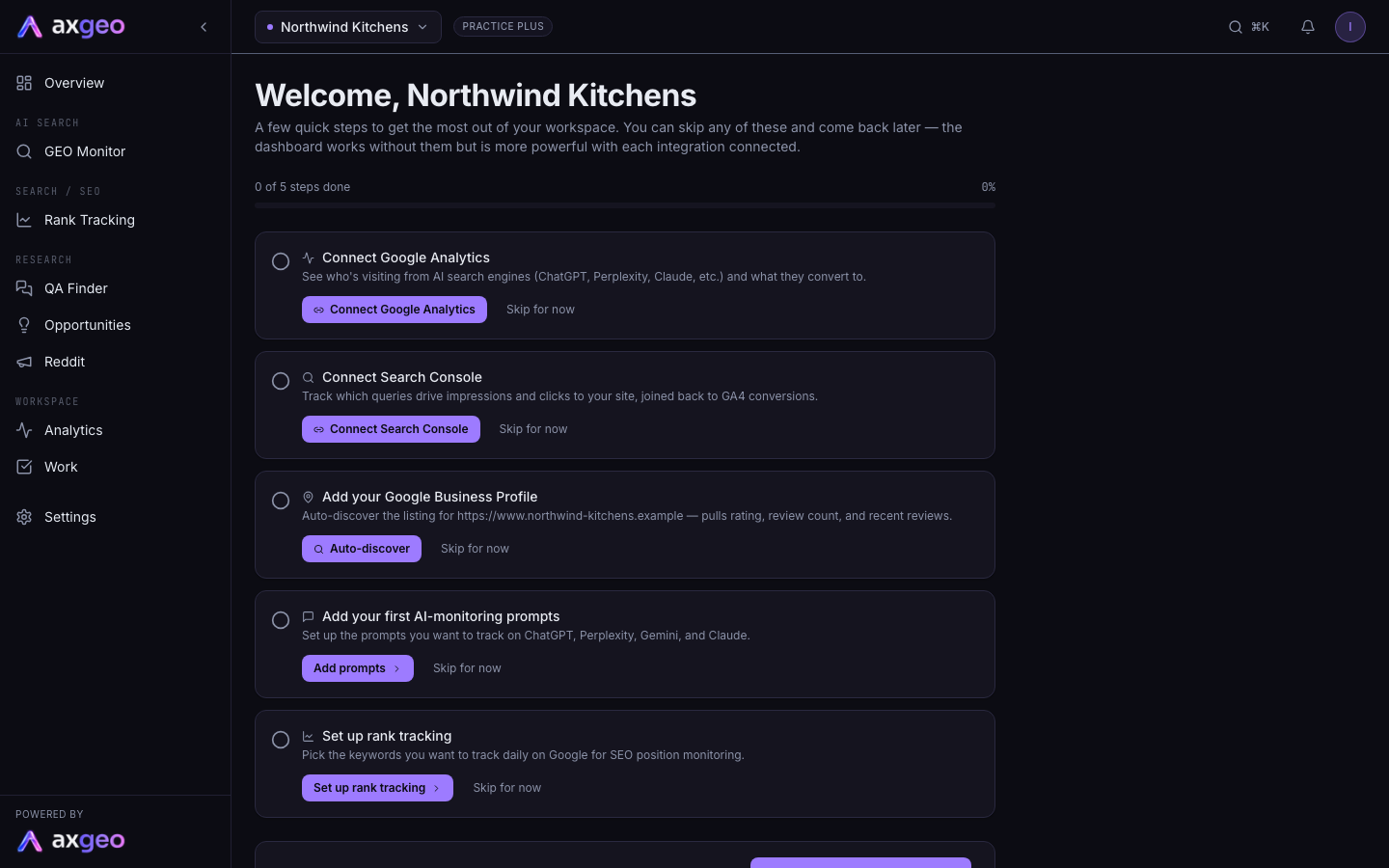
The checklist is headed with your business name. Under it, a progress bar shows how many steps are done, how many you skipped and the percentage complete. Each step has its own button and a Skip for now button.
Until every step is done or skipped, the button at the bottom reads Skip rest, go to dashboard, and the footer shows the address where you can reopen the checklist later. Once everything is touched, the button changes to Open dashboard.
The steps on dental plans
Dental practices see five steps. The first is already ticked, because your patient questions were added at sign-up and your first scan is already running.
- Your patient questions are live. The questions patients in your area ask about dentists are set up for you, and the first results are ready about 15 minutes after sign-up.
- Find your Google listing. Press Find my listing to look up your Google Business Profile. Your reviews are then tracked and replies are drafted for you to approve. See Google Business.
- Choose the Google searches to track. Press Choose searches to pick searches such as "dentist" with your town. axgeo.ai then keeps checking where you rank for them. See rank tracking campaigns.
- Check your practice facts. Press Check facts to open your fact sheet. AI answers are compared with these facts, and anything wrong is flagged. See Fact sheet.
- Add your logo and colours. Press Add logo and colours to open Workspace settings. They appear on your monthly report. See Workspace settings.
The steps on other plans
Other workspaces see five different steps.
- Connect Google Analytics. Press Connect Google Analytics to see visits from AI search engines and what they lead to.
- Connect Search Console. Press Connect Search Console to see which searches bring impressions and clicks to your site.
- Add your Google Business Profile. Press the auto-discover button to find the listing for your website and pull in its rating, review count and recent reviews.
- Add your first AI-monitoring prompts. Press Add prompts to choose the questions you want tracked in AI engines. See Prompts.
- Set up rank tracking. Press Set up rank tracking to choose the Google keywords you want to follow.
The two Google connections are explained in Google integrations. If Analytics isn't switched on for your workspace, skip both of them for now. Email us at [email protected] if you would like Google Analytics and Search Console connected.
What the screen shows
A green tick and a Done badge mean a step is complete. The page checks this when it loads, so a Google listing you found earlier already shows as done. A grey circle with a Skipped badge means you skipped it during this visit. An empty circle means it is still to do.
Steps you skip are only remembered while the page is open. If you reload the checklist, skipped steps that aren't done appear again, ready for you to pick up.
Common problems
Google OAuth not yet configured
On non-dental plans you might see this note above the steps. It means Google sign-in hasn't been set up for the platform yet, so the two Google buttons are greyed out. Carry on with the other steps and come back later.
The Google listing wasn't found
If auto-discovery can't match a listing, a message says so. Check that your website address is right in Workspace settings, then try again from the Google Business section.
I invited someone with a typo
Remove the wrong address and add the right one from Settings, Members. Only the workspace owner can remove people.
"Admin access required." when adding a logo
Logo uploads are done by a member with the Admin role. Email the file to [email protected] and we will add it for you, or ask a colleague with the Admin role to upload it.
I closed the page before finishing
That's fine. Everything you completed is saved. Reopen the checklist at the address shown in its footer, or carry on from the Overview.