
In brief
AI engines give different answers depending on where the person asking is. The Markets tab lets you add the towns, regions or countries you serve, run a prompt across them and compare your share of voice in each market side by side.
Key points
- A market is a place you want to see AI answers for, such as a town, region or country.
- Run across markets asks one prompt once in each market, on every engine the prompt uses.
- Chat engines are told where the customer is, and the app-style engines are asked from that place.
- Share of Voice by market compares brands in each market over the last 90 days.
- Market runs happen when you press the button. They are not part of the weekly schedule.
- On the current plans, answers from your plan's engines are covered by your plan.
The steps at a glance
- 1
Open the Markets tab
Go to GEO Monitor and click Markets.
- 2
Add a market
Type a place in the search box, such as Scotland or Aberdeen, and click it in the list.
- 3
Choose a prompt
Under Run a prompt across your markets, pick a prompt from Choose a prompt.
- 4
Run it
Click Run across markets. It can take up to a couple of minutes.
- 5
Compare markets
Read Share of Voice by market to see how your share changes from place to place.
Ask an AI engine "best kitchen fitter near me" from Leeds and from Glasgow and you get different businesses. The Markets tab shows you those differences. You add the places you care about, run a prompt across them, and compare who the AI names in each one.
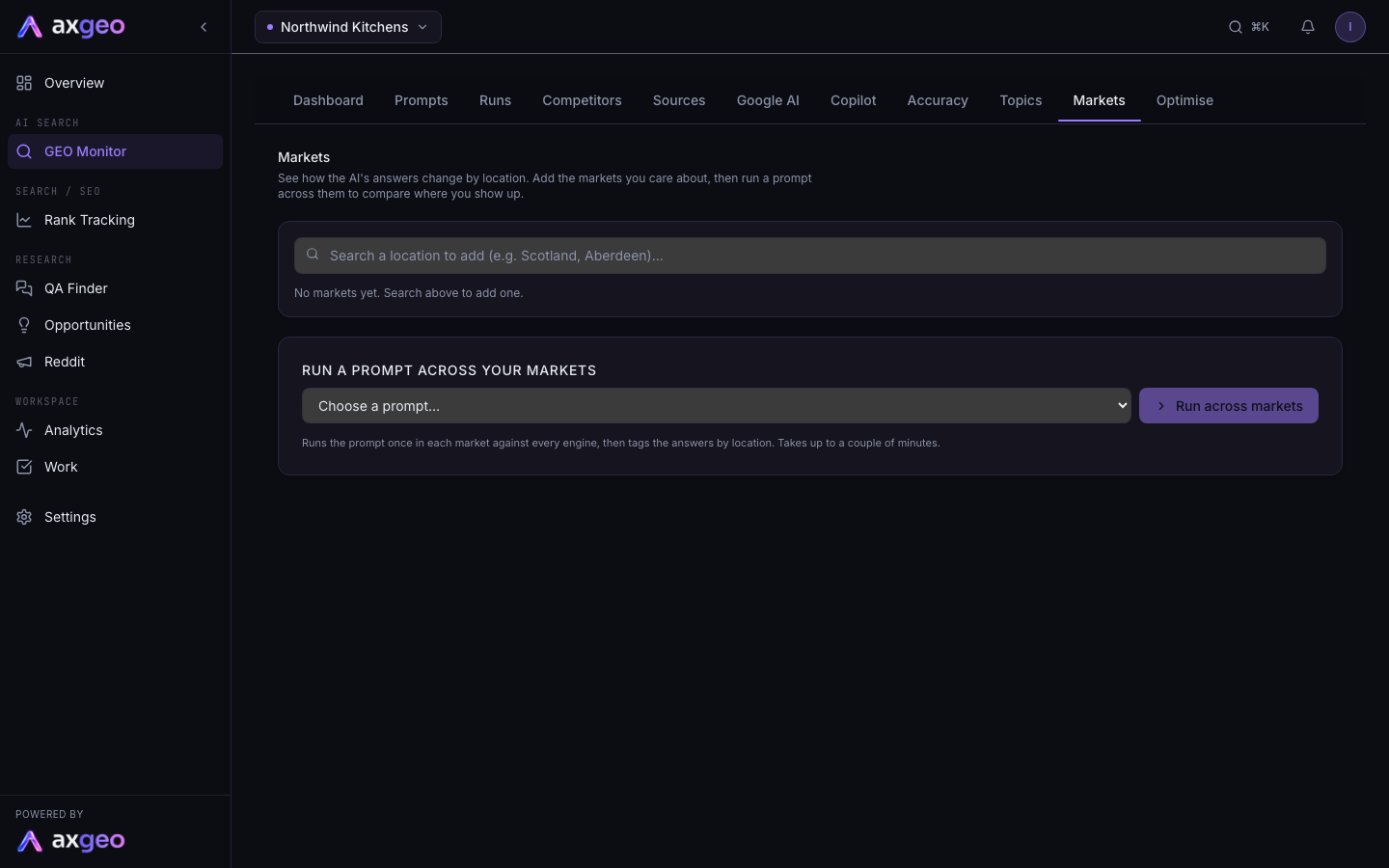
How to compare markets
- Go to GEO Monitor and click the Markets tab.
- In the search box, type a place, such as Scotland or Aberdeen. Pick it from the list to add it as a market.
- Under Run a prompt across your markets, open Choose a prompt and pick one of your active prompts.
- Click Run across markets. The prompt is asked once in each market, on every engine it uses. It can take up to a couple of minutes.
- Read the results under the button, then compare markets in Share of Voice by market.
To remove a market, click the bin icon on its chip. Its past answers stay in your data.
How a market changes the question
The app asks each engine in the way that suits it.
- Chat engines, such as ChatGPT, Gemini, Perplexity and Claude, are told to answer for a customer based in that place and to favour businesses and options relevant to that area. For a town, the region is included too, such as Aberdeen, Scotland.
- Google AI Mode, ChatGPT app and Gemini app are asked from that location, so you see what a person there would see.
Every answer from a market run is tagged with its market. That is what lets the app split share of voice by place.
What the page shows
Your markets
Each market you add appears as a chip with a pin icon. A place you have already added is ticked in the search list, so you can't add it twice.
Run a prompt across your markets
After a run, you see one line per market, such as "mentioned in 3/4 engines". That is how many engines named you in that market for that prompt. The results are added to the market comparison straight away.
Share of Voice by market
One card for each market you have added. Each card shows the number of responses it is based on and the top brands' share of the mentions in that market's answers. Your business is highlighted. The figures cover market runs from the last 90 days.
A market with no runs yet says so, and fills in after your next run across markets. For what share of voice means, see AI visibility metrics explained.
Getting the most from markets
- Start with the prompts that matter most, usually local ones like "best [service] in [town]". You can find them on the Prompts tab.
- Run the same prompt across all your markets, so the comparison is fair.
- Run a few different prompts. One prompt is a small sample, and answers vary from run to run.
- Where a competitor leads in one place, read the answers on the Runs tab to see why. Market runs appear there too.
- Check your branches and service areas on Locations and offers so AI engines can find what you offer in each place.
Common problems
Run across markets is greyed out
Choose a prompt first, and make sure you have added at least one market.
The prompt I want isn't in the list
Only active prompts are listed. If the prompt is paused, resume it on the Prompts tab.
A run finished but some markets are missing
On a credit plan, a run stops when your balance runs out, so later markets are skipped. Check your balance on Billing and run it again.
My market figures don't match the Dashboard
The market cards use only market runs from the last 90 days. The Dashboard covers all your answers from the last 7 days, including any recent market runs, so the two answer different questions.